# IT-відділ


# Импорт заказов EDIN

<iframe allowfullscreen="allowfullscreen" height="447" src="https://www.youtube.com/embed/uIO1pKyRyJg?si=xhMcTB120FJ0Hle0" style="width: 799px; height: 447px;" width="799"></iframe>

# Облік обладнання

### <span style="font-size: 15pt; font-family: Arial, sans-serif; color: rgb(52, 73, 94); background-color: transparent; font-weight: 400; font-style: normal; font-variant: normal; text-decoration: none; vertical-align: baseline; white-space: pre-wrap;">Основні задачі</span>

#### <span style="font-size: 11pt; font-family: Arial,sans-serif; color: #000000; background-color: transparent; font-weight: 400; font-style: normal; font-variant: normal; text-decoration: none; vertical-align: baseline; white-space: pre-wrap;">Основні задачі:</span>

- <span style="font-size: 11pt; font-family: Arial,sans-serif; color: #000000; background-color: transparent; font-weight: 400; font-style: normal; font-variant: normal; text-decoration: none; vertical-align: baseline; white-space: pre-wrap;">контроль запасів - ми повинні знати яке є обладнання на яких підрозділах і за ким закріплено. </span>
- <span style="font-size: 11pt; font-family: Arial,sans-serif; color: #000000; background-color: transparent; font-weight: 400; font-style: normal; font-variant: normal; text-decoration: none; vertical-align: baseline; white-space: pre-wrap;">матеріальна відповідальність за пошкодження чи втрату обладнання</span>
- <span style="font-size: 11pt; font-family: Arial,sans-serif; color: #000000; background-color: transparent; font-weight: 400; font-style: normal; font-variant: normal; text-decoration: none; vertical-align: baseline; white-space: pre-wrap;">уникнення втрат обладнання (загубили вкрали ітд)</span>
- <span style="font-size: 11pt; font-family: Arial,sans-serif; color: #000000; background-color: transparent; font-weight: 400; font-style: normal; font-variant: normal; text-decoration: none; vertical-align: baseline; white-space: pre-wrap;">облік кількості і вартості ремонтів </span>
- <span style="font-size: 11pt; font-family: Arial,sans-serif; color: #000000; background-color: transparent; font-weight: 400; font-style: normal; font-variant: normal; text-decoration: none; vertical-align: baseline; white-space: pre-wrap;">облік гарантійних термінів. </span>

### <span style="font-size: 15pt; font-family: Arial, sans-serif; color: rgb(52, 73, 94); font-weight: 400; font-style: normal; font-variant: normal; text-decoration: none; vertical-align: baseline; white-space: pre-wrap;">Розподіл обладнання</span>

#### <span style="font-size: 11pt; font-family: Arial,sans-serif; color: #000000; background-color: transparent; font-weight: 400; font-style: normal; font-variant: normal; text-decoration: none; vertical-align: baseline; white-space: pre-wrap;">Все обладнання повинно бути в наступних станах:</span>

- <span style="font-size: 11pt; font-family: Arial,sans-serif; color: #000000; background-color: transparent; font-weight: 400; font-style: normal; font-variant: normal; text-decoration: none; vertical-align: baseline; white-space: pre-wrap;">Обладнання закріплене за користувачем (користувачами) на робочому місці</span>
- <span style="font-size: 11pt; font-family: Arial,sans-serif; color: #000000; background-color: transparent; font-weight: 400; font-style: normal; font-variant: normal; text-decoration: none; vertical-align: baseline; white-space: pre-wrap;">Обладнання в комутаційних шафах (теж закріплене)</span>
- <span style="font-size: 11pt; font-family: Arial,sans-serif; color: #000000; background-color: transparent; font-weight: 400; font-style: normal; font-variant: normal; text-decoration: none; vertical-align: baseline; white-space: pre-wrap;">Обладнання що передано в торгові відділи (телефони планшети закріплюємо за НТО). Ноутбуки і компьютери персонально.</span>
- <span style="font-size: 11pt; font-family: Arial,sans-serif; color: #000000; background-color: transparent; font-weight: 400; font-style: normal; font-variant: normal; text-decoration: none; vertical-align: baseline; white-space: pre-wrap;">Обладнання на складі ІТ в ГП та Полтаві - закріплене за відповідальним адміністратором.</span>
- <span style="font-size: 11pt; font-family: Arial,sans-serif; color: #000000; background-color: transparent; font-weight: 400; font-style: normal; font-variant: normal; text-decoration: none; vertical-align: baseline; white-space: pre-wrap;">Списане обладнання , яке ще можна використати - склад ІТ ГП.</span>

#### <span style="font-size: 11pt; font-family: Arial,sans-serif; color: #000000; background-color: transparent; font-weight: 400; font-style: normal; font-variant: normal; text-decoration: none; vertical-align: baseline; white-space: pre-wrap;">Загальні моменти:</span>

- <span style="font-size: 11pt; font-family: Arial,sans-serif; color: #000000; background-color: transparent; font-weight: 400; font-style: normal; font-variant: normal; text-decoration: none; vertical-align: baseline; white-space: pre-wrap;">Планшети і телефони агентів загального прайсу закріпляємо за НТО.</span>
- <span style="font-size: 11pt; font-family: Arial,sans-serif; color: #000000; background-color: transparent; font-weight: 400; font-style: normal; font-variant: normal; text-decoration: none; vertical-align: baseline; white-space: pre-wrap;">Телефони ноути по ОБОЛОНІ створюємо робочі місця НТО та супервайзерів, якщо їм даєм. Телефони закріпляєм на НТО. Головне розуміти який телефон коли був їм відданий.</span>
- <span style="font-size: 11pt; font-family: Arial,sans-serif; color: #000000; background-color: transparent; font-weight: 400; font-style: normal; font-variant: normal; text-decoration: none; vertical-align: baseline; white-space: pre-wrap;">Трекери закріпляєм за механіком підрозділу. Це умовно так як вони і так ведуться.</span>
- <span style="font-size: 11pt; font-family: Arial,sans-serif; color: #000000; background-color: transparent; font-weight: 400; font-style: normal; font-variant: normal; text-decoration: none; vertical-align: baseline; white-space: pre-wrap;">Якщо механіка нема просто створюємо робоче місце трекери Київ або трекери кропивницький.</span>
- <span style="font-size: 11pt; font-family: Arial,sans-serif; color: #000000; background-color: transparent; font-weight: 400; font-style: normal; font-variant: normal; text-decoration: none; vertical-align: baseline; white-space: pre-wrap;">По сторожам створюємо робоче місце. Відповідальний керівник підрозділу.</span>
- <span style="font-size: 11pt; font-family: Arial,sans-serif; color: #000000; background-color: transparent; font-weight: 400; font-style: normal; font-variant: normal; text-decoration: none; vertical-align: baseline; white-space: pre-wrap;">Мережеве обладнання по шафам і кабінетам закріплюєм за відповідальним адміністратором підрозділу.</span>

### <span style="font-size: 15pt; font-family: Arial, sans-serif; color: rgb(52, 73, 94); background-color: transparent; font-weight: 400; font-style: normal; font-variant: normal; text-decoration: none; vertical-align: baseline; white-space: pre-wrap;">Порядок обліку в обліковій системі</span>

<span style="font-size: 11pt; font-family: Arial,sans-serif; color: #000000; background-color: transparent; font-weight: 400; font-style: normal; font-variant: normal; text-decoration: none; vertical-align: baseline; white-space: pre-wrap;">Для ведення обліку обладнання всі довідники документи і звіти винесені в окремий інтерфейс “Учет компьютерной техники”. Щоб він відображався у користувача повинна бути відповідна роль - АСУ учет комп. техники</span><span style="font-size: 11pt; font-family: Arial,sans-serif; color: #000000; background-color: transparent; font-weight: 400; font-style: normal; font-variant: normal; text-decoration: none; vertical-align: baseline; white-space: pre-wrap;"><span style="border: none; display: inline-block; overflow: hidden; width: 602px; height: 340px;">![](https://wiki.kashkan.org/uploads/images/gallery/2025-09/embedded-image-adohj4fy.png)</span></span>
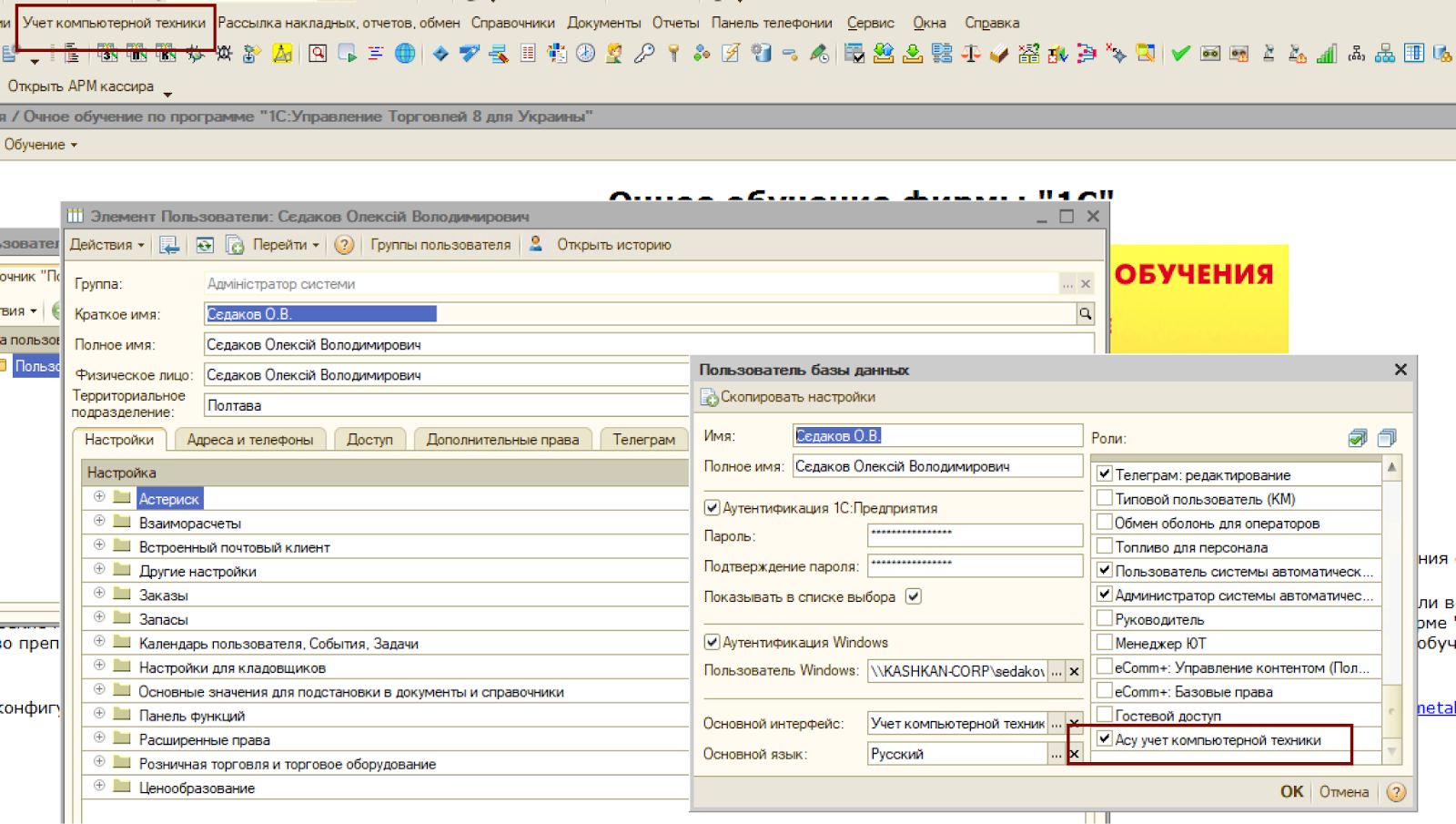
<span style="font-size: 11pt; font-family: Arial,sans-serif; color: #000000; background-color: transparent; font-weight: 400; font-style: normal; font-variant: normal; text-decoration: none; vertical-align: baseline; white-space: pre-wrap;">Довідники:</span>

- <span style="font-size: 11pt; font-family: Arial,sans-serif; color: #000000; background-color: transparent; font-weight: 400; font-style: normal; font-variant: normal; text-decoration: none; vertical-align: baseline; white-space: pre-wrap;">Робочі місця. </span>

<span style="font-size: 11pt; font-family: Arial,sans-serif; color: #000000; background-color: transparent; font-weight: 400; font-style: normal; font-variant: normal; text-decoration: none; vertical-align: baseline; white-space: pre-wrap;"><span style="border: none; display: inline-block; overflow: hidden; width: 602px; height: 397px;">![](https://wiki.kashkan.org/uploads/images/gallery/2025-09/embedded-image-emzrwgfn.png)</span></span>

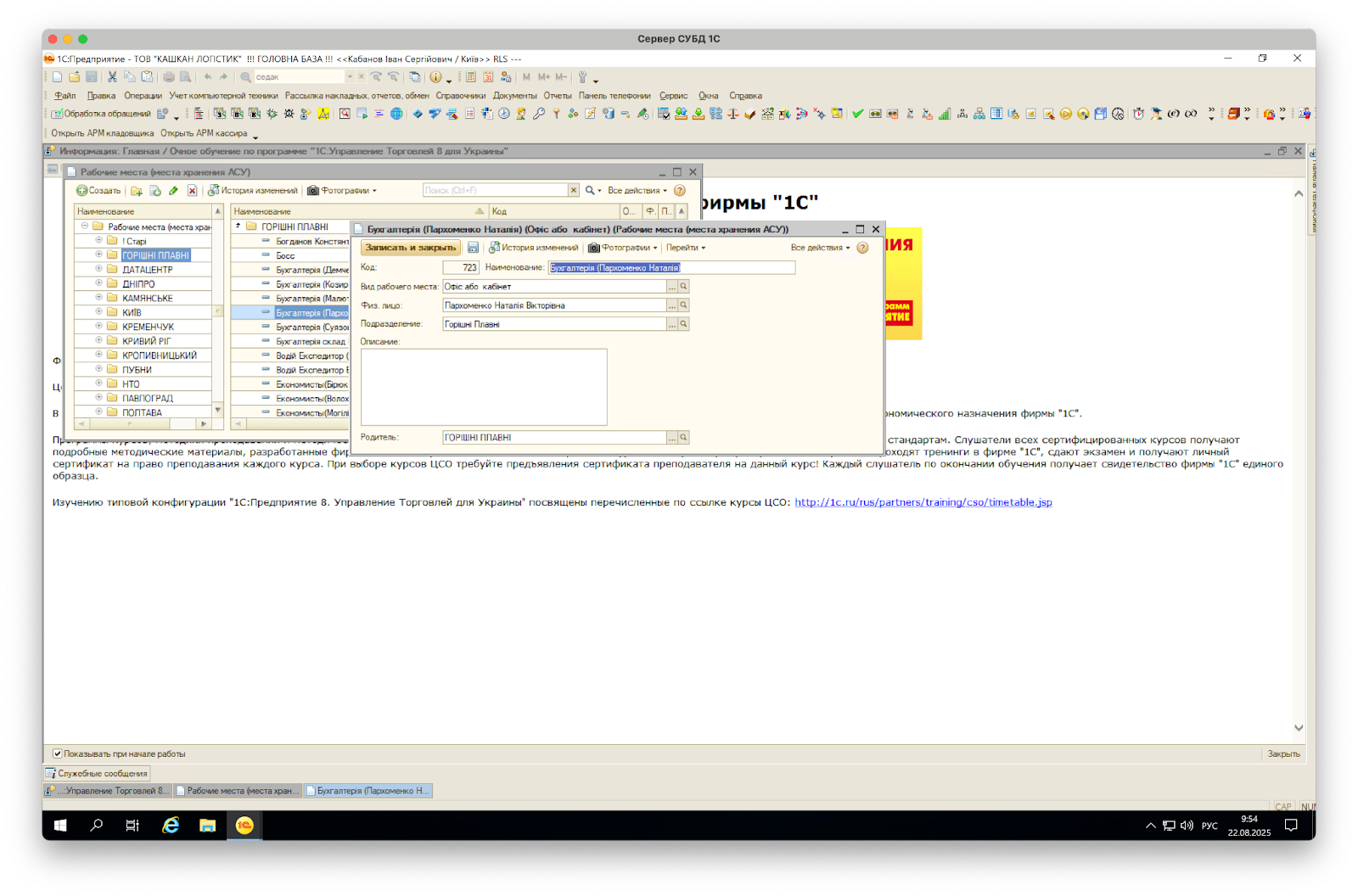
<span style="font-size: 11pt; font-family: Arial,sans-serif; color: #000000; background-color: transparent; font-weight: 400; font-style: normal; font-variant: normal; text-decoration: none; vertical-align: baseline; white-space: pre-wrap;">В дереві розноситься по каталогам по територіальним підрозділам. Датацентр окремо.</span>

<span style="font-size: 11pt; font-family: Arial,sans-serif; color: #000000; background-color: transparent; font-weight: 400; font-style: normal; font-variant: normal; text-decoration: none; vertical-align: baseline; white-space: pre-wrap;">Робоче місце може бути як фізично робоче місце користувача де стоїть принтер , телефон , компьютер так і розподільча шафа. Обов'язково повинен бути закріплений відповідальний. </span>

<span style="font-size: 11pt; font-family: Arial,sans-serif; color: #000000; background-color: transparent; font-weight: 400; font-style: normal; font-variant: normal; text-decoration: none; vertical-align: baseline; white-space: pre-wrap;">Якщо це принтер в кабінеті то старший. У сторожів керівник підрозділу. В касі одна із касирів.</span>

#### <span style="font-size: 11pt; font-family: Arial,sans-serif; color: #000000; background-color: transparent; font-weight: 400; font-style: normal; font-variant: normal; text-decoration: none; vertical-align: baseline; white-space: pre-wrap;">Обладнання</span>

<span style="font-size: 11pt; font-family: Arial,sans-serif; color: #000000; background-color: transparent; font-weight: 400; font-style: normal; font-variant: normal; text-decoration: none; vertical-align: baseline; white-space: pre-wrap;">Заводим максимально детально саме обладнання. Якщо є комплектуючі то списуємо в коментар. Наприклад планшет із захисним склом чохлом то пишемо це. </span>

<span style="font-size: 11pt; font-family: Arial,sans-serif; color: #000000; background-color: transparent; font-weight: 400; font-style: normal; font-variant: normal; text-decoration: none; vertical-align: baseline; white-space: pre-wrap;">Те ж саме мишки і клавіатури до системного блока. </span>
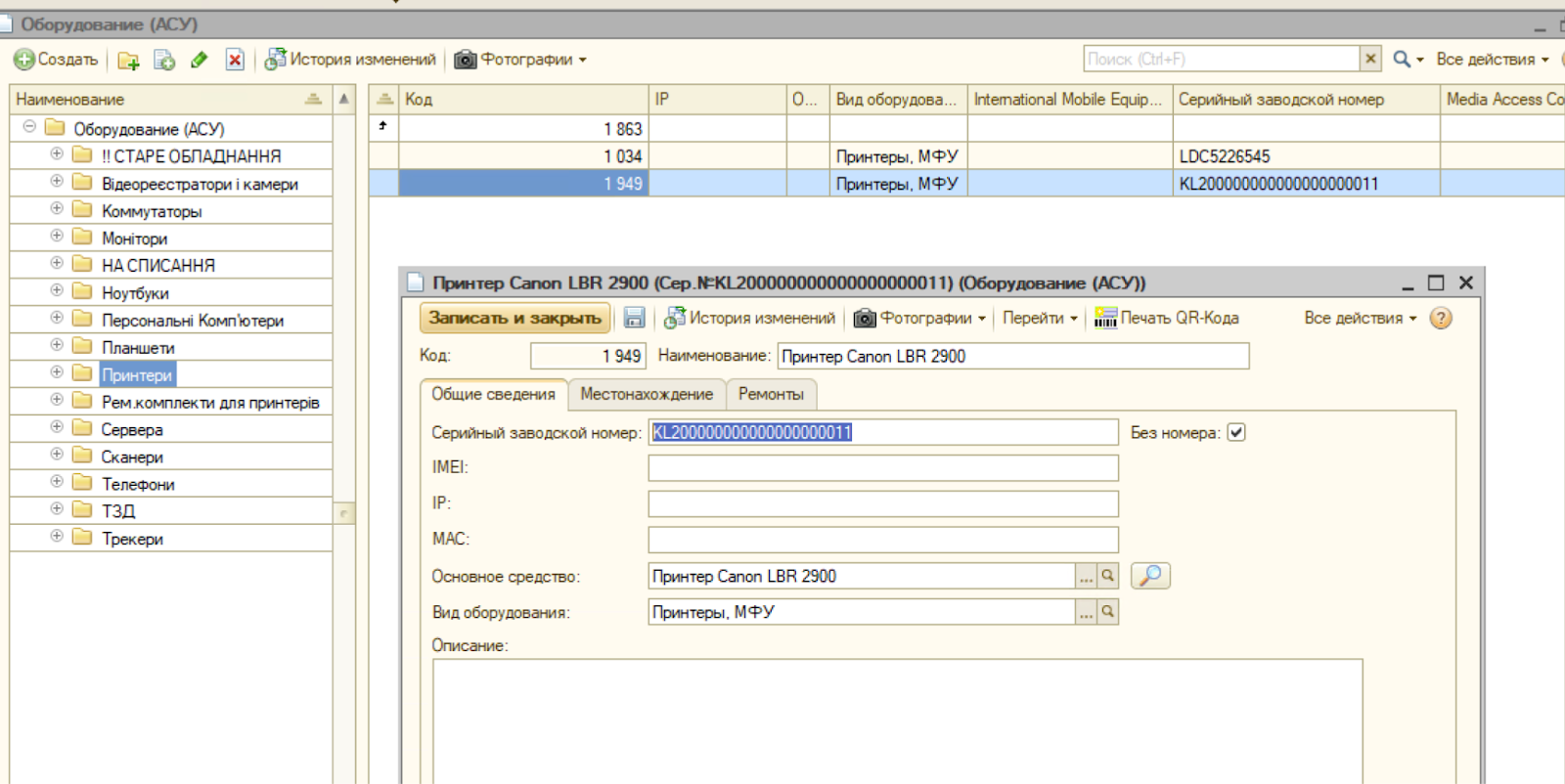
<span style="font-size: 11pt; font-family: Arial,sans-serif; color: #000000; background-color: transparent; font-weight: 400; font-style: normal; font-variant: normal; text-decoration: none; vertical-align: baseline; white-space: pre-wrap;"><span style="border: none; display: inline-block; overflow: hidden; width: 602px; height: 301px;">![](https://wiki.kashkan.org/uploads/images/gallery/2025-09/embedded-image-96d1fmd9.png)</span></span>

<span style="font-size: 11pt; font-family: Arial,sans-serif; color: #000000; background-color: transparent; font-weight: 400; font-style: normal; font-variant: normal; text-decoration: none; vertical-align: baseline; white-space: pre-wrap;">Заносимо серійний номер. Там де його немає ставимо галочку без номера.</span>

<span style="font-size: 11pt; font-family: Arial,sans-serif; color: #000000; background-color: transparent; font-weight: 400; font-style: normal; font-variant: normal; text-decoration: none; vertical-align: baseline; white-space: pre-wrap;">IMEI першої сім карти вносим якщо пристрій має слот. (телефони планшети трекери іноді ноутбуки) це може знадобитись для розшуку пристрою якщо його втратять.</span>

<span style="font-size: 11pt; font-family: Arial,sans-serif; color: #000000; background-color: transparent; font-weight: 400; font-style: normal; font-variant: normal; text-decoration: none; vertical-align: baseline; white-space: pre-wrap;">IP вносим для мережевого обладнання для зручності де це потрібно</span>

<span style="font-size: 11pt; font-family: Arial,sans-serif; color: #000000; background-color: transparent; font-weight: 400; font-style: normal; font-variant: normal; text-decoration: none; vertical-align: baseline; white-space: pre-wrap;">Основний засіб - обов'язково заповнюємо і привязуєм пристрій з довідника номенклатури або основних засобів відповідно як заведено в бухгалтерії.</span>

<span style="font-size: 11pt; font-family: Arial,sans-serif; color: #000000; background-color: transparent; font-weight: 400; font-style: normal; font-variant: normal; text-decoration: none; vertical-align: baseline; white-space: pre-wrap;">В обладнанні є можливість друкувати QR код для швидкого пошуку облданання. ТО на нове закуплене можна клеїть. </span>

### <span style="color: rgb(52, 73, 94);"><span style="font-size: 11pt; font-family: Arial, sans-serif; background-color: transparent; font-style: normal; font-variant: normal; text-decoration: none; vertical-align: baseline; white-space: pre-wrap;">Документи. </span><span style="font-size: 11pt; font-family: Arial, sans-serif; background-color: transparent; font-weight: 400; font-style: normal; font-variant: normal; text-decoration: none; vertical-align: baseline; white-space: pre-wrap;">Прийняття обладнання </span></span>

<span style="font-size: 11pt; font-family: Arial,sans-serif; color: #000000; background-color: transparent; font-weight: 400; font-style: normal; font-variant: normal; text-decoration: none; vertical-align: baseline; white-space: pre-wrap;">заводимо все закуплене обладнання в облік через цей документ.</span>
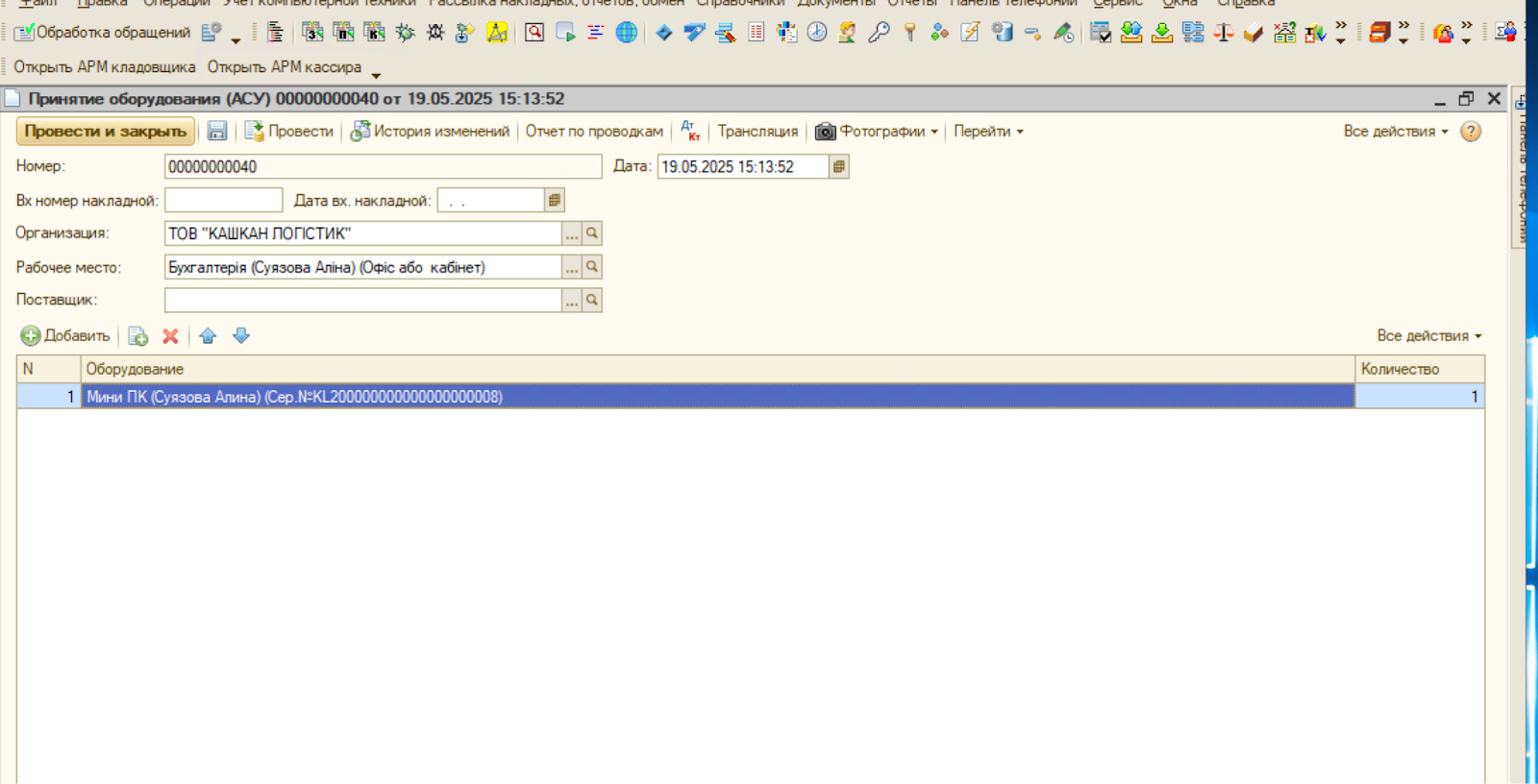
<span style="font-size: 11pt; font-family: Arial,sans-serif; color: #000000; background-color: transparent; font-weight: 400; font-style: normal; font-variant: normal; text-decoration: none; vertical-align: baseline; white-space: pre-wrap;"><span style="border: none; display: inline-block; overflow: hidden; width: 602px; height: 307px;">![](https://wiki.kashkan.org/uploads/images/gallery/2025-09/embedded-image-okpiawmi.png)</span></span>

<span style="font-size: 11pt; font-family: Arial,sans-serif; color: #000000; background-color: transparent; font-weight: 400; font-style: normal; font-variant: normal; text-decoration: none; vertical-align: baseline; white-space: pre-wrap;">Якщо є документ згідно якого все куплено то вносим в облік його номер і дату. Обов'язково заносим постачальника. Вказуємо куди його оприходувать. Якщо користувачу то на його робоче місце. Якщо спочатку налаштувать то на склад ІТ і потім переміщення. До документу робим фото обладнання особливо якщо закупка БУ і є якісь несзначні дефекти. Якщо обладнання приходується на користувача робим акт - його підписаний фотографуємо і прикріпляємо на документ</span>

#### <span style="font-size: 11pt; font-family: Arial,sans-serif; color: #000000; background-color: transparent; font-weight: 400; font-style: normal; font-variant: normal; text-decoration: none; vertical-align: baseline; white-space: pre-wrap;">Переміщення обладнання</span>

<span style="font-size: 11pt; font-family: Arial,sans-serif; color: #000000; background-color: transparent; font-weight: 400; font-style: normal; font-variant: normal; text-decoration: none; vertical-align: baseline; white-space: pre-wrap;"><span style="border: none; display: inline-block; overflow: hidden; width: 602px; height: 201px;">![](https://wiki.kashkan.org/uploads/images/gallery/2025-09/embedded-image-xum46rzk.png)</span></span>

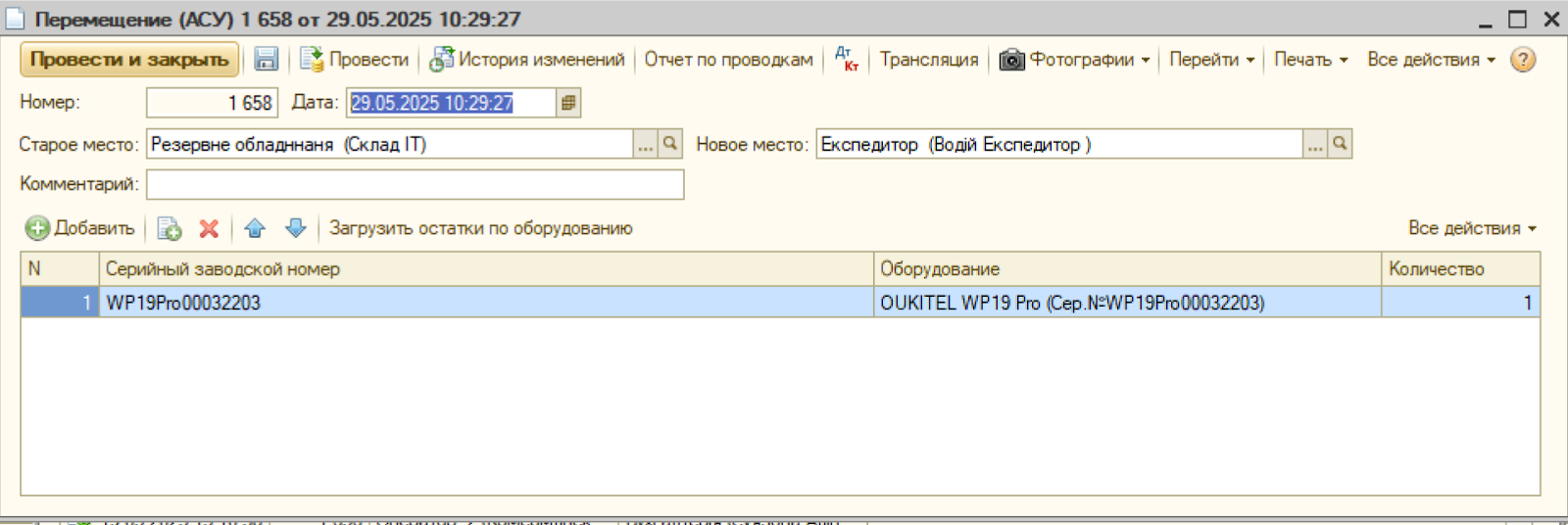
<span style="font-size: 11pt; font-family: Arial,sans-serif; color: #000000; background-color: transparent; font-weight: 400; font-style: normal; font-variant: normal; text-decoration: none; vertical-align: baseline; white-space: pre-wrap;">Вносим переміщення обладнання коли фактично його переміщаємо між робочими місцями. Отримувачу формуємо акт і підписаний прикріпляємо до документа.</span>

#### <span style="font-size: 11pt; font-family: Arial,sans-serif; color: #000000; background-color: transparent; font-weight: 400; font-style: normal; font-variant: normal; text-decoration: none; vertical-align: baseline; white-space: pre-wrap;">Списання обладнання </span>

<span style="font-size: 11pt; font-family: Arial,sans-serif; color: #000000; background-color: transparent; font-weight: 400; font-style: normal; font-variant: normal; text-decoration: none; vertical-align: baseline; white-space: pre-wrap;">списуємо обладнання що вийшло з ладу. ФОтографуємо стан обов'язково. Це ж обладнання подаємо на бухгалтерію щоб списали його теж у себе.</span>

#### <span style="font-size: 11pt; font-family: Arial,sans-serif; color: #000000; background-color: transparent; font-weight: 400; font-style: normal; font-variant: normal; text-decoration: none; vertical-align: baseline; white-space: pre-wrap;">Ремонти</span>

<span style="font-size: 11pt; font-family: Arial,sans-serif; color: #000000; background-color: transparent; font-weight: 400; font-style: normal; font-variant: normal; text-decoration: none; vertical-align: baseline; white-space: pre-wrap;"><span style="border: none; display: inline-block; overflow: hidden; width: 602px; height: 277px;">![](https://wiki.kashkan.org/uploads/images/gallery/2025-09/embedded-image-w5pstrwe.png)</span></span>

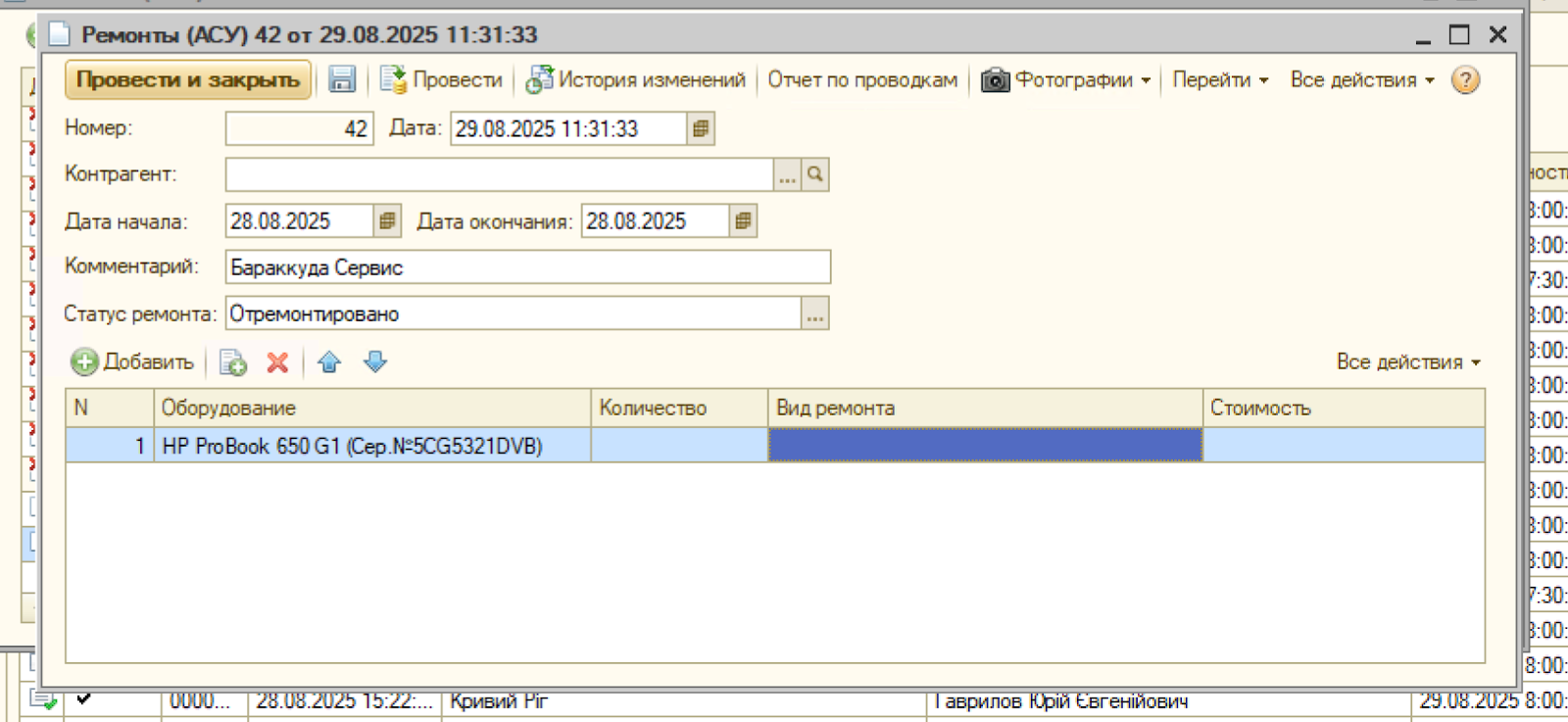
<span style="font-size: 11pt; font-family: Arial,sans-serif; color: #000000; background-color: transparent; font-weight: 400; font-style: normal; font-variant: normal; text-decoration: none; vertical-align: baseline; white-space: pre-wrap;">Вносимо дату початку завершення ремонту. контаргента або фіз особу яка цей ремонт виконувала. обов'язково також вид ремонту - якщо нема то заводим новий. Вартість ремонту. Якщо робим самостійно - наприклад заміна батареї планшета то там сумма що оговорена як компенсація цих робіт.</span>

<span style="font-size: 11pt; font-family: Arial,sans-serif; color: #000000; background-color: transparent; font-weight: 400; font-style: normal; font-variant: normal; text-decoration: none; vertical-align: baseline; white-space: pre-wrap;">Статус міняємо по завершенню ремонта</span>

<span style="font-size: 11pt; font-family: Arial,sans-serif; color: #000000; background-color: transparent; font-weight: 400; font-style: normal; font-variant: normal; text-decoration: none; vertical-align: baseline; white-space: pre-wrap;">Якщо обладнання пошкоджене механічно то фотографуємо перед ремонтом. Те ж саме стосується і поганого друку. Робим і чіпляємо фото як проблема виявлена і після ремонту для фіксації результату.</span>

<span style="font-weight: normal;">  
  
  
</span>

# Робота з треками

#### <span style="font-size: 11pt; font-family: Arial,sans-serif; color: #000000; background-color: transparent; font-weight: 400; font-style: normal; font-variant: normal; text-decoration: none; vertical-align: baseline; white-space: pre-wrap;">Треки можуть формуватись </span>

1. <span style="font-size: 11pt; font-family: Arial,sans-serif; color: #000000; background-color: transparent; font-weight: 400; font-style: normal; font-variant: normal; text-decoration: none; vertical-align: baseline; white-space: pre-wrap;">мобільний пристрій і завантаження в облікову систему 1с напряму</span>
2. <span style="font-size: 11pt; font-family: Arial,sans-serif; color: #000000; background-color: transparent; font-weight: 400; font-style: normal; font-variant: normal; text-decoration: none; vertical-align: baseline; white-space: pre-wrap;">треки з GPS трекерів і завантаження в traccar з наступним імпортом в облікову систему.</span>

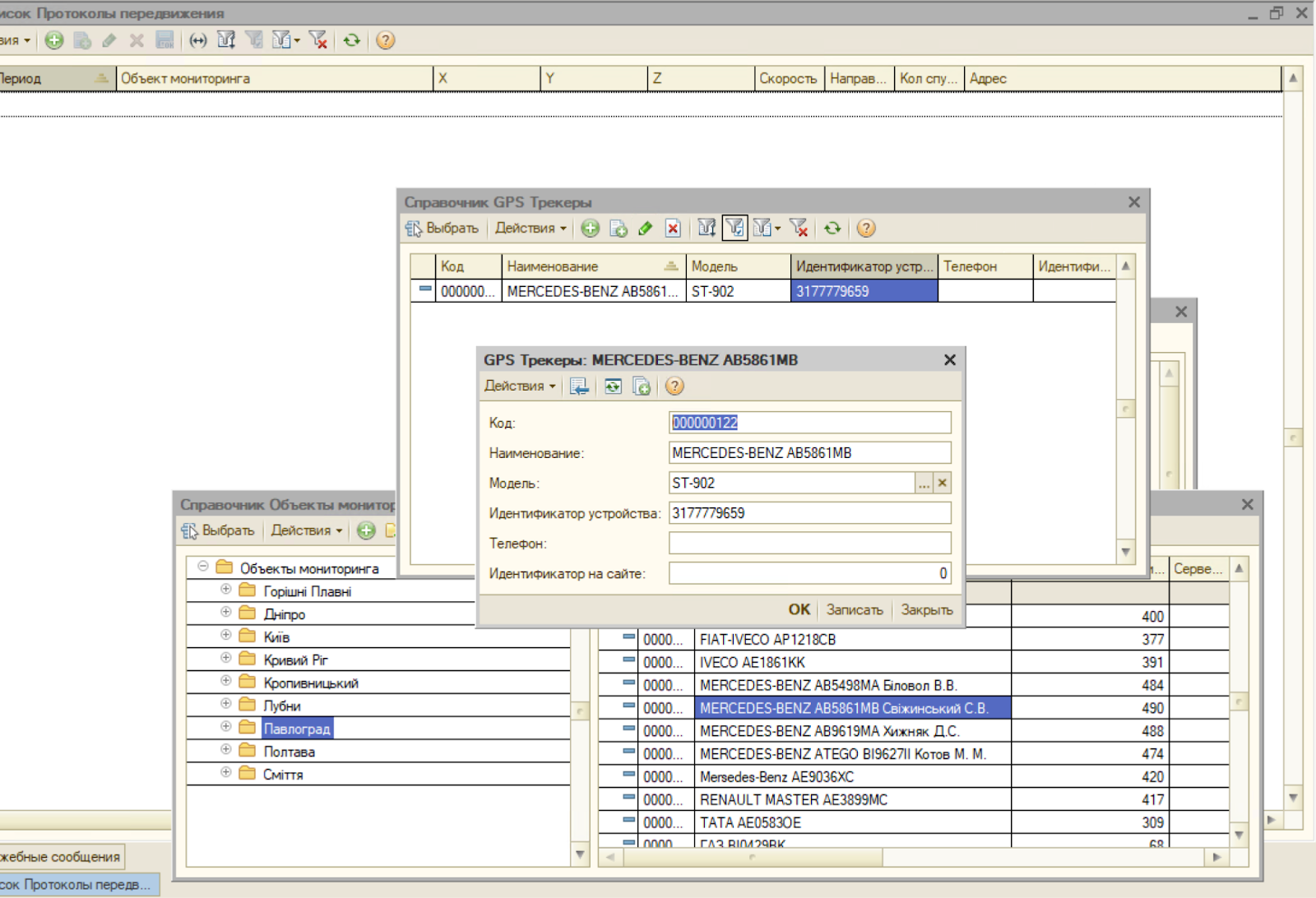
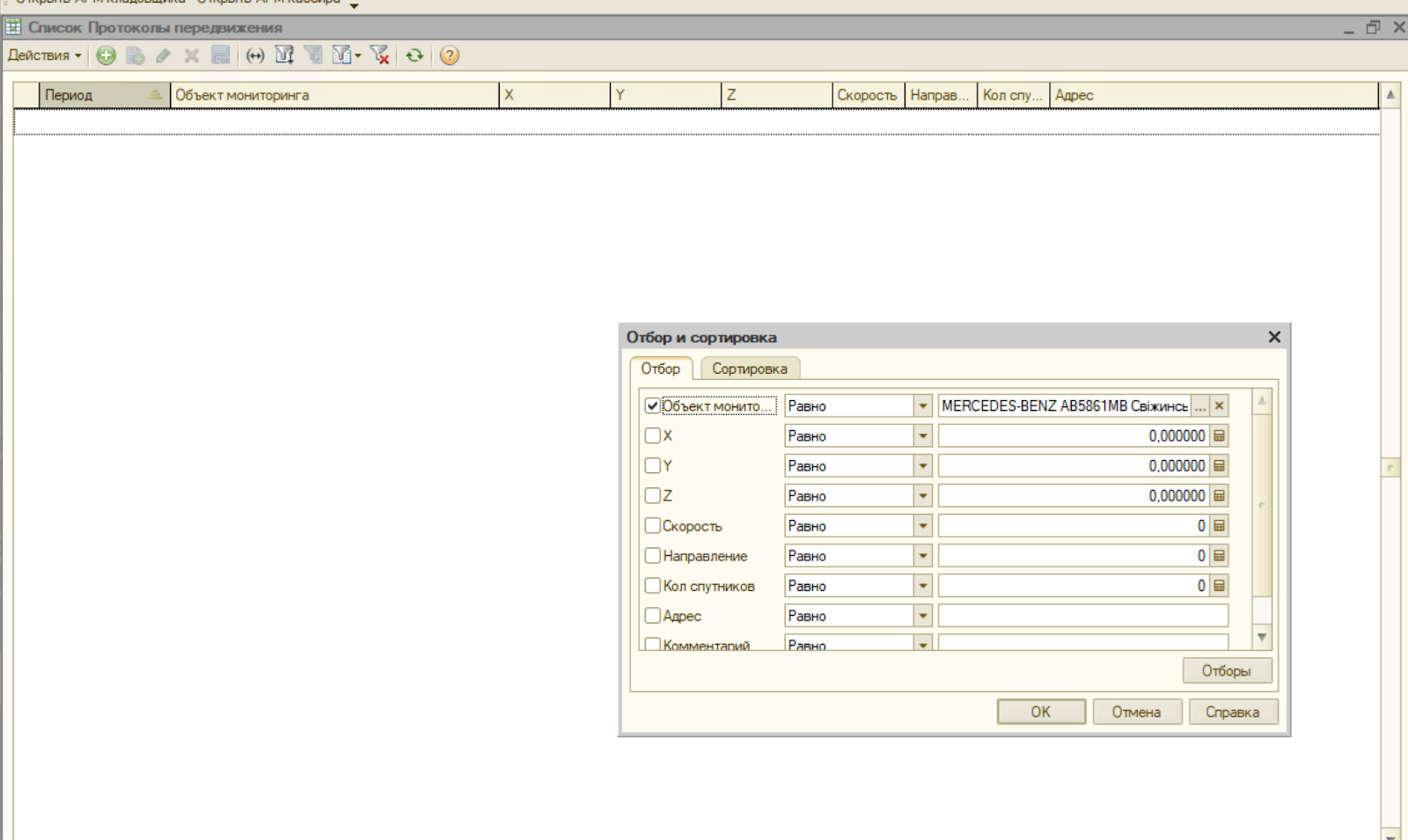
<span style="font-size: 11pt; font-family: Arial,sans-serif; color: #000000; background-color: transparent; font-weight: 400; font-style: normal; font-variant: normal; text-decoration: none; vertical-align: baseline; white-space: pre-wrap;">Другий механізм для більшості машин працює. Треки попадають в 1С в регістр “протоколи передвіженія”. Але для цього транспорт повинен бути синхронізований. Привязка проходить по номеру трекера. </span>

<span style="font-size: 11pt; font-family: Arial,sans-serif; color: #000000; background-color: transparent; font-weight: 400; font-style: normal; font-variant: normal; text-decoration: none; vertical-align: baseline; white-space: pre-wrap;">Далі треки завантажуються в файли і завантажуються в ТМС, там привязка іде по DEVID транспортного засобу.</span>
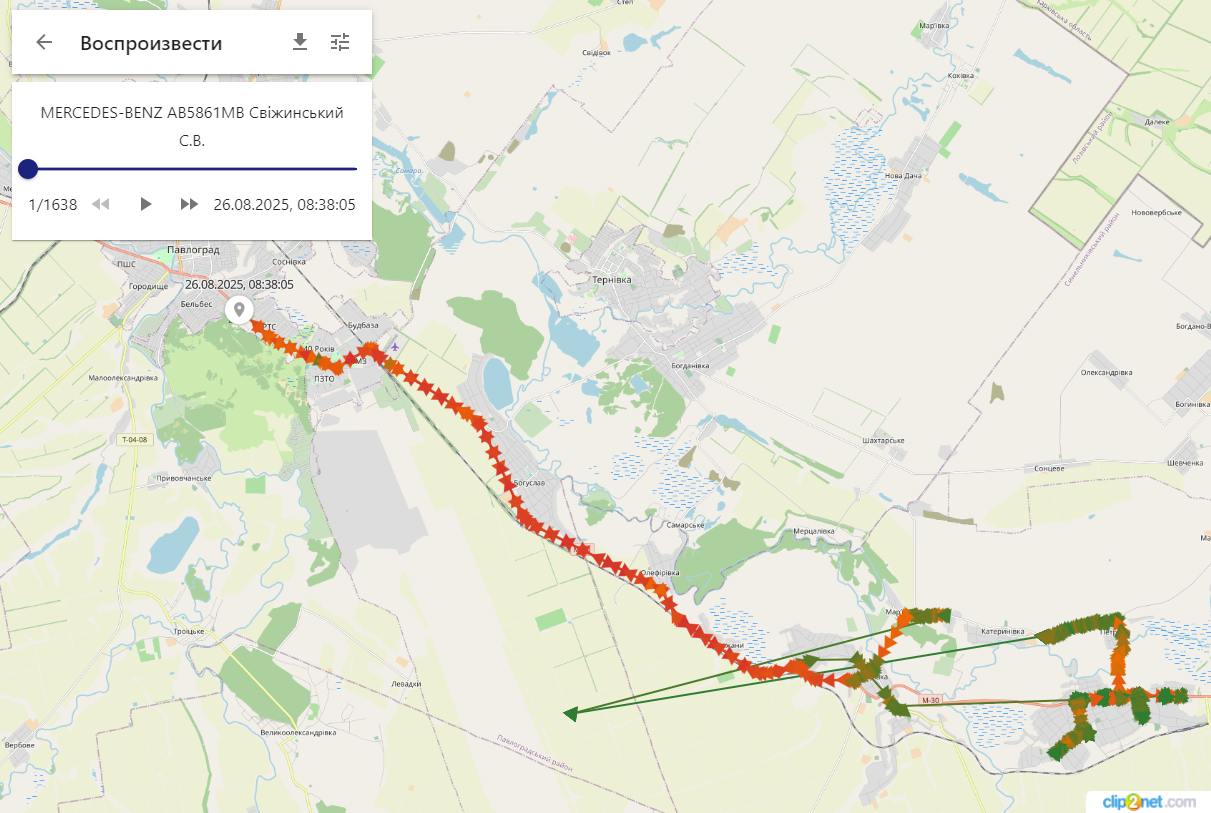
<span style="font-size: 11pt; font-family: Arial,sans-serif; color: #000000; background-color: transparent; font-weight: 400; font-style: normal; font-variant: normal; text-decoration: none; vertical-align: baseline; white-space: pre-wrap;"><span style="border: none; display: inline-block; overflow: hidden; width: 602px; height: 404px;">![](https://wiki.kashkan.org/uploads/images/gallery/2025-09/embedded-image-gecwes39.png)</span></span>

<span style="font-size: 11pt; font-family: Arial,sans-serif; color: #000000; background-color: transparent; font-weight: 400; font-style: normal; font-variant: normal; text-decoration: none; vertical-align: baseline; white-space: pre-wrap;">Дивимось дані в обліковій системі. За 26 число треки не завантажилось. Та і взагалі по цій машині треків немає. Значить неправильно прив'язаний транспортний засіб. або є дублі або щось не так заведено.</span>
<span style="font-size: 11pt; font-family: Arial,sans-serif; color: #000000; background-color: transparent; font-weight: 400; font-style: normal; font-variant: normal; text-decoration: none; vertical-align: baseline; white-space: pre-wrap;"><span style="border: none; display: inline-block; overflow: hidden; width: 602px; height: 359px;">![](https://wiki.kashkan.org/uploads/images/gallery/2025-09/embedded-image-jc2fldrk.png)</span></span>

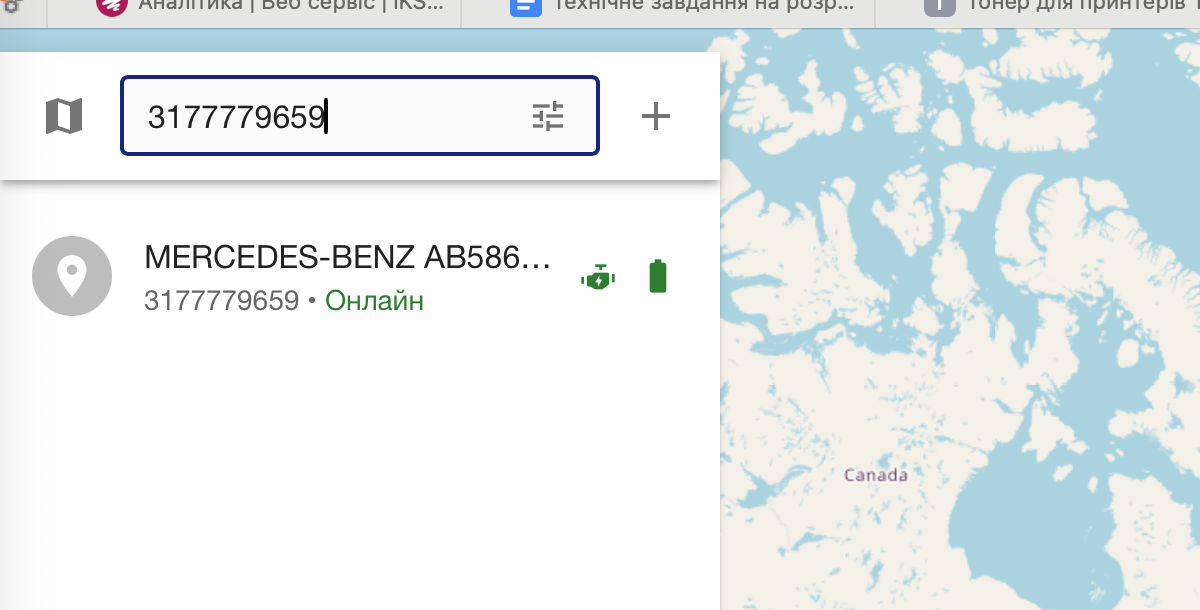
<span style="font-size: 11pt; font-family: Arial,sans-serif; color: #000000; background-color: transparent; font-weight: 400; font-style: normal; font-variant: normal; text-decoration: none; vertical-align: baseline; white-space: pre-wrap;">Перевіряємо номер трекера</span>

<span style="font-size: 11pt; font-family: Arial,sans-serif; color: #000000; background-color: transparent; font-weight: 400; font-style: normal; font-variant: normal; text-decoration: none; vertical-align: baseline; white-space: pre-wrap;"><span style="border: none; display: inline-block; overflow: hidden; width: 602px; height: 411px;">![](https://wiki.kashkan.org/uploads/images/gallery/2025-09/embedded-image-lrsxkmxf.png)</span></span>

<span style="font-size: 11pt; font-family: Arial,sans-serif; color: #000000; background-color: transparent; font-weight: 400; font-style: normal; font-variant: normal; text-decoration: none; vertical-align: baseline; white-space: pre-wrap;">І в тракарі також. І дивимось чи немає дублів</span>
<span style="font-size: 11pt; font-family: Arial,sans-serif; color: #000000; background-color: transparent; font-weight: 400; font-style: normal; font-variant: normal; text-decoration: none; vertical-align: baseline; white-space: pre-wrap;"><span style="border: none; display: inline-block; overflow: hidden; width: 602px; height: 305px;">![](https://wiki.kashkan.org/uploads/images/gallery/2025-09/embedded-image-b24ssqea.png)</span></span>

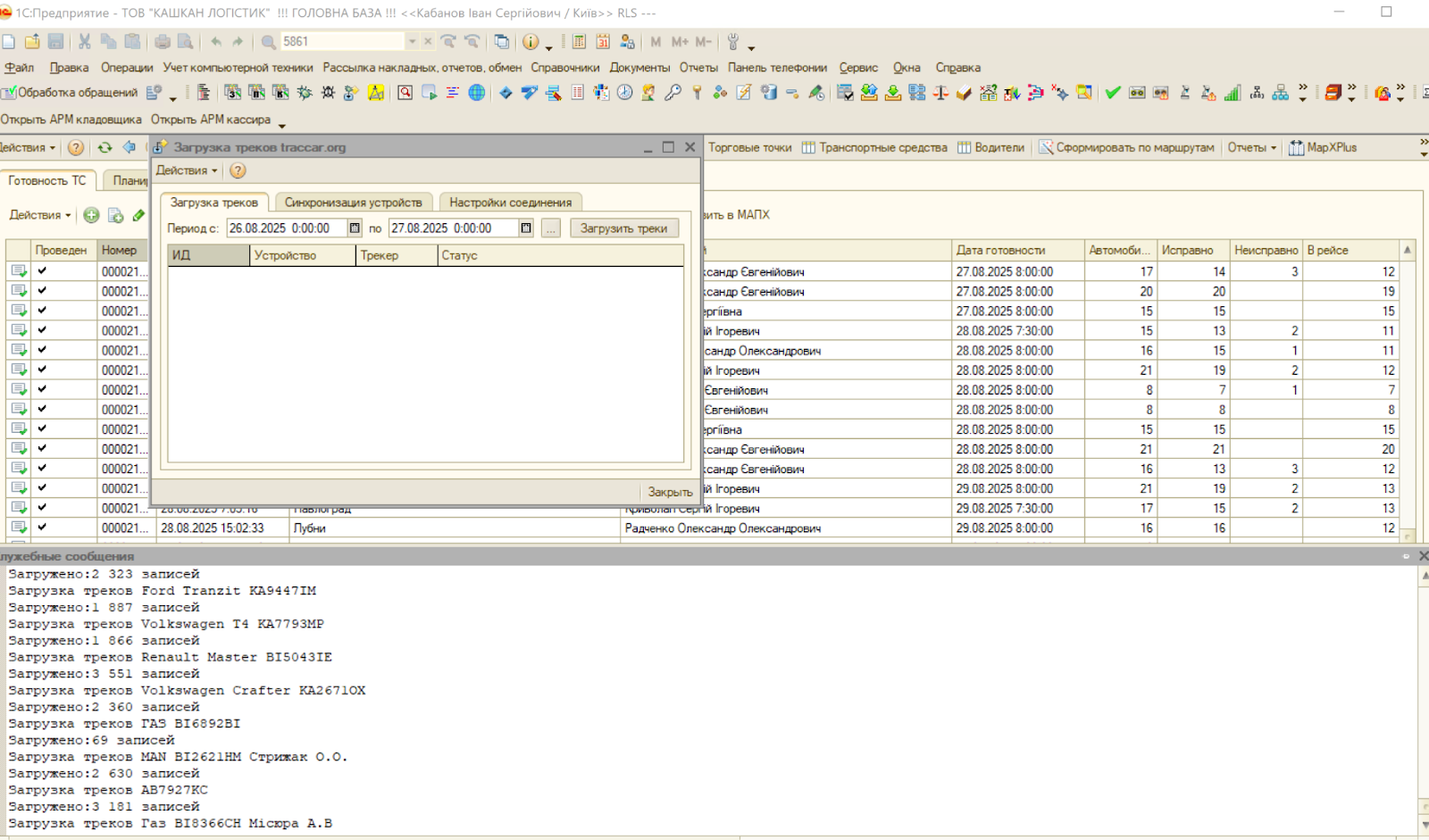
<span style="font-size: 11pt; font-family: Arial,sans-serif; color: #000000; background-color: transparent; font-weight: 400; font-style: normal; font-variant: normal; text-decoration: none; vertical-align: baseline; white-space: pre-wrap;">Запускаєм обробку завантаження треків за потрібну дату. Дивимось чи є ця машина в службових повідомленнях і чи немає якихось помилок..</span>
<span style="font-size: 11pt; font-family: Arial,sans-serif; color: #000000; background-color: transparent; font-weight: 400; font-style: normal; font-variant: normal; text-decoration: none; vertical-align: baseline; white-space: pre-wrap;"><span style="border: none; display: inline-block; overflow: hidden; width: 602px; height: 355px;">![](https://wiki.kashkan.org/uploads/images/gallery/2025-09/embedded-image-qg2bkfax.png)</span></span>

<span style="font-size: 11pt; font-family: Arial,sans-serif; color: #000000; background-color: transparent; font-weight: 400; font-style: normal; font-variant: normal; text-decoration: none; vertical-align: baseline; white-space: pre-wrap;">В даному випадку є помилка. (вже виправив). Завантажуємо треки перевіряєм регістр.</span>

# Інструкція для оновлення  мобільного додатку Агент+.

#### <span lang="UK" style="mso-ansi-language: UK;">1. Документ «Заказ».</span>

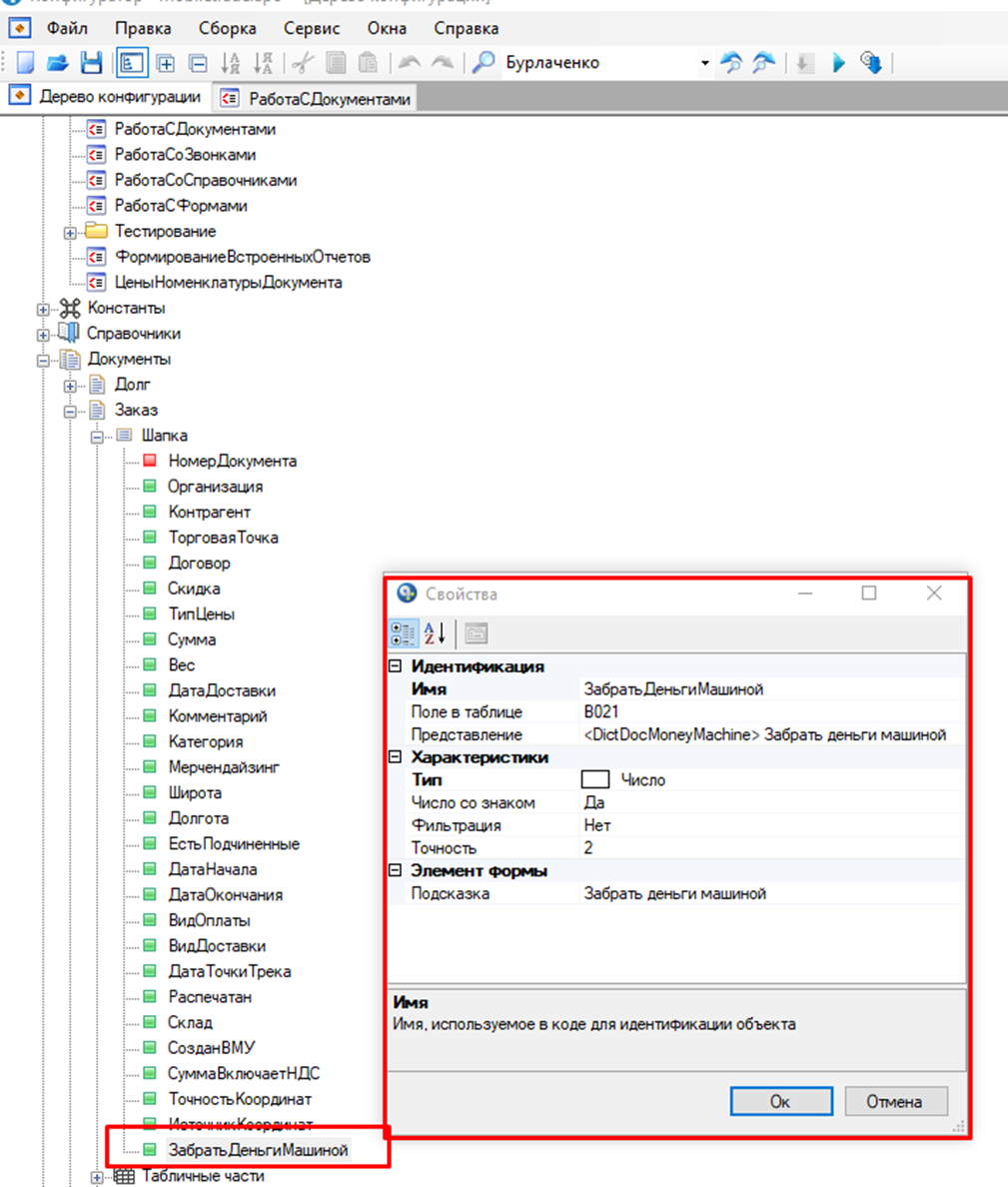
##### <span lang="UK" style="mso-ansi-language: UK;">1.1 Додати реквізит «ЗабратьДеньгиМашиной» документа<span style="mso-spacerun: yes;"> </span>«Заказ»:</span>

<span lang="UK" style="mso-ansi-language: UK;">![](https://wiki.kashkan.org/uploads/images/gallery/2025-09/embedded-image-gitex7wq.png)</span>

##### <span lang="UK" style="mso-ansi-language: UK;">1.2 Форма документа «Заказ».</span>

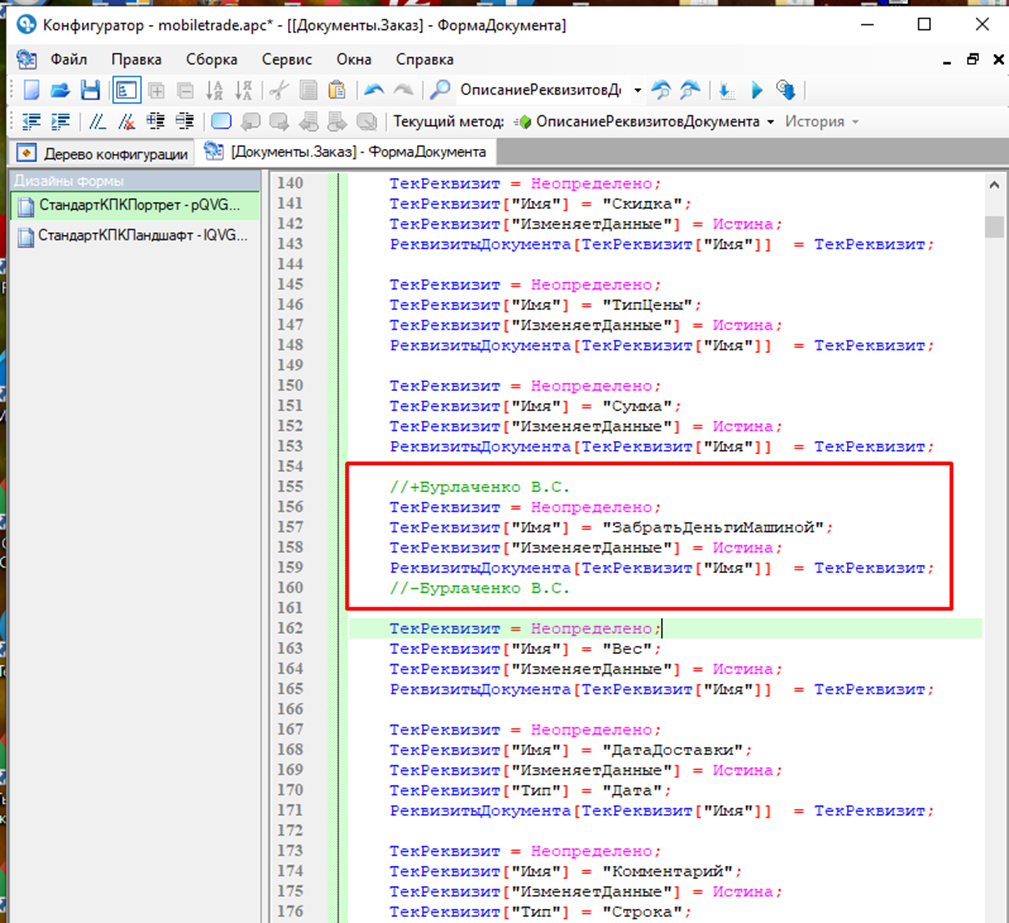
<span lang="UK" style="mso-ansi-language: UK;">1.2.1 Процедура ОписаниеРеквизитовДокумента:</span>
<span lang="UK" style="mso-ansi-language: UK;">![](https://wiki.kashkan.org/uploads/images/gallery/2025-09/embedded-image-mwuldaon.png)</span>

<span lang="UK" style="mso-ansi-language: UK;"><span lang="UK" style="font-size: 11.0pt; line-height: 107%; font-family: 'Calibri',sans-serif; mso-ascii-theme-font: minor-latin; mso-fareast-font-family: Calibri; mso-fareast-theme-font: minor-latin; mso-hansi-theme-font: minor-latin; mso-bidi-font-family: 'Times New Roman'; mso-bidi-theme-font: minor-bidi; mso-ansi-language: UK; mso-fareast-language: EN-US; mso-bidi-language: AR-SA;">1.2.2 Додати функцію КнопкаЗабратьДеньгиМашиной\_ПриНажатии</span></span>
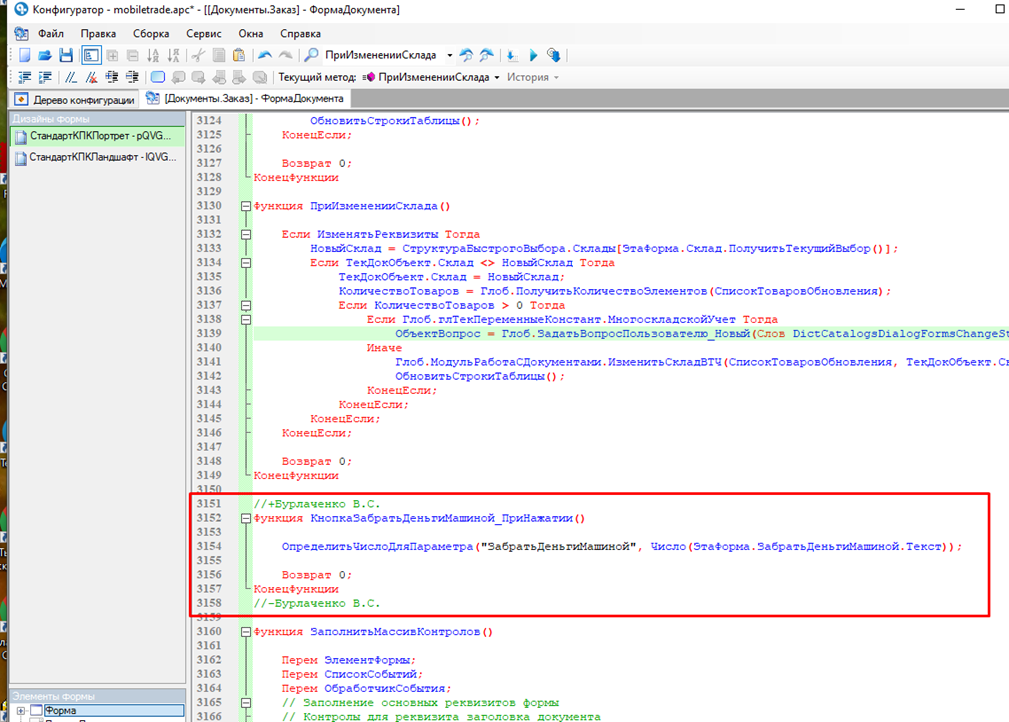
<span lang="UK" style="mso-ansi-language: UK;"><span lang="UK" style="font-size: 11.0pt; line-height: 107%; font-family: 'Calibri',sans-serif; mso-ascii-theme-font: minor-latin; mso-fareast-font-family: Calibri; mso-fareast-theme-font: minor-latin; mso-hansi-theme-font: minor-latin; mso-bidi-font-family: 'Times New Roman'; mso-bidi-theme-font: minor-bidi; mso-ansi-language: UK; mso-fareast-language: EN-US; mso-bidi-language: AR-SA;">![](https://wiki.kashkan.org/uploads/images/gallery/2025-09/embedded-image-pvufsghp.png)</span></span>

<span lang="UK" style="mso-ansi-language: UK;"><span lang="UK" style="font-size: 11.0pt; line-height: 107%; font-family: 'Calibri',sans-serif; mso-ascii-theme-font: minor-latin; mso-fareast-font-family: Calibri; mso-fareast-theme-font: minor-latin; mso-hansi-theme-font: minor-latin; mso-bidi-font-family: 'Times New Roman'; mso-bidi-theme-font: minor-bidi; mso-ansi-language: UK; mso-fareast-language: EN-US; mso-bidi-language: AR-SA;">1.2.3 Додати у функцію ЗаполнитьМассивКонтролов</span></span>
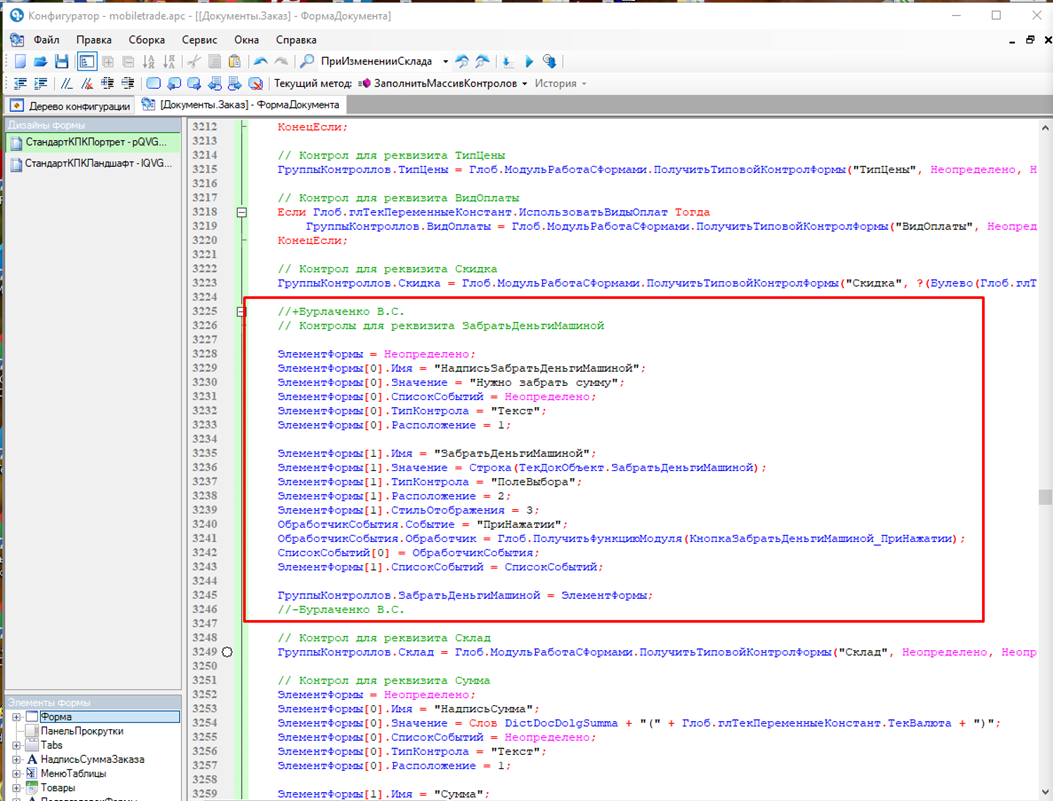
<span lang="UK" style="mso-ansi-language: UK;"><span lang="UK" style="font-size: 11.0pt; line-height: 107%; font-family: 'Calibri',sans-serif; mso-ascii-theme-font: minor-latin; mso-fareast-font-family: Calibri; mso-fareast-theme-font: minor-latin; mso-hansi-theme-font: minor-latin; mso-bidi-font-family: 'Times New Roman'; mso-bidi-theme-font: minor-bidi; mso-ansi-language: UK; mso-fareast-language: EN-US; mso-bidi-language: AR-SA;">![](https://wiki.kashkan.org/uploads/images/gallery/2025-09/embedded-image-vfhtkdvz.png)</span></span>

<span lang="UK" style="mso-ansi-language: UK;"><span lang="UK" style="font-size: 11.0pt; line-height: 107%; font-family: 'Calibri',sans-serif; mso-ascii-theme-font: minor-latin; mso-fareast-font-family: Calibri; mso-fareast-theme-font: minor-latin; mso-hansi-theme-font: minor-latin; mso-bidi-font-family: 'Times New Roman'; mso-bidi-theme-font: minor-bidi; mso-ansi-language: UK; mso-fareast-language: EN-US; mso-bidi-language: AR-SA;">1.2.4 Додати у функцію ОбновитьСостояниеФормы</span></span>
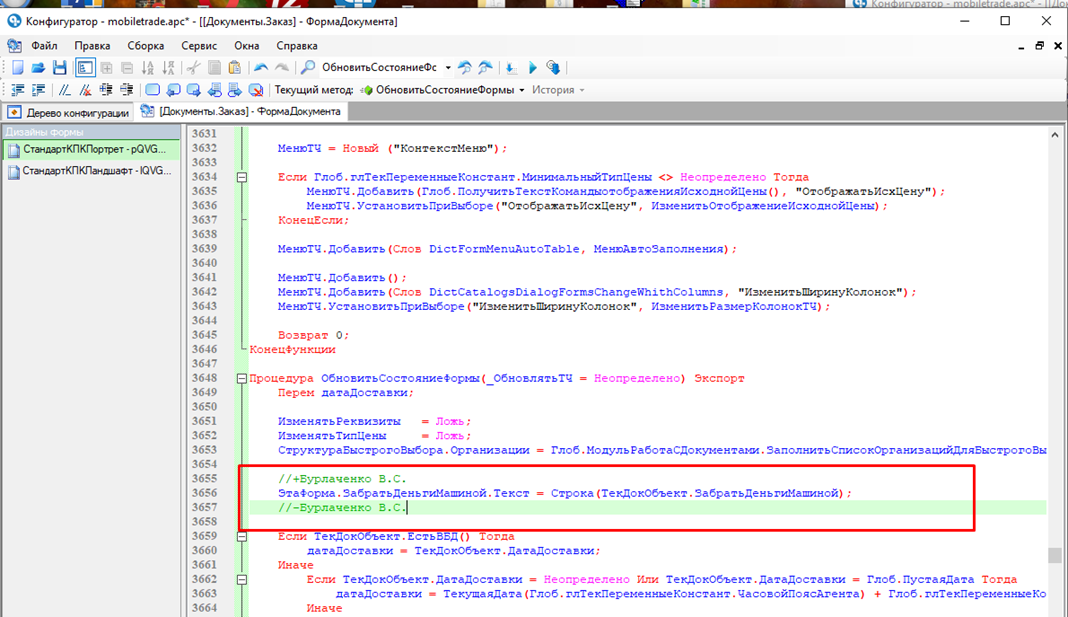
<span lang="UK" style="mso-ansi-language: UK;"><span lang="UK" style="font-size: 11.0pt; line-height: 107%; font-family: 'Calibri',sans-serif; mso-ascii-theme-font: minor-latin; mso-fareast-font-family: Calibri; mso-fareast-theme-font: minor-latin; mso-hansi-theme-font: minor-latin; mso-bidi-font-family: 'Times New Roman'; mso-bidi-theme-font: minor-bidi; mso-ansi-language: UK; mso-fareast-language: EN-US; mso-bidi-language: AR-SA;">![](https://wiki.kashkan.org/uploads/images/gallery/2025-09/embedded-image-jhspwasw.png)</span></span>

<span lang="UK" style="mso-ansi-language: UK;"><span lang="UK" style="font-size: 11.0pt; line-height: 107%; font-family: 'Calibri',sans-serif; mso-ascii-theme-font: minor-latin; mso-fareast-font-family: Calibri; mso-fareast-theme-font: minor-latin; mso-hansi-theme-font: minor-latin; mso-bidi-font-family: 'Times New Roman'; mso-bidi-theme-font: minor-bidi; mso-ansi-language: UK; mso-fareast-language: EN-US; mso-bidi-language: AR-SA;">1.2.5 Додати у функцію ОбработатьВозвратОбъектаNumPad:</span></span>
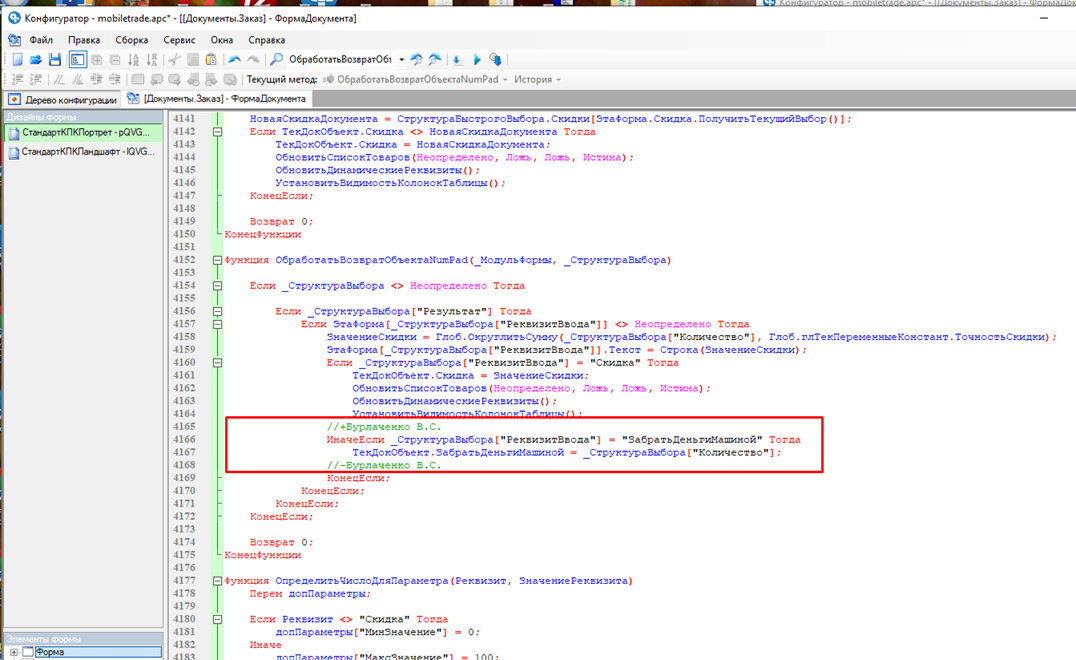
<span lang="UK" style="mso-ansi-language: UK;"><span lang="UK" style="font-size: 11.0pt; line-height: 107%; font-family: 'Calibri',sans-serif; mso-ascii-theme-font: minor-latin; mso-fareast-font-family: Calibri; mso-fareast-theme-font: minor-latin; mso-hansi-theme-font: minor-latin; mso-bidi-font-family: 'Times New Roman'; mso-bidi-theme-font: minor-bidi; mso-ansi-language: UK; mso-fareast-language: EN-US; mso-bidi-language: AR-SA;">![](https://wiki.kashkan.org/uploads/images/gallery/2025-09/embedded-image-zplzxvmv.png)</span></span>

#### <span lang="UK" style="mso-ansi-language: UK;">2. Глобальний модуль.</span>

##### <span lang="UK" style="mso-ansi-language: UK;">2.1 РаботаСДокументами</span>

<span lang="UK" style="mso-ansi-language: UK;"><span lang="UK" style="font-size: 11.0pt; line-height: 107%; font-family: 'Calibri',sans-serif; mso-ascii-theme-font: minor-latin; mso-fareast-font-family: Calibri; mso-fareast-theme-font: minor-latin; mso-hansi-theme-font: minor-latin; mso-bidi-font-family: 'Times New Roman'; mso-bidi-theme-font: minor-bidi; mso-ansi-language: UK; mso-fareast-language: EN-US; mso-bidi-language: AR-SA;">2.1.1 Відключити<span style="mso-spacerun: yes;"> </span>перевірку у функції «МожноПровестиДокумент\_Новая»:</span></span>
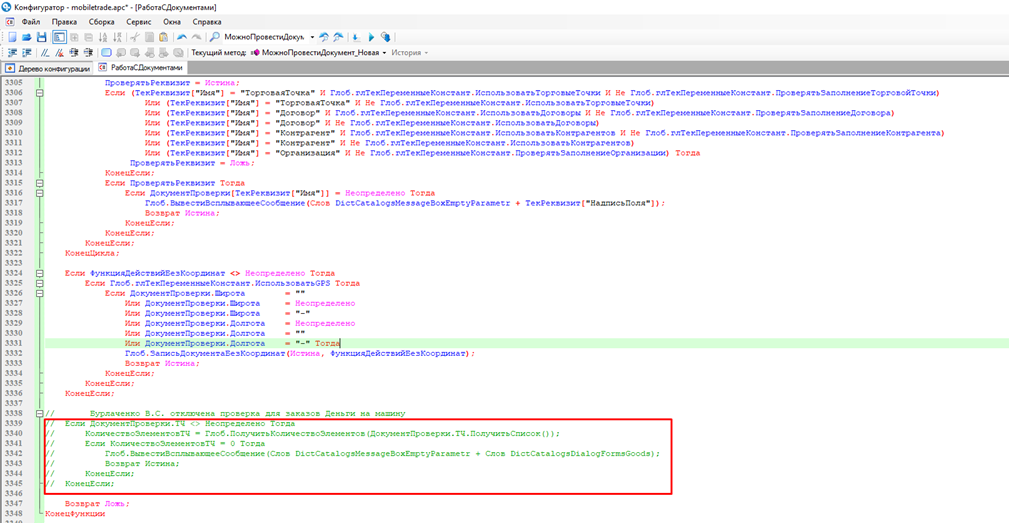
<span lang="UK" style="mso-ansi-language: UK;"><span lang="UK" style="font-size: 11.0pt; line-height: 107%; font-family: 'Calibri',sans-serif; mso-ascii-theme-font: minor-latin; mso-fareast-font-family: Calibri; mso-fareast-theme-font: minor-latin; mso-hansi-theme-font: minor-latin; mso-bidi-font-family: 'Times New Roman'; mso-bidi-theme-font: minor-bidi; mso-ansi-language: UK; mso-fareast-language: EN-US; mso-bidi-language: AR-SA;">![](https://wiki.kashkan.org/uploads/images/gallery/2025-09/embedded-image-cx0rlsl5.png)</span></span>

#### <span lang="UK" style="mso-ansi-language: UK;">3. Довідник Номенклатура:</span>

##### <span lang="UK" style="mso-ansi-language: UK;">3.1 Форма списка</span>

<span lang="UK" style="mso-ansi-language: UK;"><span lang="UK" style="font-size: 11.0pt; line-height: 107%; font-family: 'Calibri',sans-serif; mso-ascii-theme-font: minor-latin; mso-fareast-font-family: Calibri; mso-fareast-theme-font: minor-latin; mso-hansi-theme-font: minor-latin; mso-bidi-font-family: 'Times New Roman'; mso-bidi-theme-font: minor-bidi; mso-ansi-language: UK; mso-fareast-language: EN-US; mso-bidi-language: AR-SA;">3.1.1 Внести зміни до функції Номенклатура\_ПриВыводеСтроки</span></span>
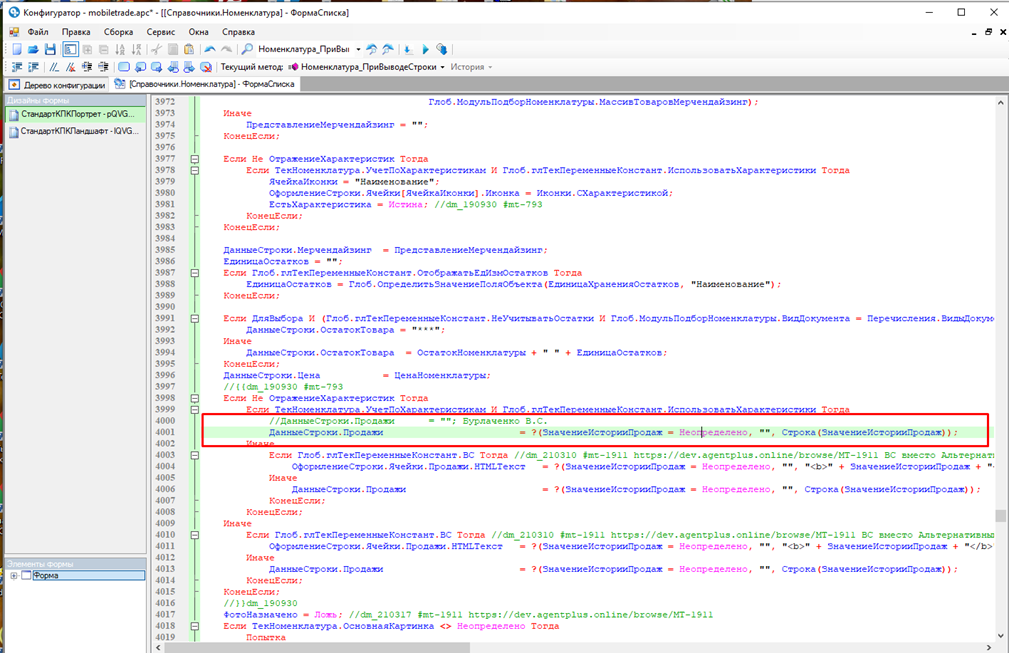
<span lang="UK" style="mso-ansi-language: UK;"><span lang="UK" style="font-size: 11.0pt; line-height: 107%; font-family: 'Calibri',sans-serif; mso-ascii-theme-font: minor-latin; mso-fareast-font-family: Calibri; mso-fareast-theme-font: minor-latin; mso-hansi-theme-font: minor-latin; mso-bidi-font-family: 'Times New Roman'; mso-bidi-theme-font: minor-bidi; mso-ansi-language: UK; mso-fareast-language: EN-US; mso-bidi-language: AR-SA;">![](https://wiki.kashkan.org/uploads/images/gallery/2025-09/embedded-image-qoxxg1eg.png)</span></span>

# Розсилка звітів

#### <span style="background-color: rgb(191, 237, 210);">Робимо дії під користувачем "Рассылка отчетов"</span>  
1. Формуємо необхідний звіт.

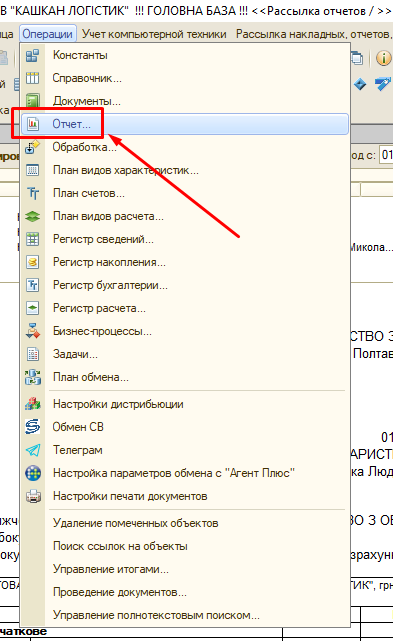
Заходимо у необхідний звіт:

[![image.png](https://wiki.kashkan.org/uploads/images/gallery/2025-09/scaled-1680-/image.png)](https://wiki.kashkan.org/uploads/images/gallery/2025-09/image.png)
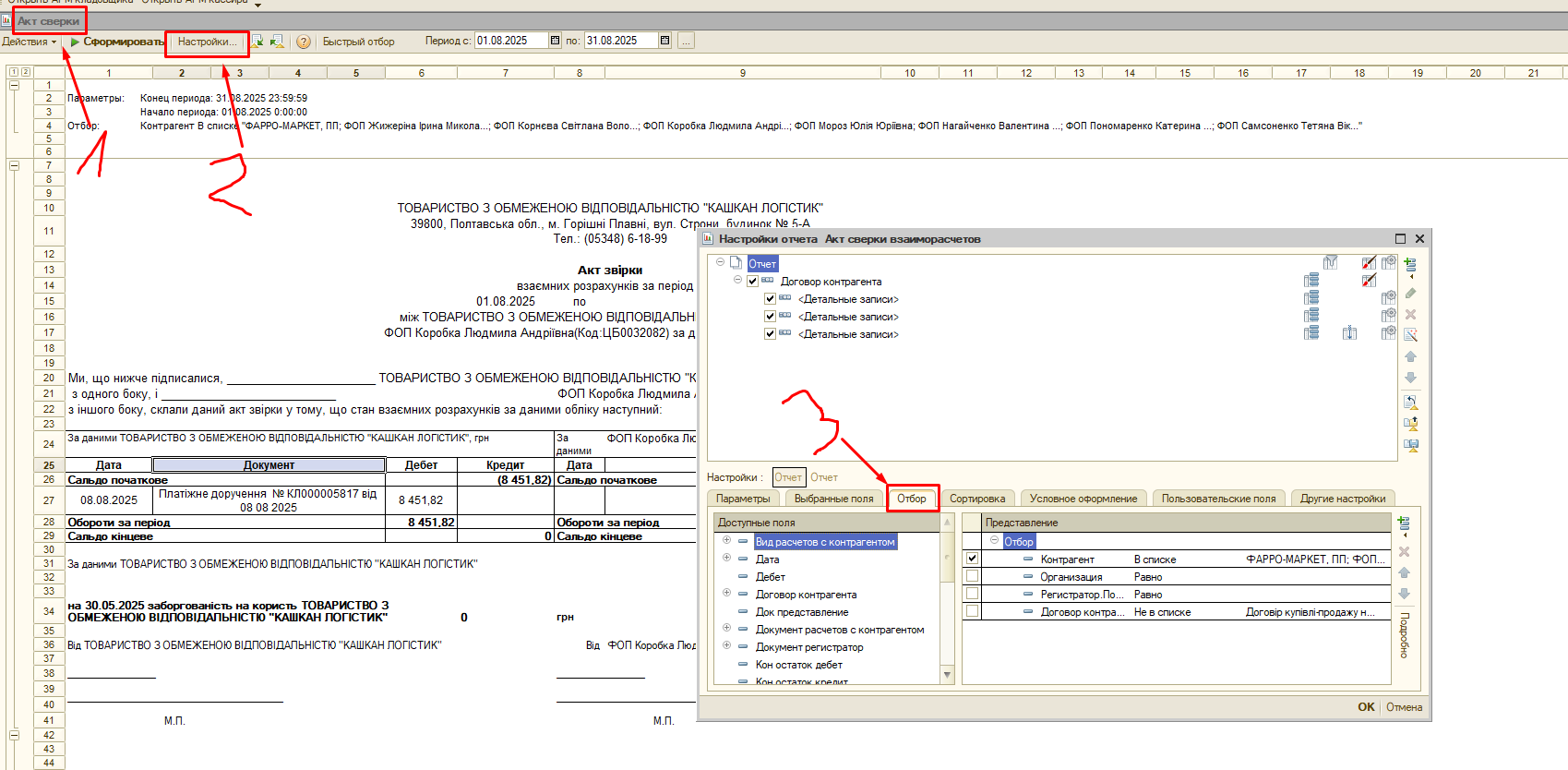
Формуємо налаштування:

[![image.png](https://wiki.kashkan.org/uploads/images/gallery/2025-09/scaled-1680-/KYXimage.png)](https://wiki.kashkan.org/uploads/images/gallery/2025-09/KYXimage.png)
Зберігаємо налаштування:

[![image.png](https://wiki.kashkan.org/uploads/images/gallery/2025-09/scaled-1680-/Aafimage.png)](https://wiki.kashkan.org/uploads/images/gallery/2025-09/Aafimage.png)
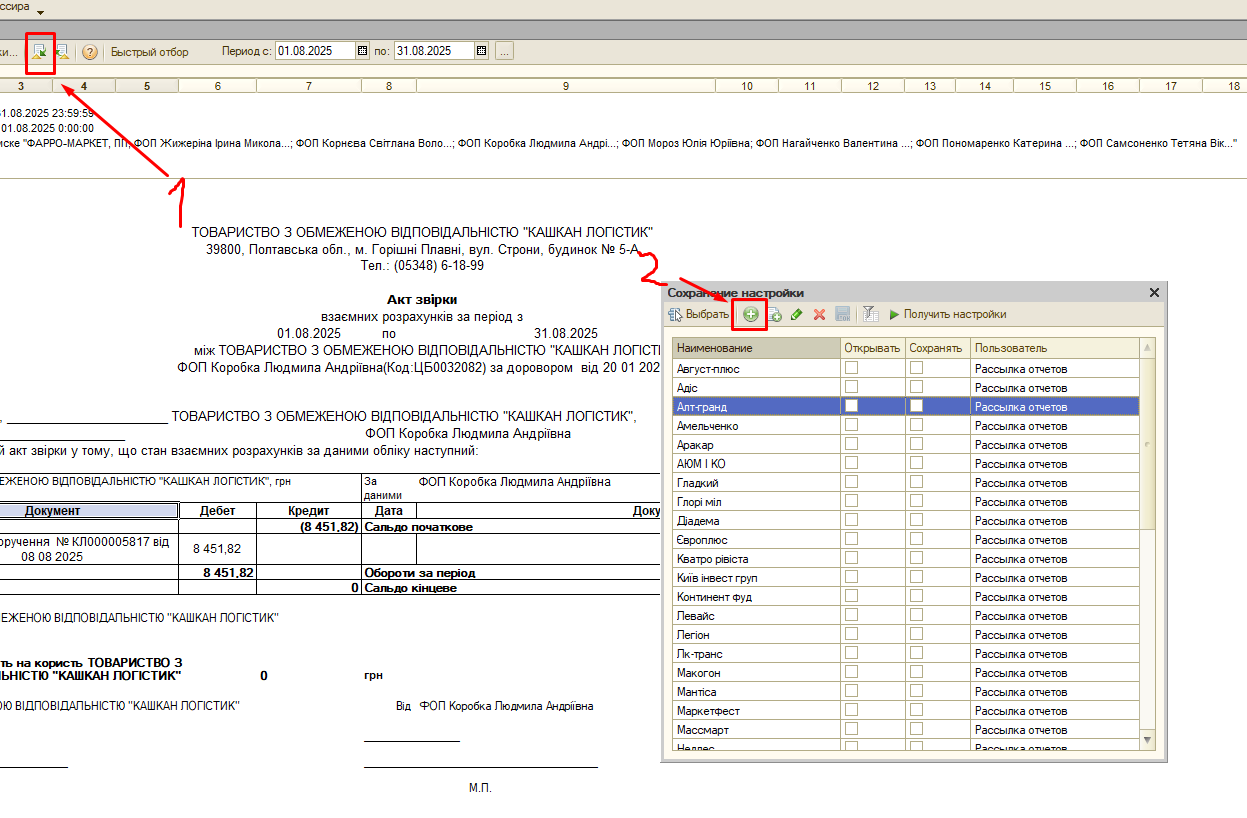
#### 2. Переходимо у розсилку звітів (справочники - рассылка отчетов)

[![image.png](https://wiki.kashkan.org/uploads/images/gallery/2025-09/scaled-1680-/mK5image.png)](https://wiki.kashkan.org/uploads/images/gallery/2025-09/mK5image.png)
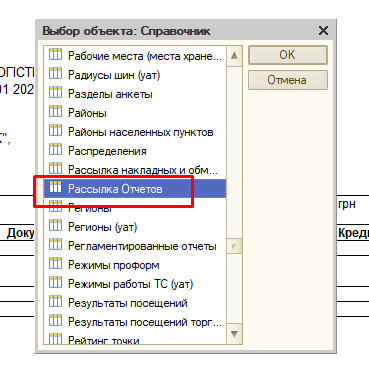
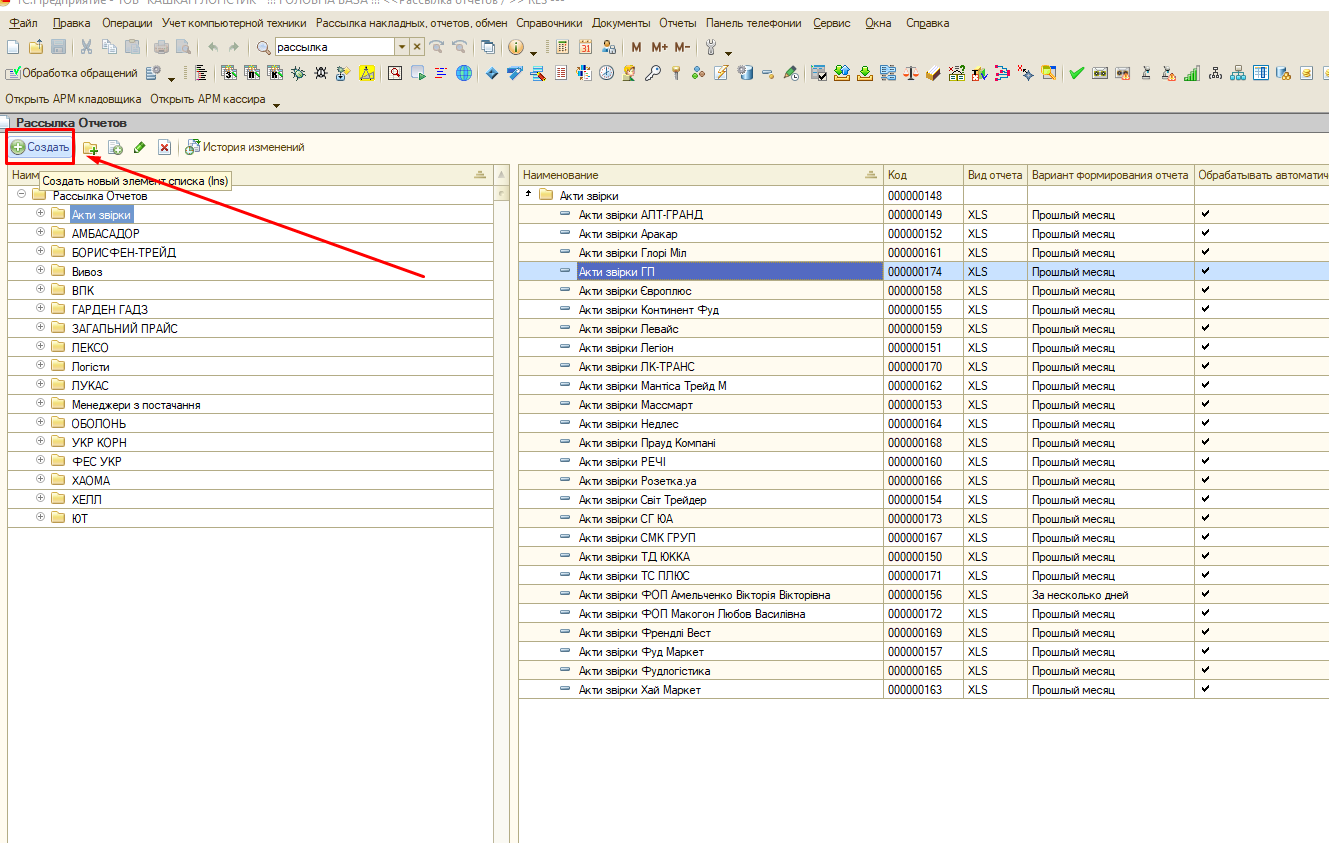
Обираємо папку та створюємо звіт:

[![image.png](https://wiki.kashkan.org/uploads/images/gallery/2025-09/scaled-1680-/BwOimage.png)](https://wiki.kashkan.org/uploads/images/gallery/2025-09/BwOimage.png)
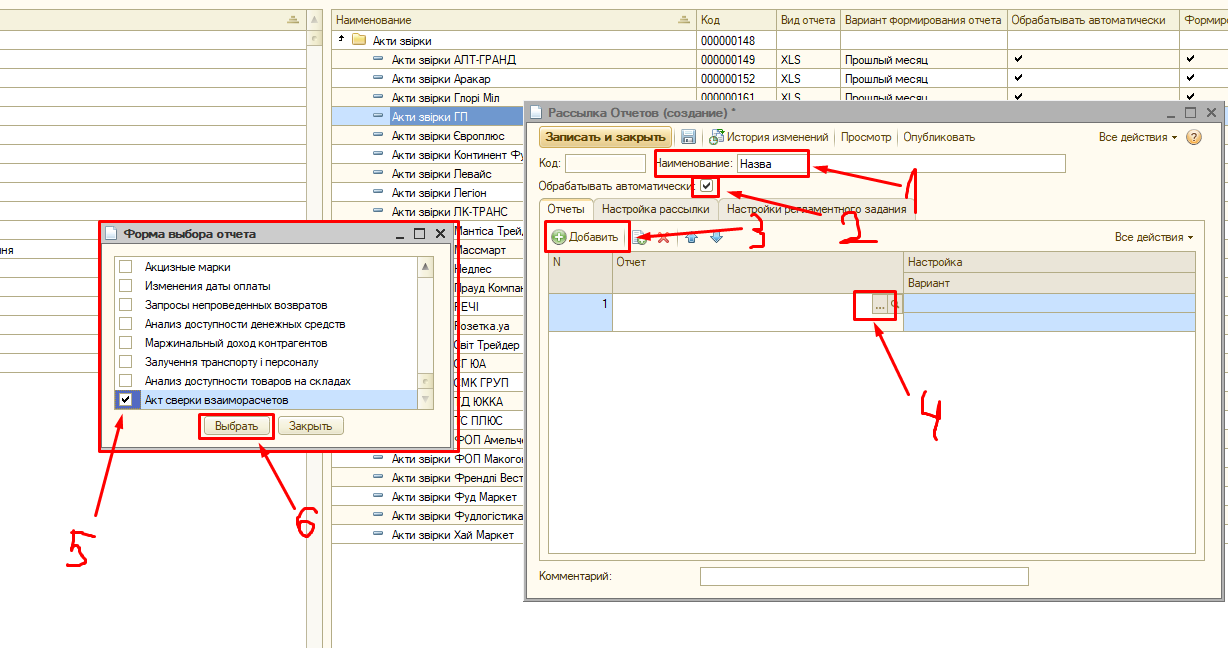
- Вводимо назву (1)
- Ставимо галочку опрацьовувати автоматично (2)
- Додаємо звіт, який налаштовували (3-6)

[![image.png](https://wiki.kashkan.org/uploads/images/gallery/2025-09/scaled-1680-/KMUimage.png)](https://wiki.kashkan.org/uploads/images/gallery/2025-09/KMUimage.png)
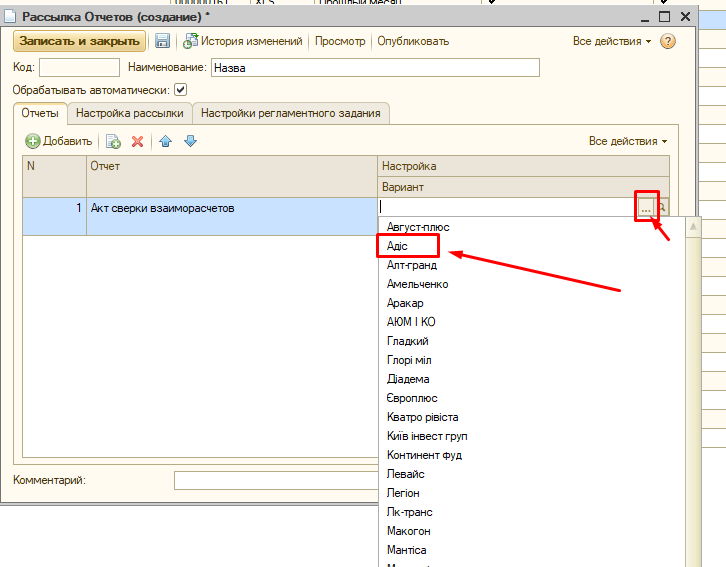
Обираємо налаштування, яке робили:

[![image.png](https://wiki.kashkan.org/uploads/images/gallery/2025-09/scaled-1680-/megimage.png)](https://wiki.kashkan.org/uploads/images/gallery/2025-09/megimage.png)
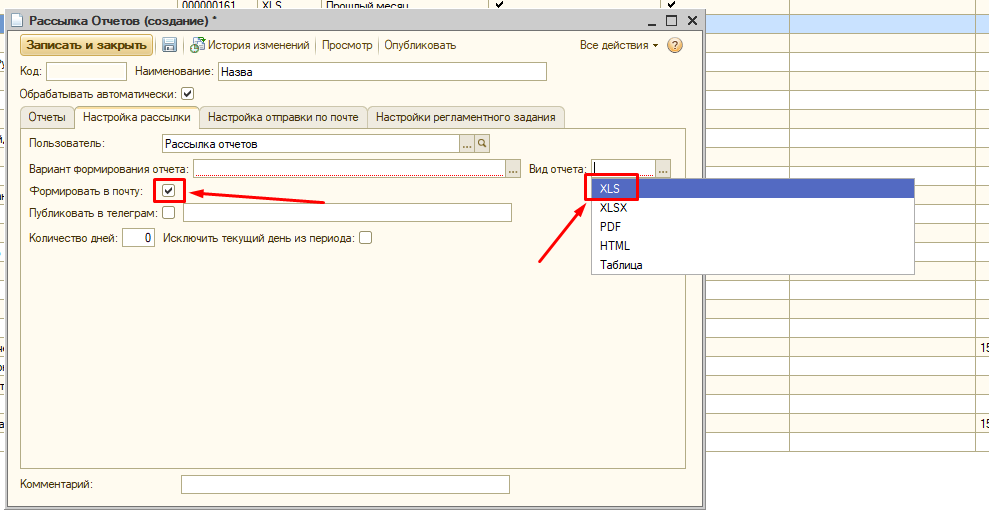
Обираємо формат звіту та ставимо галочку формувати у пошту:

[![image.png](https://wiki.kashkan.org/uploads/images/gallery/2025-09/scaled-1680-/mhpimage.png)](https://wiki.kashkan.org/uploads/images/gallery/2025-09/mhpimage.png)
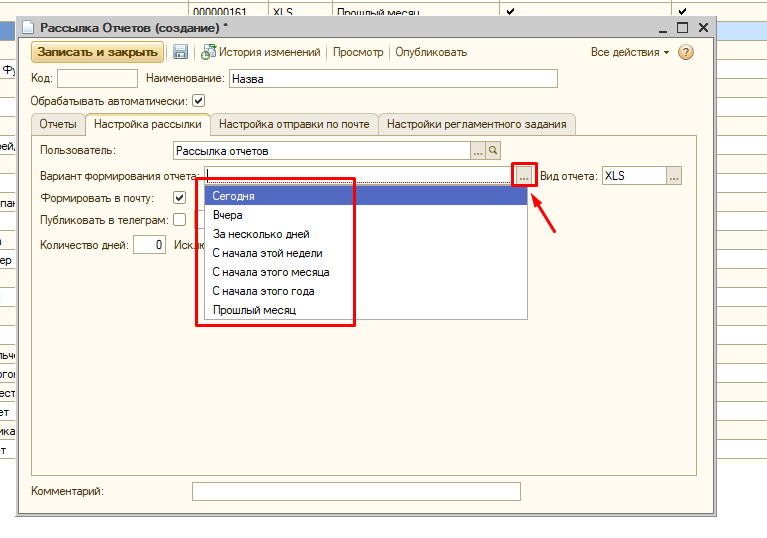
Обираємо за який період часу формувати звіт:

[![image.png](https://wiki.kashkan.org/uploads/images/gallery/2025-09/scaled-1680-/Eflimage.png)](https://wiki.kashkan.org/uploads/images/gallery/2025-09/Eflimage.png)
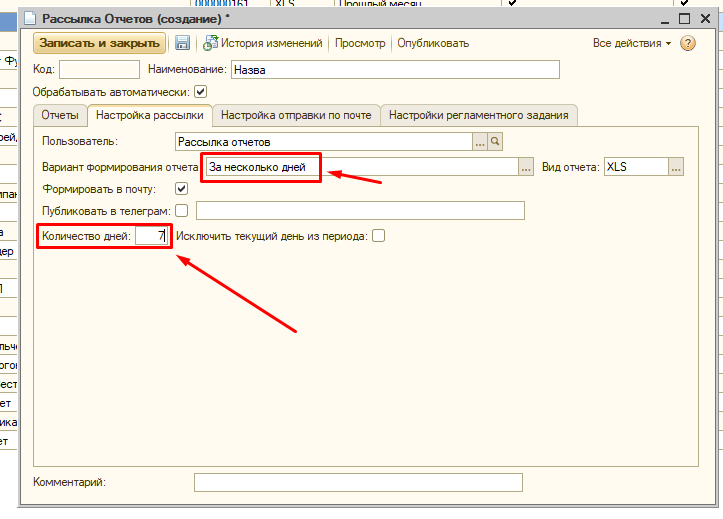
Якщо обрано з якусь кількість днів, то нижче вводимо кількість днів, яка нас цікавить:

[![image.png](https://wiki.kashkan.org/uploads/images/gallery/2025-09/scaled-1680-/m4Oimage.png)](https://wiki.kashkan.org/uploads/images/gallery/2025-09/m4Oimage.png)
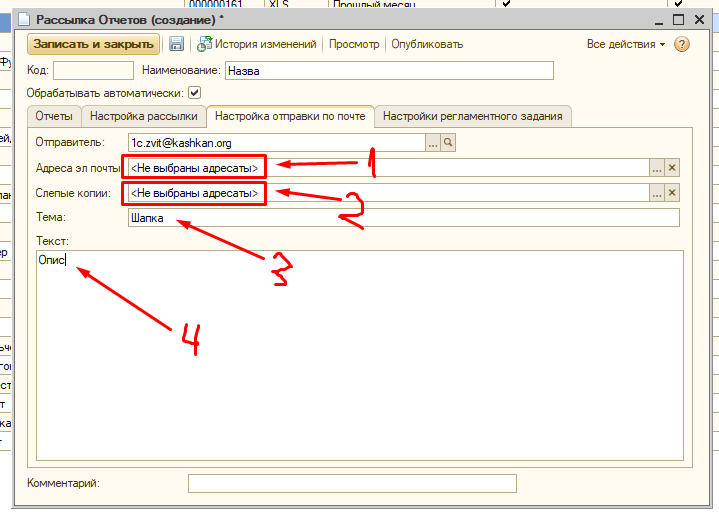
- Указуємо адреси, на які повинні прийти листи (1)
- Указуємо, якщо необхідно, адреси для копій (2)
- Вводимо тему (3)
- Вводимо повідомлення яке буде всередині листа (4)

[![image.png](https://wiki.kashkan.org/uploads/images/gallery/2025-09/scaled-1680-/fZdimage.png)](https://wiki.kashkan.org/uploads/images/gallery/2025-09/fZdimage.png)
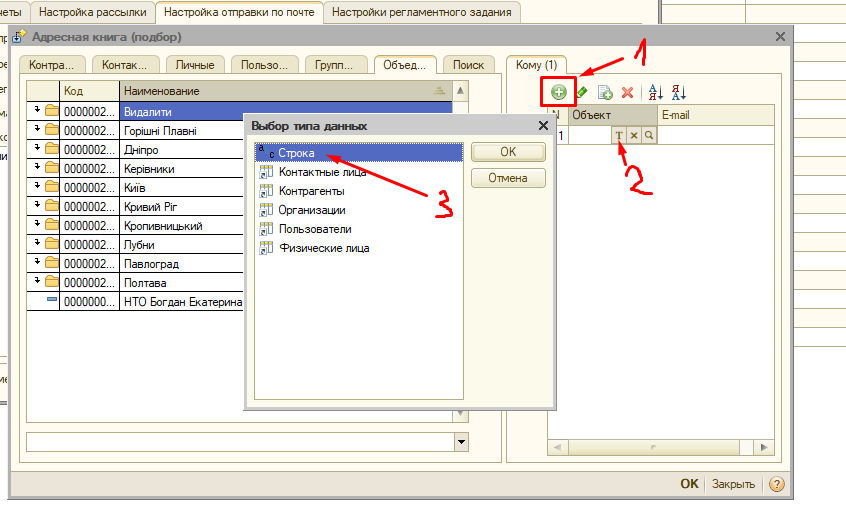
Якщо людини немає у списку адресів, то додаємо поле вручну та вводимо емейл:

[![image.png](https://wiki.kashkan.org/uploads/images/gallery/2025-09/scaled-1680-/xXlimage.png)](https://wiki.kashkan.org/uploads/images/gallery/2025-09/xXlimage.png)
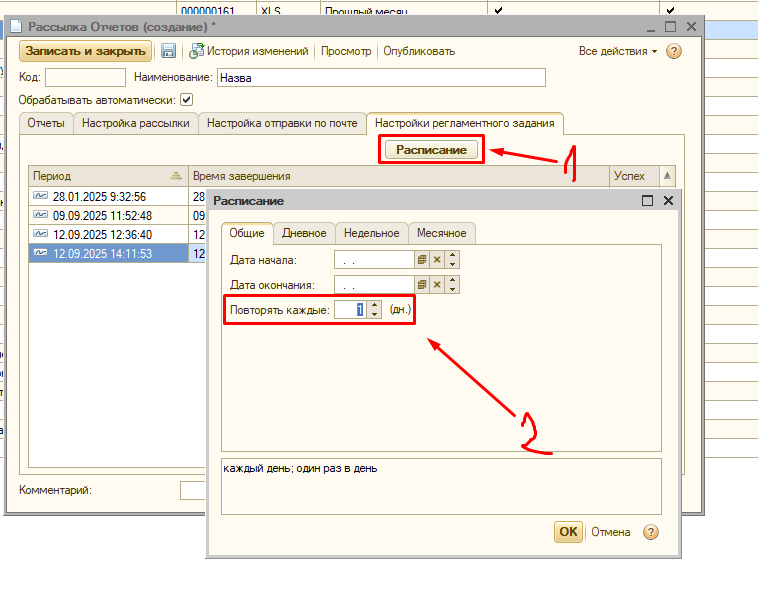
У розкладі обираємо повторювати кожен 1 день:

[![image.png](https://wiki.kashkan.org/uploads/images/gallery/2025-09/scaled-1680-/t1Bimage.png)](https://wiki.kashkan.org/uploads/images/gallery/2025-09/t1Bimage.png)
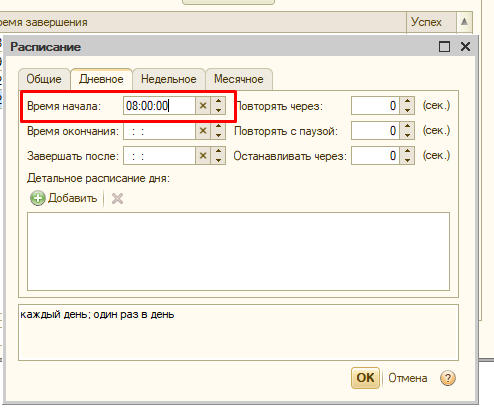
Вводимо о котрій звіт повинен прийти:

[![image.png](https://wiki.kashkan.org/uploads/images/gallery/2025-09/scaled-1680-/fXRimage.png)](https://wiki.kashkan.org/uploads/images/gallery/2025-09/fXRimage.png)
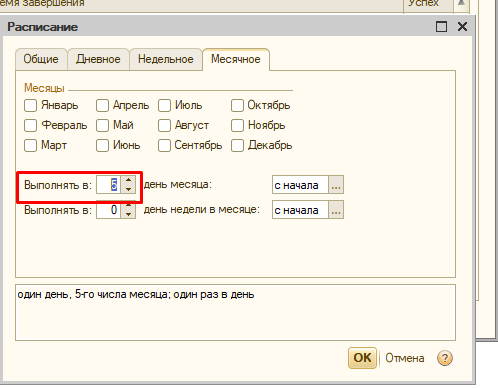
У вкладках тиждень та місяць робимо налаштування, якщо необхідно, щоб звіт приходив наприклад тільки по понеділках або 5-го числа місяця:

[![image.png](https://wiki.kashkan.org/uploads/images/gallery/2025-09/scaled-1680-/mqSimage.png)](https://wiki.kashkan.org/uploads/images/gallery/2025-09/mqSimage.png)
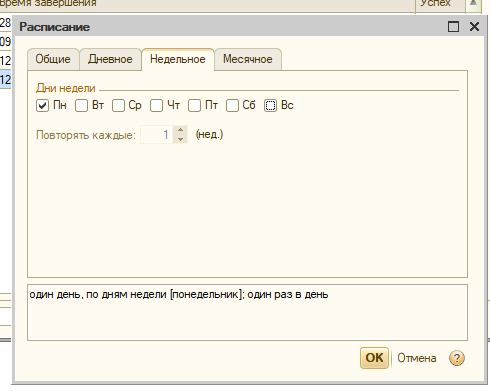
[![image.png](https://wiki.kashkan.org/uploads/images/gallery/2025-09/scaled-1680-/l2timage.png)](https://wiki.kashkan.org/uploads/images/gallery/2025-09/l2timage.png)
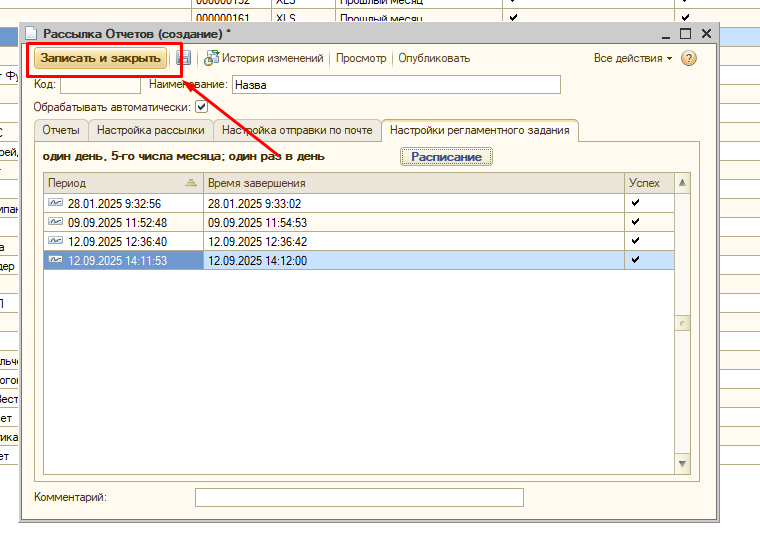
Коли усі налаштування звершені натискаємо записати і закрити:

[![image.png](https://wiki.kashkan.org/uploads/images/gallery/2025-09/scaled-1680-/od4image.png)](https://wiki.kashkan.org/uploads/images/gallery/2025-09/od4image.png)
# Розсилка фото у групи телеграм

### Щоб направити зроблені фото у певні групи необхідно налаштувати пересилання.

#### 1. Налаштування у 1С

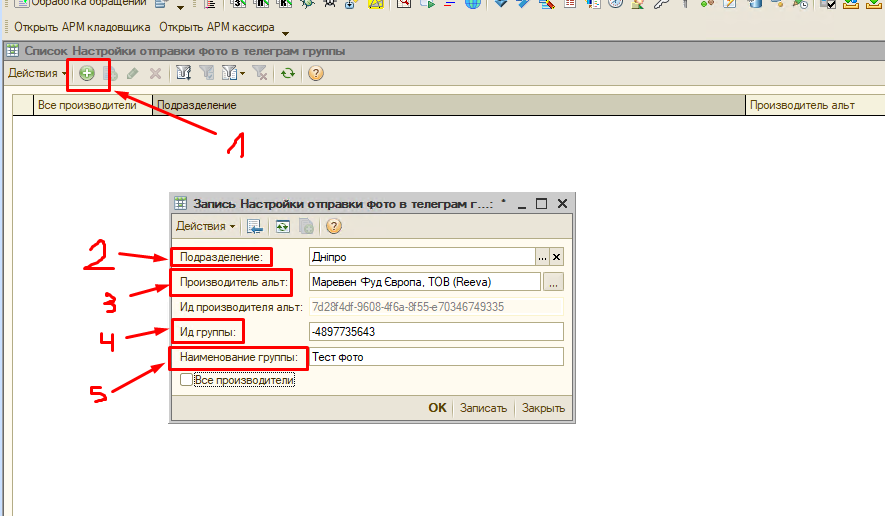
1.1 Операції - регістр відомостей - налаштування відправки фото у телеграм групи:

[![image.png](https://wiki.kashkan.org/uploads/images/gallery/2025-09/scaled-1680-/vgoimage.png)](https://wiki.kashkan.org/uploads/images/gallery/2025-09/vgoimage.png)
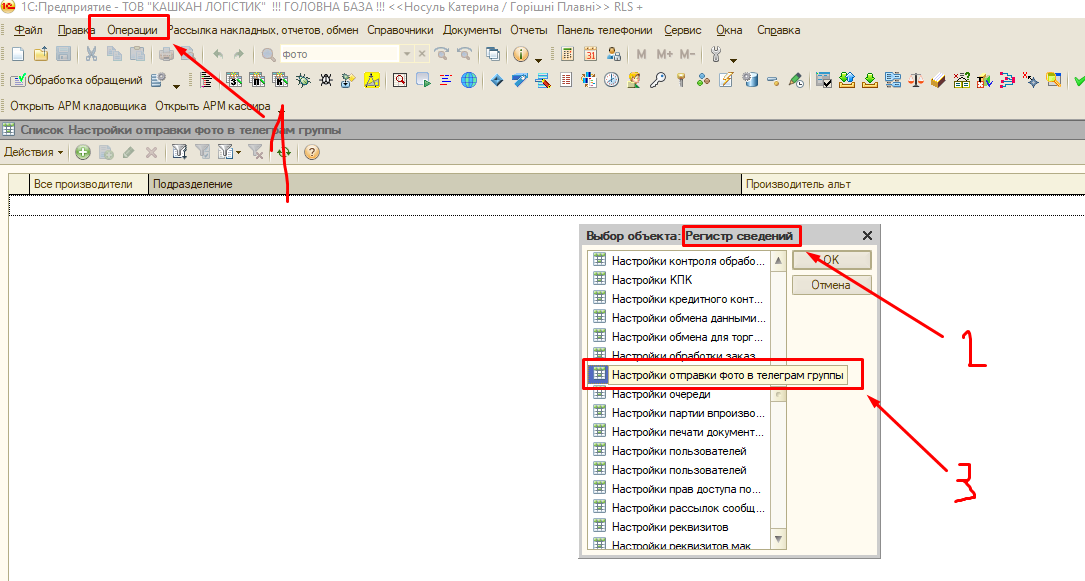
1.2 Додаємо нове налаштування (1):

- Вибираємо підрозділ (2);
- Вибираємо виробника (3);
- Вставляємо айді групи (4);
- Вводимо назву групи (5).

Пояснення про айді нижче.

[![image.png](https://wiki.kashkan.org/uploads/images/gallery/2025-09/scaled-1680-/QB9image.png)](https://wiki.kashkan.org/uploads/images/gallery/2025-09/QB9image.png)
#### 2. Налаштування у телеграм:

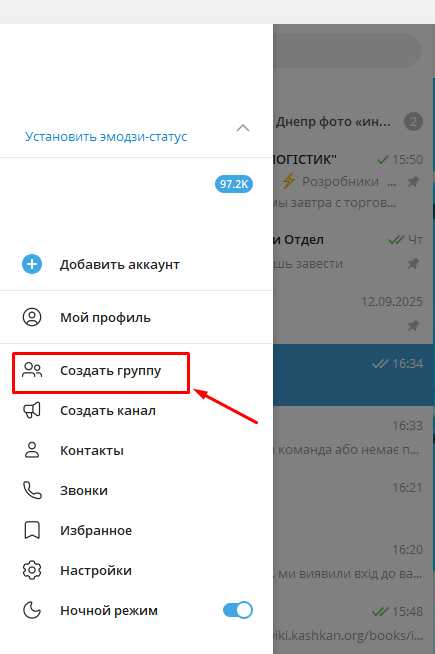
2.1 Якщо групи нема, створюємо

[![image.png](https://wiki.kashkan.org/uploads/images/gallery/2025-09/scaled-1680-/nmLimage.png)](https://wiki.kashkan.org/uploads/images/gallery/2025-09/nmLimage.png)
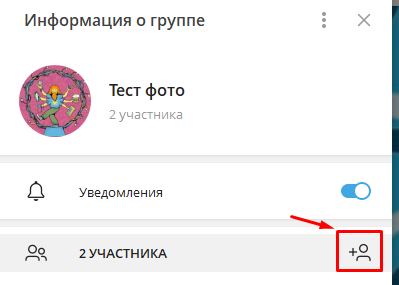
2.2 В групу додаємо бота: [https://t.me/kashkanlogisticbot](https://t.me/kashkanlogisticbot)

[![image.png](https://wiki.kashkan.org/uploads/images/gallery/2025-09/scaled-1680-/tbtimage.png)](https://wiki.kashkan.org/uploads/images/gallery/2025-09/tbtimage.png)
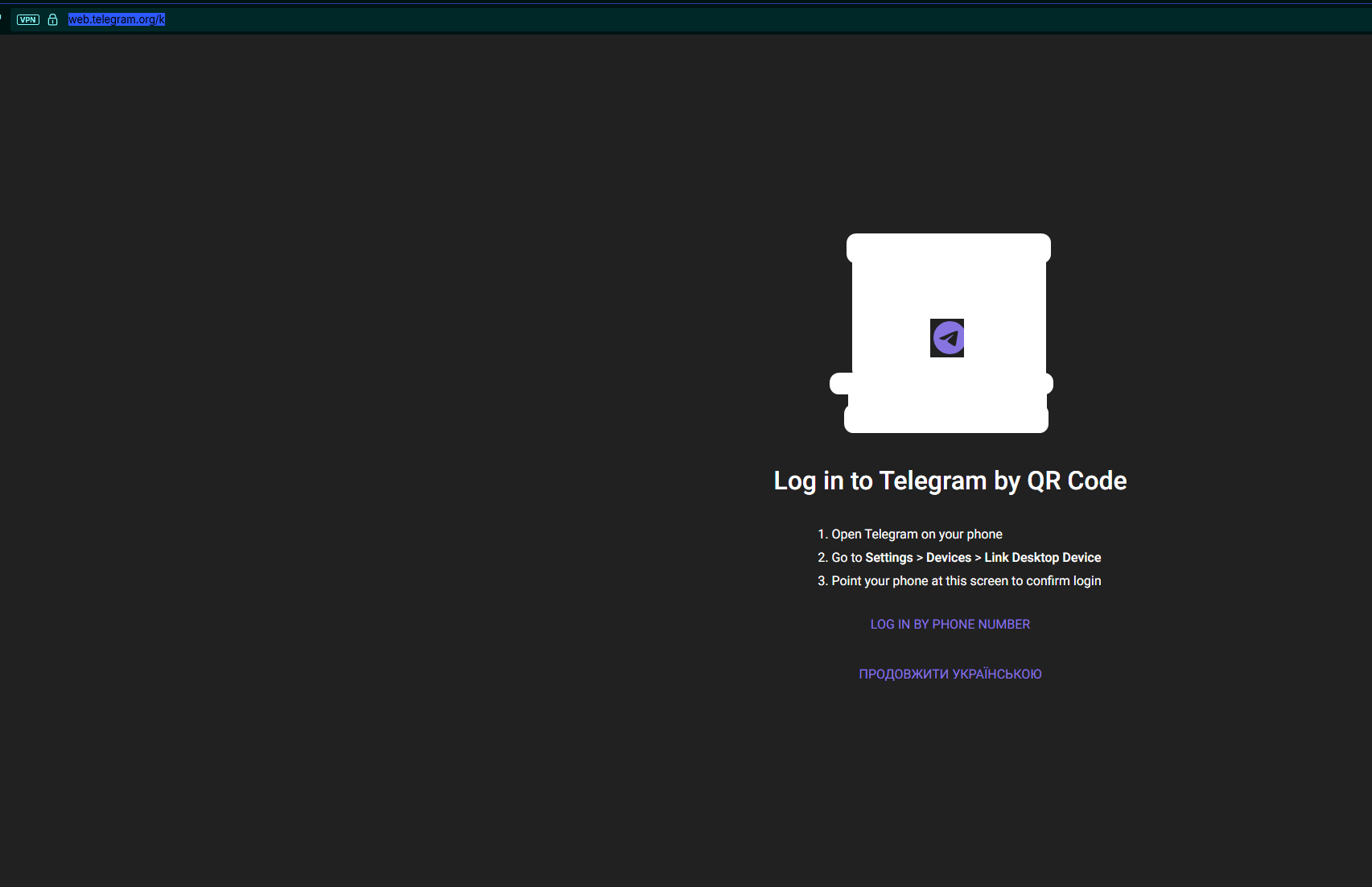
2.3 Переходимо у веб версію та скануємо qr код [https://web.telegram.org/](https://web.telegram.org/)

[![image.png](https://wiki.kashkan.org/uploads/images/gallery/2025-09/scaled-1680-/S90image.png)](https://wiki.kashkan.org/uploads/images/gallery/2025-09/S90image.png)
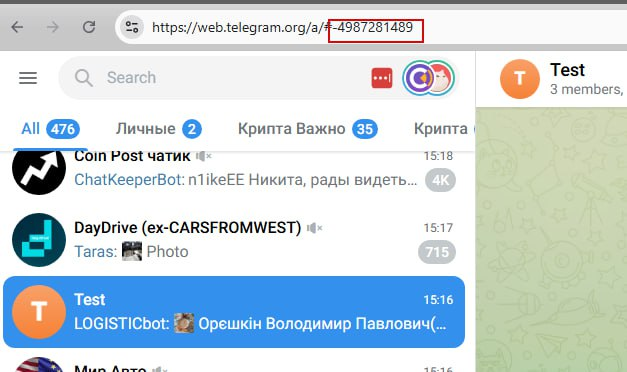
2.4 Копіюємо частину з цифрами включно з мінусом:

[![image.png](https://wiki.kashkan.org/uploads/images/gallery/2025-09/scaled-1680-/kSIimage.png)](https://wiki.kashkan.org/uploads/images/gallery/2025-09/kSIimage.png)
# Инструкция по настройке GPS треккеров Sinotracker

##### <span lang="EN-US" style="mso-ansi-language: EN-US;">SMS</span> <span lang="RU">команды:</span>

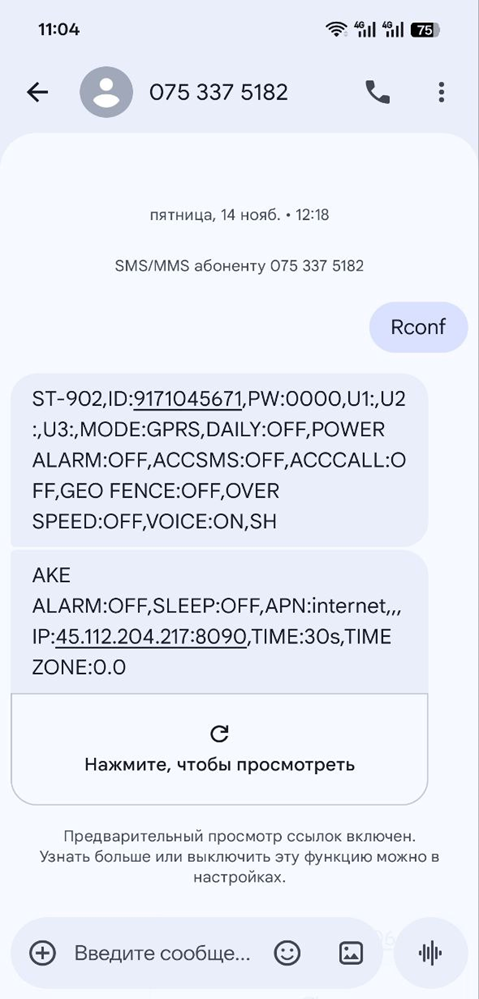
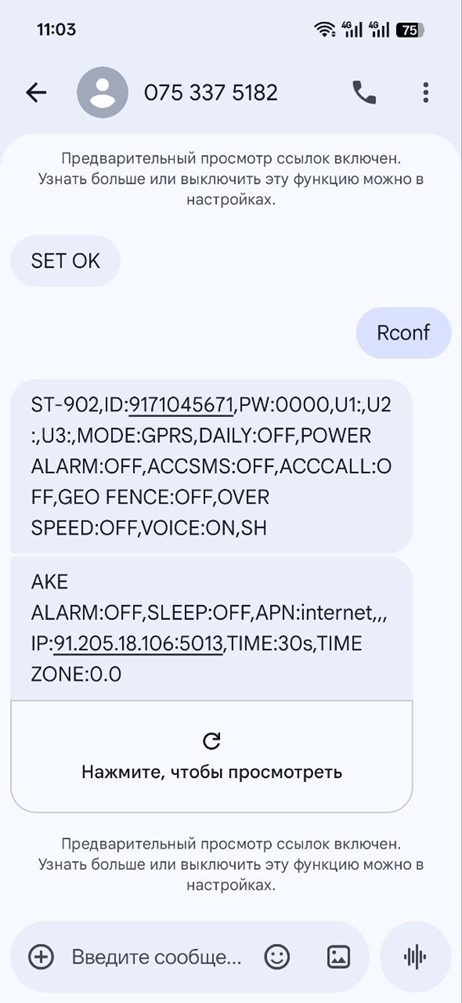
**<span lang="EN-US" style="color: red; mso-ansi-language: EN-US;">RCONF</span>**<span lang="RU"> – основная команда проверки доступности треккера, его доступность и проверка текущих настроек его.</span>

<span lang="RU">Если на данную команду есть реакция, она выглядит так:</span>
<span lang="EN-US" style="mso-ansi-language: EN-US; mso-no-proof: yes;">![](https://wiki.kashkan.org/uploads/images/gallery/2025-11/embedded-image-vsud68fe.png)![](https://wiki.kashkan.org/uploads/images/gallery/2025-11/embedded-image-ecsgorg3.png)</span>

<span lang="RU">В первом случае, где </span><span lang="EN-US" style="mso-ansi-language: EN-US;">IP</span><span lang="RU"> 91.205.18.106:5013 – здесь трекер уже перенастроен на работу с Траккаром.</span>

<span lang="RU">Во втором случае, где </span><span lang="EN-US" style="mso-ansi-language: EN-US;">IP</span><span lang="RU"> 45.112.204.217:8090 на работу с </span><span lang="EN-US" style="mso-ansi-language: EN-US;">Sinotracker</span><span lang="RU"> сервером.</span>

<span lang="RU">По умолчанию устройства всегда настроены на работу с </span><span lang="EN-US" style="mso-ansi-language: EN-US;">Sinotrack</span><span lang="RU"> серверами, будь то это новое устройство или устройству мы сделали Сброс.</span>

<span lang="RU">Сброс к Заводским настройкам осуществляется командой </span>**<span lang="EN-US" style="color: red; mso-ansi-language: EN-US;">Reset</span>**<span lang="RU"> , на что устройство после должно выдать ответ </span><span lang="EN-US" style="mso-ansi-language: EN-US;">Set</span> <span lang="EN-US" style="mso-ansi-language: EN-US;">OK</span><span lang="RU"> , как и в случае с любыми другим командами что мы ему можем дать.</span>

<span lang="RU">Перенастроить устройство на работу с </span><span lang="EN-US" style="mso-ansi-language: EN-US;">Sinotracker</span> <span lang="RU">на </span><span lang="EN-US" style="mso-ansi-language: EN-US;">Traccar</span> <span lang="RU">или наоборот осузествляется одинаково,меняется лишь </span><span lang="EN-US" style="mso-ansi-language: EN-US;">IP</span> <span lang="RU">адрес и порт:</span>

<span lang="EN-US" style="mso-ansi-language: EN-US;">SMS<span style="mso-spacerun: yes;"> </span>**8040000 91.205.18.106 5013<span style="mso-spacerun: yes;"> </span>**-- </span><span lang="RU">Для</span><span lang="RU" style="mso-ansi-language: EN-US;"> </span><span lang="EN-US" style="mso-ansi-language: EN-US;">Traccar</span>

<span lang="EN-US" style="mso-ansi-language: EN-US;">SMS<span style="mso-spacerun: yes;"> </span>**8040000 45.112.204.217 8090<span style="mso-spacerun: yes;"> </span>**-- </span><span lang="RU">Для</span><span lang="RU" style="mso-ansi-language: EN-US;"> </span><span lang="EN-US" style="mso-ansi-language: EN-US;">Sinotracker</span>

<span lang="EN-US" style="mso-ansi-language: EN-US;"> </span>

<span lang="RU">После исполнения команды, устройство,если всё хорошо говорит </span><span lang="EN-US" style="mso-ansi-language: EN-US;">Set</span> <span lang="EN-US" style="mso-ansi-language: EN-US;">OK</span><span lang="RU"> и далее уже привязываем его в нужной нам системе.</span>

<span lang="RU">Если нет ответа на </span><span lang="EN-US" style="mso-ansi-language: EN-US;">RCONF</span><span lang="RU">, любые другие действия ***бессмысленны.*** </span>

<span lang="RU">Или проблемы с питанием, или проблема с </span><span lang="EN-US" style="mso-ansi-language: EN-US;">SIM</span><span lang="RU"> (маловероятно), или аппаратная проблема самого треккера, что скорее всего необходима будет замена.</span>

<span lang="RU">Однажды только помог </span>**<span lang="EN-US" style="color: red; mso-ansi-language: EN-US;">Reset</span>**<span lang="RU"> , когда устройство вроде как Онлайн, но стоит на месте всегда,и один раз, когда устройство отображалось на другом континенте.</span>

<span lang="RU"></span>

# Створення юзера на "Панель"

### Створення користувача та налаштування доступу.

##### Створення облікового запису:

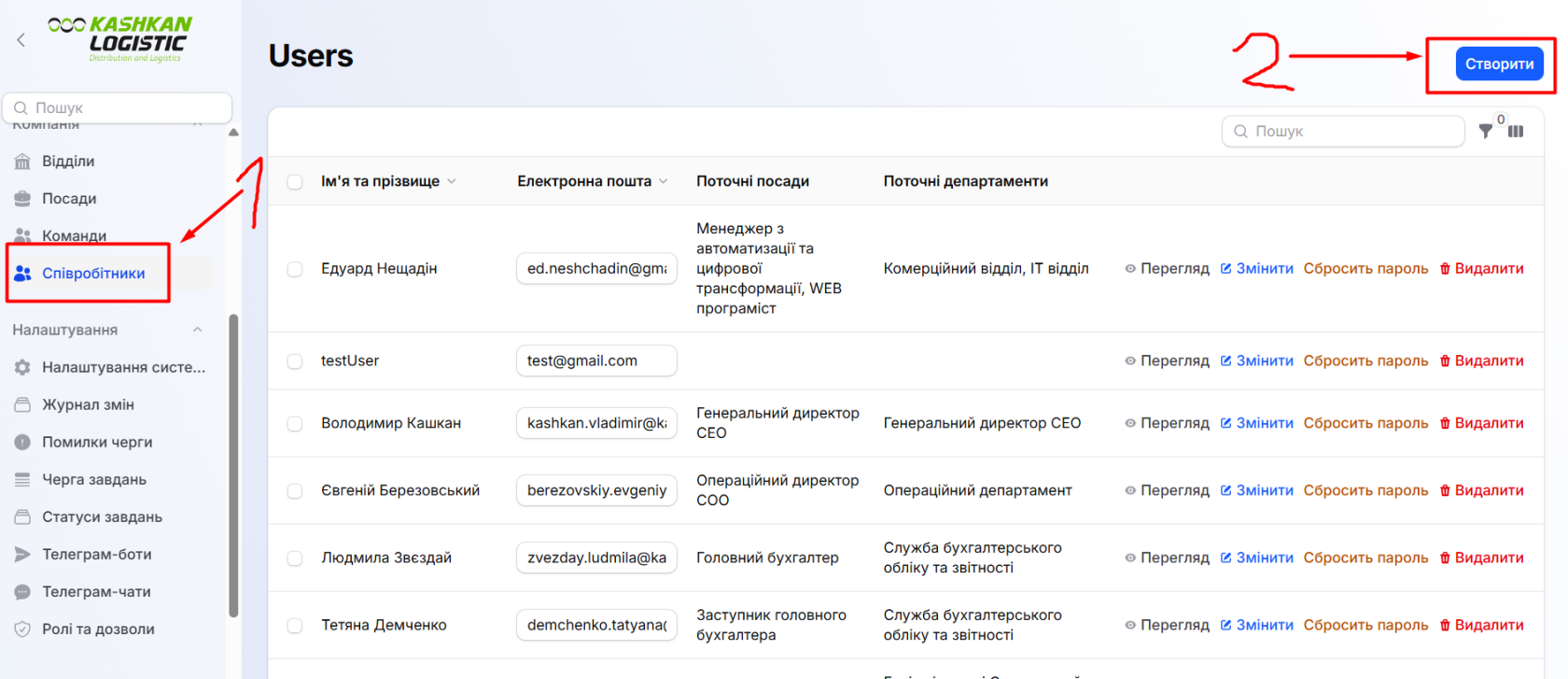
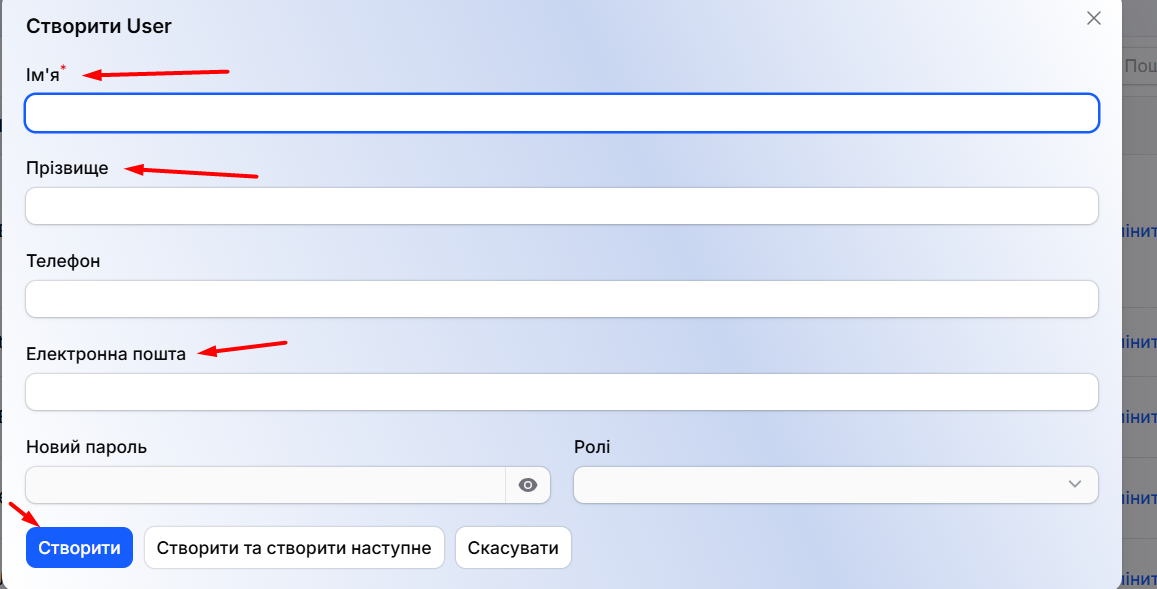
- Перейдіть у розділ «Співробітники».
- Натисніть кнопку «Створити» у верхньому правому куті.
- У модальному вікні, що відкрилося, заповніть поля: «Ім’я», «Прізвище» та «Електронна пошта».
- Натисніть кнопку «Створити».

<span style="background-color: rgb(248, 202, 198);">Важливо: Поля «Новий пароль» та «Ролі» заповнювати не потрібно.</span>

[![image.png](https://wiki.kashkan.org/uploads/images/gallery/2026-02/scaled-1680-/Ko2image.png)](https://wiki.kashkan.org/uploads/images/gallery/2026-02/Ko2image.png)

[![image.png](https://wiki.kashkan.org/uploads/images/gallery/2026-02/scaled-1680-/FRTimage.png)](https://wiki.kashkan.org/uploads/images/gallery/2026-02/FRTimage.png)
##### Встановлення пароля та активація:

- У загальній таблиці користувачів знайдіть щойно створеного юзера та натисніть кнопку «Сбросить пароль» (Скинути пароль).
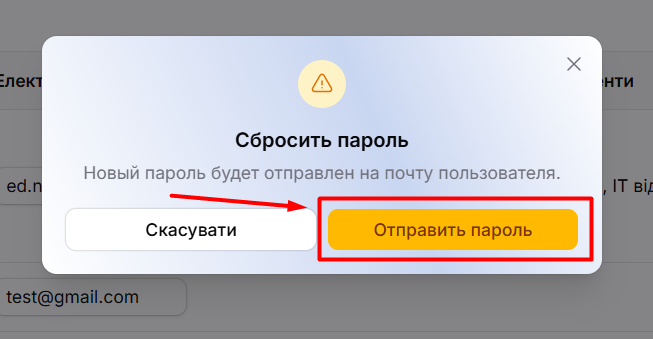
- У вікні підтвердження натисніть «Отправить пароль». Це встановить стандартний пароль та автоматично надішле лист-запрошення користувачу на вказану електронну пошту.

[![image.png](https://wiki.kashkan.org/uploads/images/gallery/2026-02/scaled-1680-/b95image.png)](https://wiki.kashkan.org/uploads/images/gallery/2026-02/b95image.png)
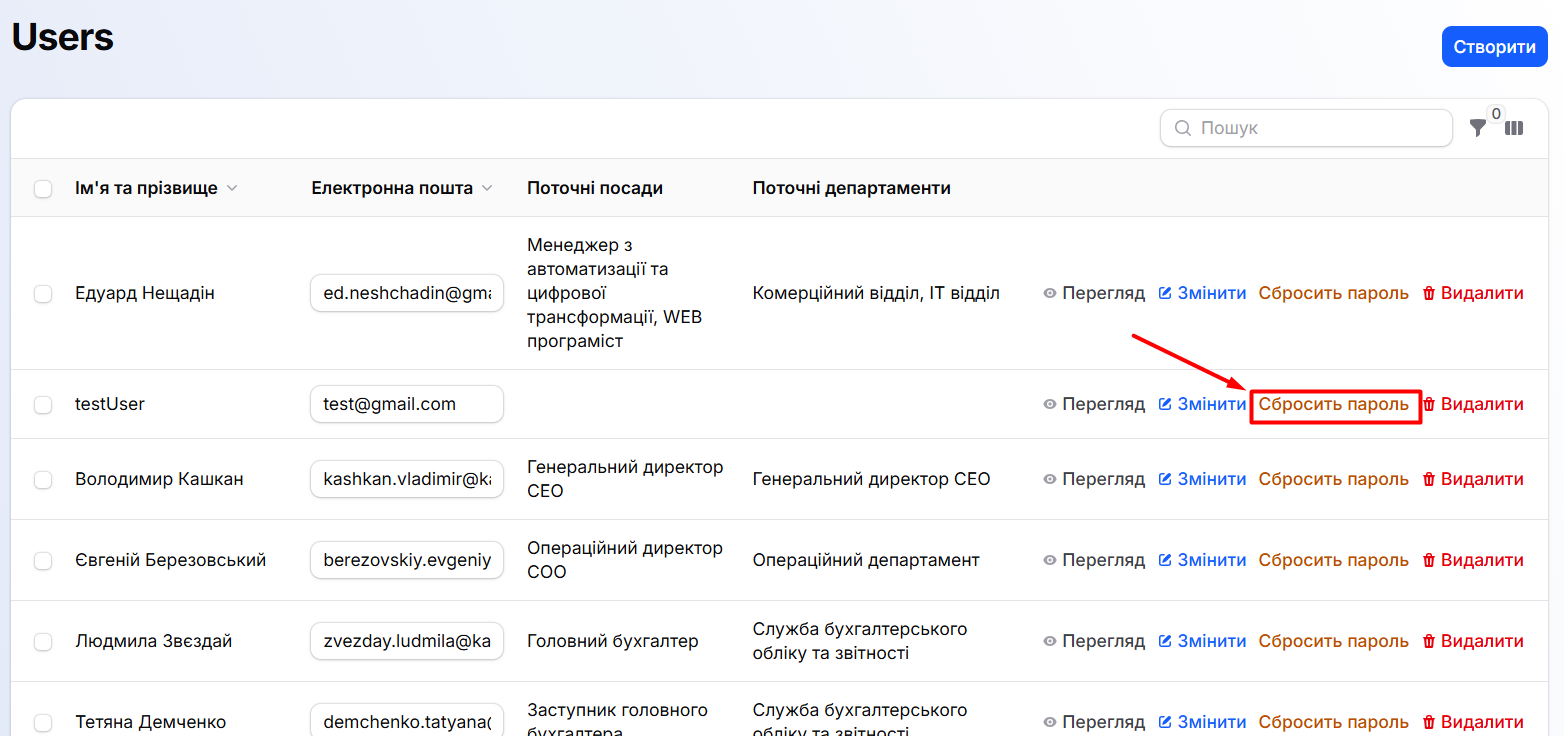
[![image.png](https://wiki.kashkan.org/uploads/images/gallery/2026-02/scaled-1680-/u2Himage.png)](https://wiki.kashkan.org/uploads/images/gallery/2026-02/u2Himage.png)
### Робота з відділами та посадами

##### Перехід до редагування відділу:

- Перейдіть у вкладку «Відділи» у лівому боковому меню.
- Оберіть зручний формат відображення: через схему «Структура» або через «Таблицю».
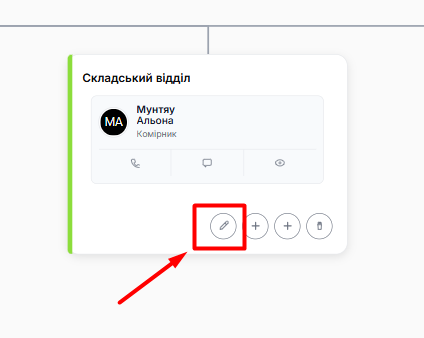
- Натисніть «Редагувати відділ» (або «Редагувати департамент»).

[![image.png](https://wiki.kashkan.org/uploads/images/gallery/2026-02/scaled-1680-/3HTimage.png)](https://wiki.kashkan.org/uploads/images/gallery/2026-02/3HTimage.png)
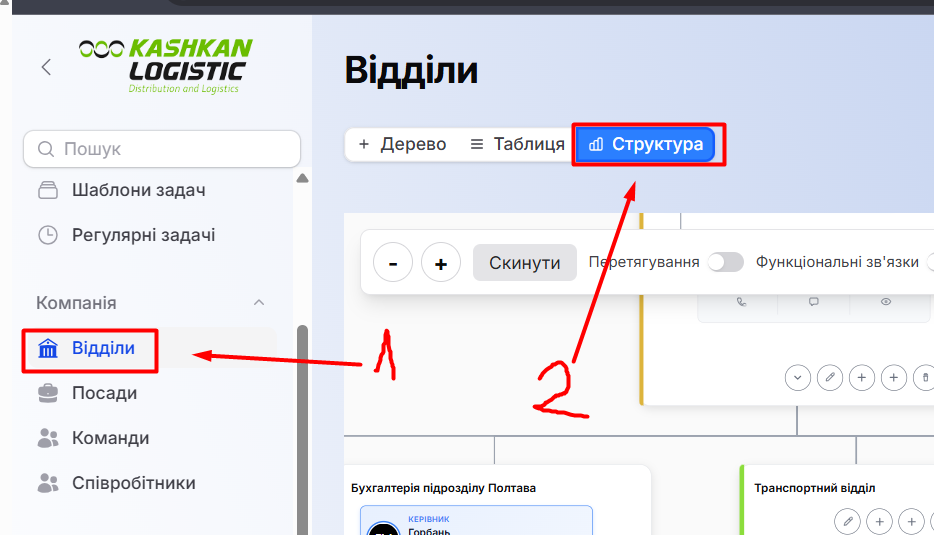
[![image.png](https://wiki.kashkan.org/uploads/images/gallery/2026-02/scaled-1680-/9PLimage.png)](https://wiki.kashkan.org/uploads/images/gallery/2026-02/9PLimage.png)
##### Перевірка та додавання посади:

- У вікні редагування відділу перегляньте список у розділі «Штатні посади».
- Якщо посада є в системі, але не в цьому відділі: У вікні редагування відділу натисніть кнопку «Додати до штатні посади».
- Виберіть потрібну посаду зі списку та обов'язково встановіть «Штатну кількість» (кількість одиниць для цієї посади у відділі).

[![image.png](https://wiki.kashkan.org/uploads/images/gallery/2026-02/scaled-1680-/UEcimage.png)](https://wiki.kashkan.org/uploads/images/gallery/2026-02/UEcimage.png)
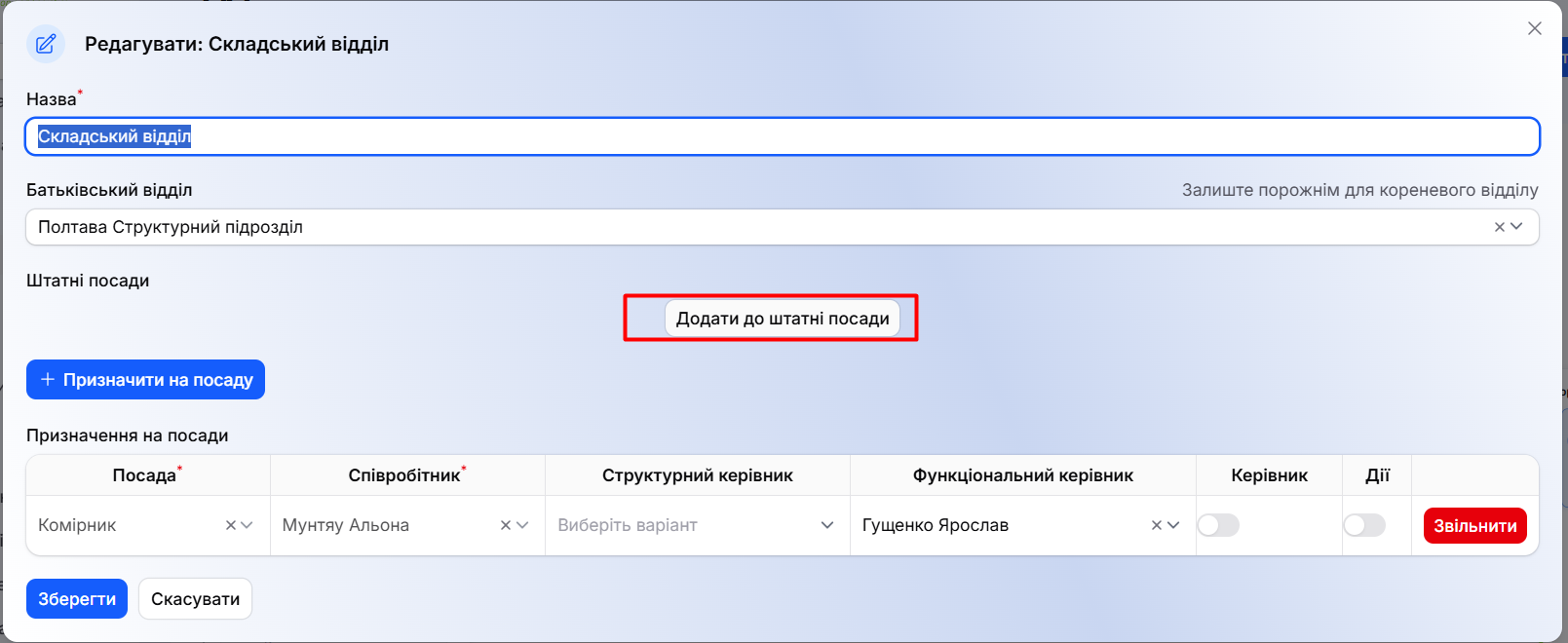
[![image.png](https://wiki.kashkan.org/uploads/images/gallery/2026-02/scaled-1680-/jJoimage.png)](https://wiki.kashkan.org/uploads/images/gallery/2026-02/jJoimage.png)

##### Якщо необхідної посади немає в системі:

- Перейдіть у розділ «Посади» та натисніть «Створити посаду».
- Введіть назву та збережіть (при створенні нової посади для неї автоматично буде створена пуста роль).

[![image.png](https://wiki.kashkan.org/uploads/images/gallery/2026-02/scaled-1680-/oD6image.png)](https://wiki.kashkan.org/uploads/images/gallery/2026-02/oD6image.png)
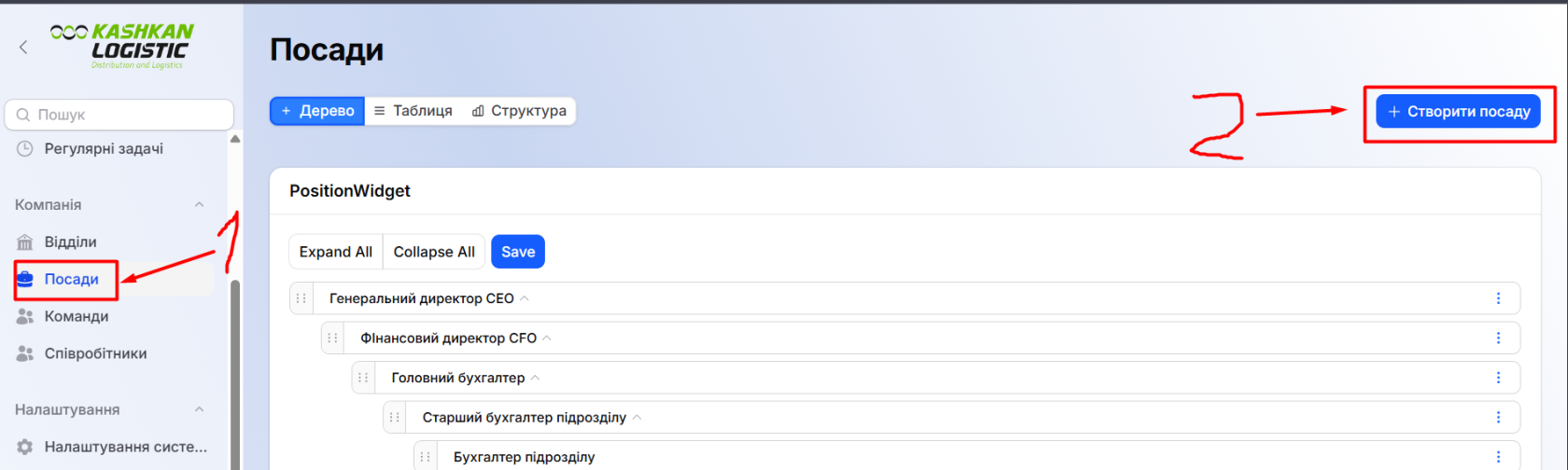
[![image.png](https://wiki.kashkan.org/uploads/images/gallery/2026-02/scaled-1680-/kI8image.png)](https://wiki.kashkan.org/uploads/images/gallery/2026-02/kI8image.png)
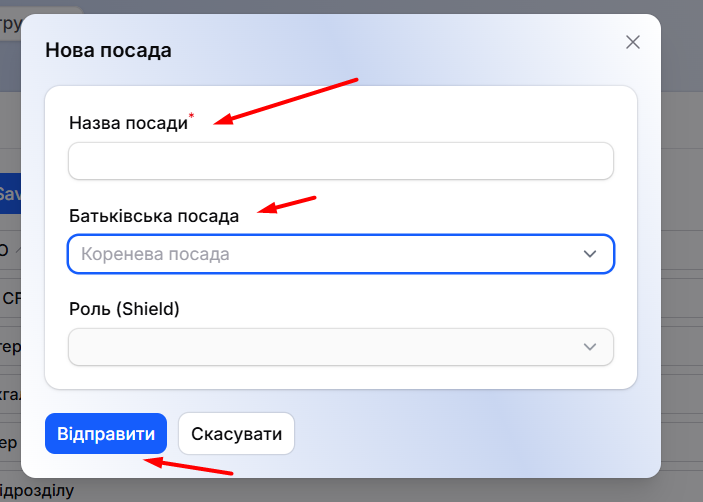
##### Призначення користувача на посаду:

- У тому ж вікні редагування відділу натисніть кнопку «Призначити на посаду».
- У модальному вікні, що з’явиться, оберіть «Посада» та відповідного «Співробітник».
- Натисніть «Призначити».

[![image.png](https://wiki.kashkan.org/uploads/images/gallery/2026-02/scaled-1680-/HHkimage.png)](https://wiki.kashkan.org/uploads/images/gallery/2026-02/HHkimage.png)
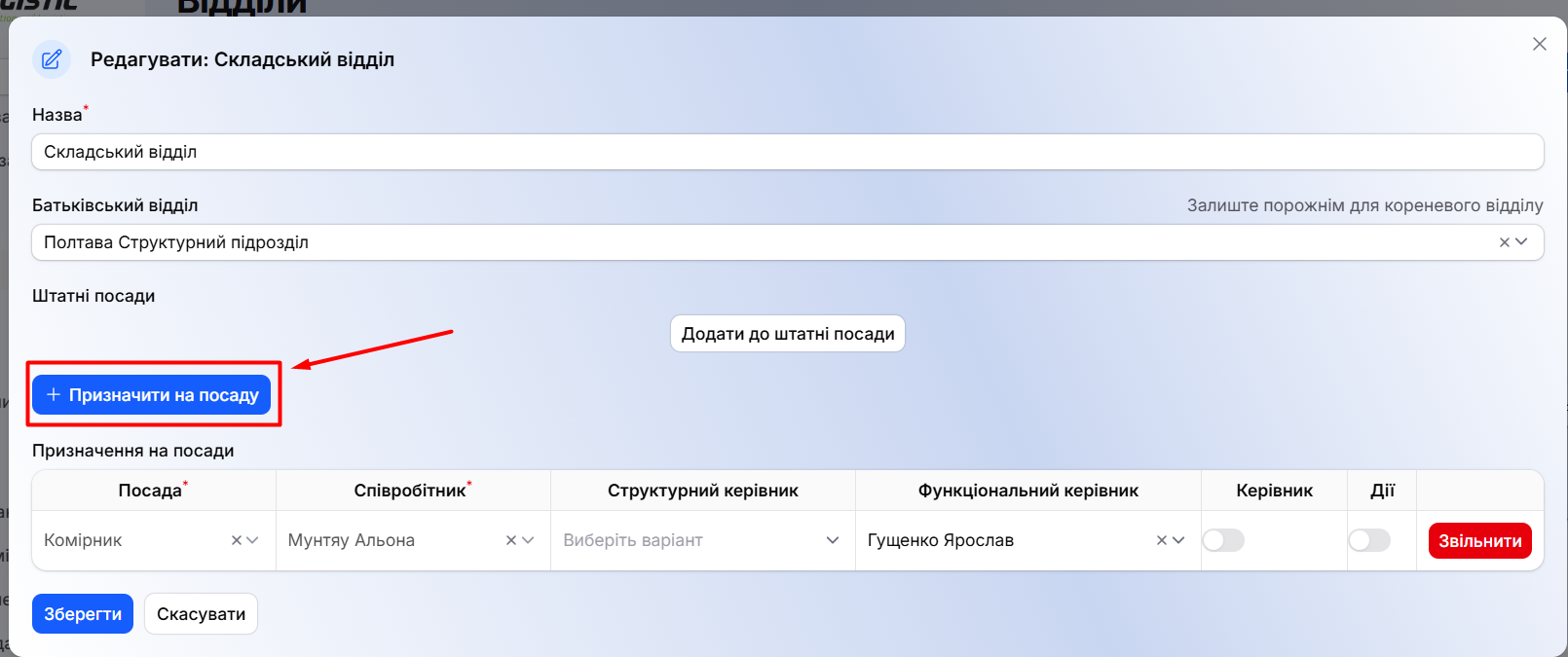
[![image.png](https://wiki.kashkan.org/uploads/images/gallery/2026-02/scaled-1680-/sPYimage.png)](https://wiki.kashkan.org/uploads/images/gallery/2026-02/sPYimage.png)
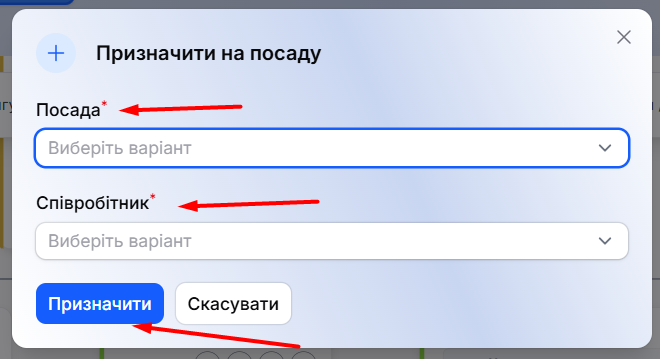
<span style="background-color: rgb(191, 237, 210);">Примітка: Після призначення на посаду користувачу автоматично буде присвоєна роль, що відповідає цій посаді.</span>

# Інструкція зі створення сервісу для відділу на "Панель"

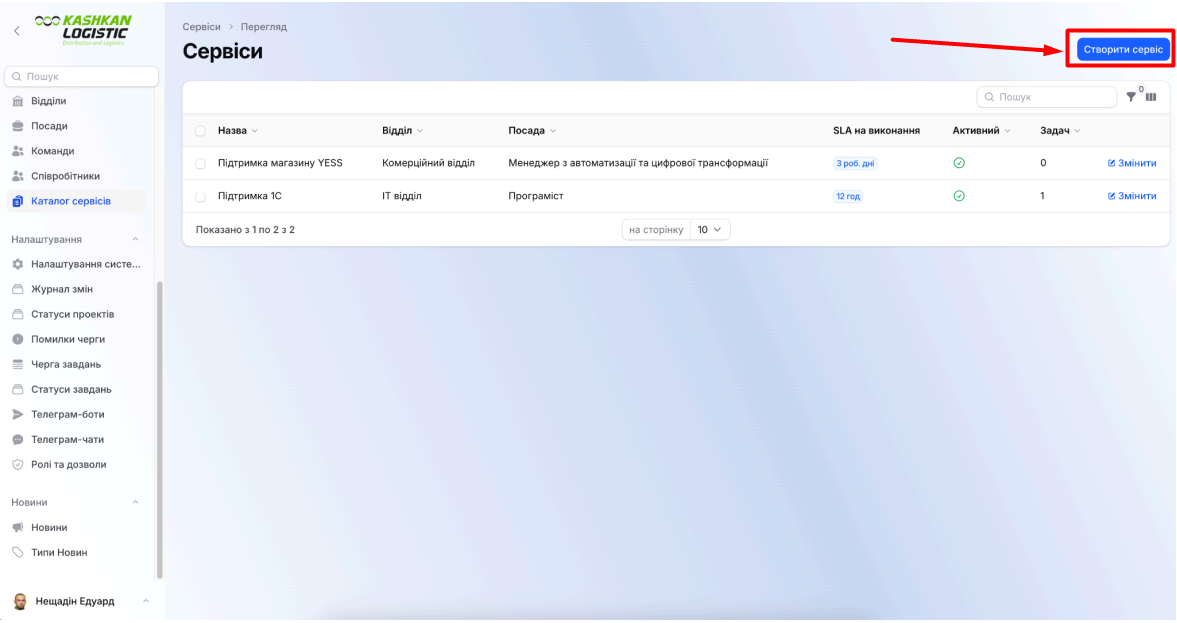
##### 1 Початок створення: Перейдіть у розділ «Каталог сервісів» у бічному меню та натисніть синю кнопку «Створити сервіс» у правому верхньому куті екрана.

[![image.png](https://wiki.kashkan.org/uploads/images/gallery/2026-02/scaled-1680-/e3Timage.png)](https://wiki.kashkan.org/uploads/images/gallery/2026-02/e3Timage.png)
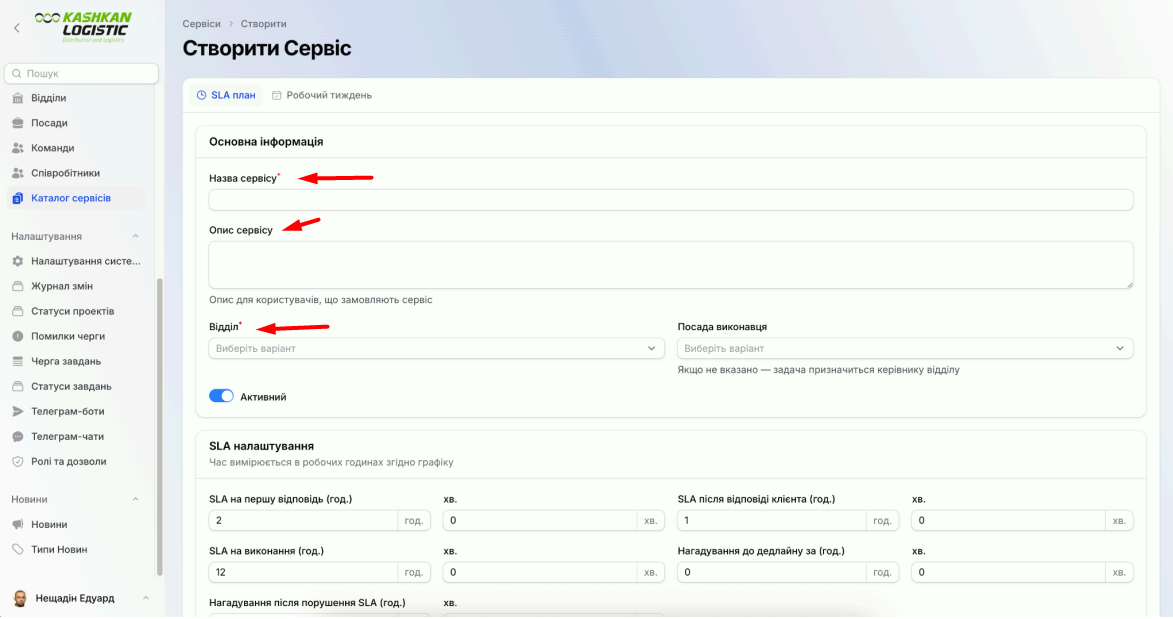
##### 2 Основна інформація:

- У полі «Назва сервісу» введіть назву послуги.
- Заповніть «Опис сервісу», який бачитимуть користувачі під час замовлення.
- Оберіть «Відділ», до якого належатиме цей сервіс, зі спадного списку.

[![image.png](https://wiki.kashkan.org/uploads/images/gallery/2026-02/scaled-1680-/BvKimage.png)](https://wiki.kashkan.org/uploads/images/gallery/2026-02/BvKimage.png)
##### 3 Вибір виконавця та логіка розподілу:

- Оберіть «Посаду виконавця», яка буде відповідати за виконання запитів.
- Зверніть увагу на логіку системи: якщо на обраній посаді лише одна людина, задача автоматично призначається їй як виконавцю. Якщо на цій посаді декілька співробітників, то виконавцем призначається керівник відділу, а всі інші люди на цій посаді стають спостерігачами. У такому випадку керівнику необхідно буде самостійно делегувати задачу одному з підлеглих.
- Якщо посаду виконавця не вказати взагалі, задача за замовчуванням призначається керівнику відділу.

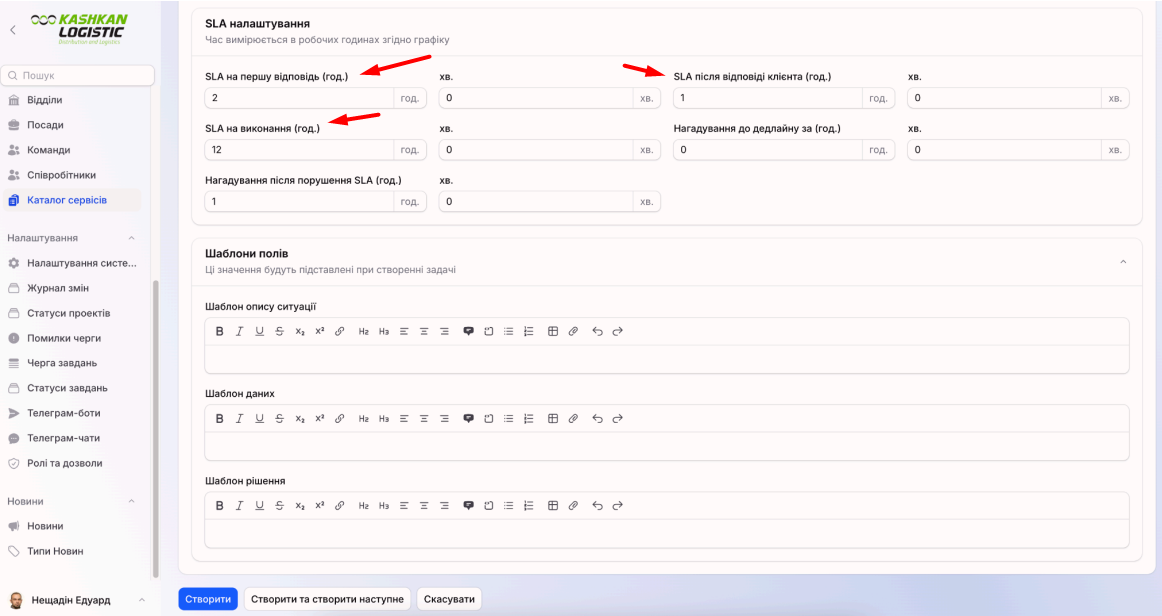
##### 4 Налаштування SLA:

У блоці «SLA налаштування» вкажіть час (у годинах та хвилинах) для:

- першої відповіді;
- відповіді після клієнта;
- загального виконання задачі.

Також можна встановити час для нагадувань до настання дедлайну та після порушення термінів SLA.

[![image.png](https://wiki.kashkan.org/uploads/images/gallery/2026-02/scaled-1680-/A2Limage.png)](https://wiki.kashkan.org/uploads/images/gallery/2026-02/A2Limage.png)
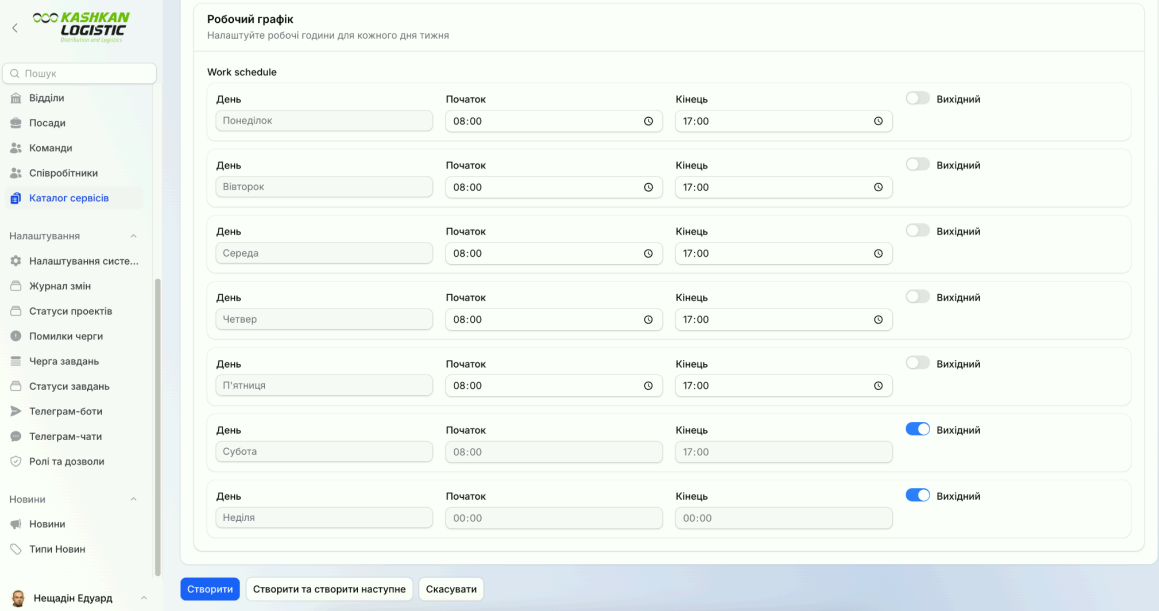
##### 5 Налаштування робочого графіка:

- Перейдіть на вкладку «Робочий тиждень» у верхній частині форми.
- Для кожного дня тижня встановіть час початку та кінця робочого дня або позначте день як «Вихідний» за допомогою перемикача. SLA буде розраховуватися лише в межах цих робочих годин.

[![image.png](https://wiki.kashkan.org/uploads/images/gallery/2026-02/scaled-1680-/lrMimage.png)](https://wiki.kashkan.org/uploads/images/gallery/2026-02/lrMimage.png)
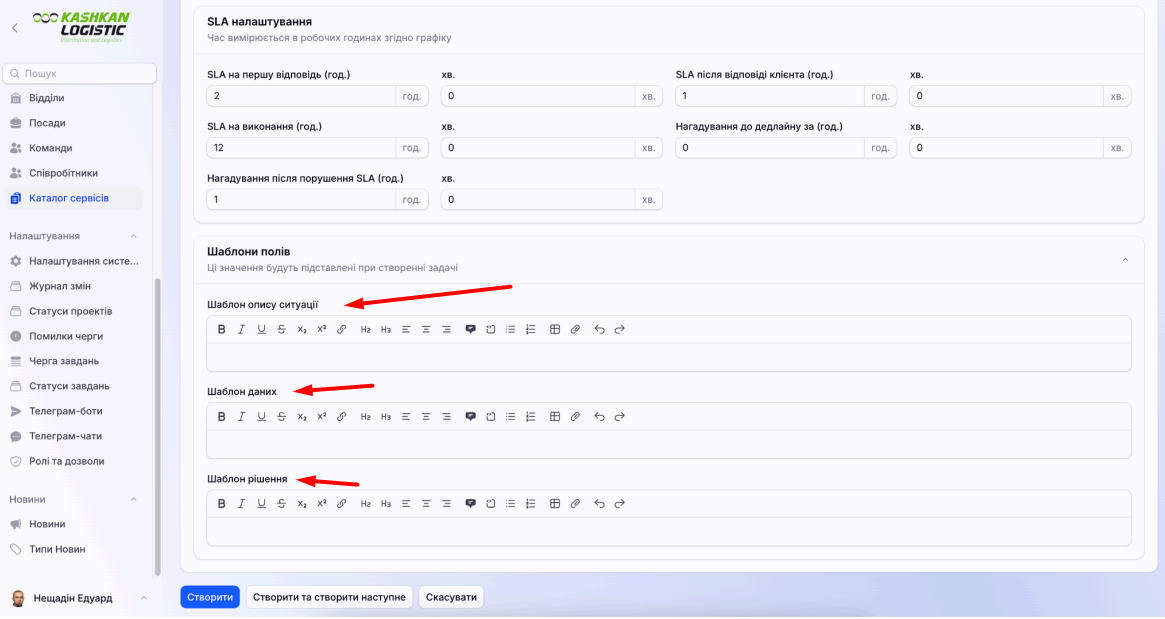
##### 6 Заповнення шаблонів полів:

- Якщо ви хочете полегшити роботу користувачам або виконавцям, скористайтеся розділом «Шаблони полів».
- Ви можете заздалегідь заповнити «Шаблон даних» або «Шаблон рішення».

Ці значення будуть автоматично підставлені при створенні задачі, що дозволить уникнути необхідності ручного заповнення цих полів користувачами.

[![image.png](https://wiki.kashkan.org/uploads/images/gallery/2026-02/scaled-1680-/KXkimage.png)](https://wiki.kashkan.org/uploads/images/gallery/2026-02/KXkimage.png)
##### 7 Збереження: Після введення всіх даних натисніть кнопку «Створити» внизу сторінки для активації сервісу.

# Інструкція по налаштуванню обміна данними УДК - УТП “Маршал Табако”

### 1. УДК ЮТ

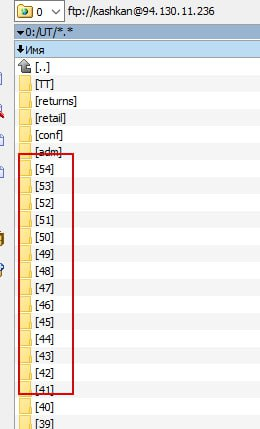
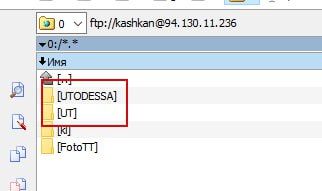
##### <span style="font-size: 11pt; font-family: Arial,sans-serif; color: #000000; background-color: transparent; font-weight: 400; font-style: normal; font-variant: normal; text-decoration: none; vertical-align: baseline; white-space: pre-wrap;">Для кожного користувача додати окремий каталог фтп</span>

##### <span style="font-size: 11pt; font-family: Arial,sans-serif; color: #000000; background-color: transparent; font-weight: 400; font-style: normal; font-variant: normal; text-decoration: none; vertical-align: baseline; white-space: pre-wrap;">Для ЮТ и ЮТ одесская база кореневі каталоги різні</span>
<span style="font-size: 11pt; font-family: Arial,sans-serif; color: #000000; background-color: transparent; font-weight: 400; font-style: normal; font-variant: normal; text-decoration: none; vertical-align: baseline; white-space: pre-wrap;"><span style="border: none; display: inline-block; overflow: hidden; width: 322px; height: 191px;">![](https://wiki.kashkan.org/uploads/images/gallery/2026-03/embedded-image-o42miczz.png)</span></span>

<span style="font-size: 11pt; font-family: Arial,sans-serif; color: #000000; background-color: transparent; font-weight: 400; font-style: normal; font-variant: normal; text-decoration: none; vertical-align: baseline; white-space: pre-wrap;"><span style="border: none; display: inline-block; overflow: hidden; width: 260px; height: 429px;">![](https://wiki.kashkan.org/uploads/images/gallery/2026-03/embedded-image-pohup5ox.png)</span></span>

<span style="font-size: 11pt; font-family: Arial,sans-serif; color: #000000; background-color: transparent; font-weight: 400; font-style: normal; font-variant: normal; text-decoration: none; vertical-align: baseline; white-space: pre-wrap;">Прописати цей створений каталог у регістрі відомостей "Обмен UT Настройки пользователей"</span>

<span style="font-size: 11pt; font-family: Arial,sans-serif; color: #000000; background-color: transparent; font-weight: 400; font-style: normal; font-variant: normal; text-decoration: none; vertical-align: baseline; white-space: pre-wrap;">Меню Операції - регістри відомостей знаходимо відповідний регіст і додаємо запис</span>
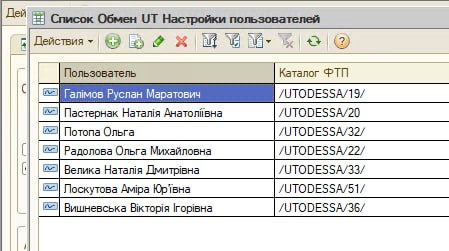
<span style="font-size: 11pt; font-family: Arial,sans-serif; color: #000000; background-color: transparent; font-weight: 400; font-style: normal; font-variant: normal; text-decoration: none; vertical-align: baseline; white-space: pre-wrap;"><span style="border: none; display: inline-block; overflow: hidden; width: 449px; height: 251px;">![](https://wiki.kashkan.org/uploads/images/gallery/2026-03/embedded-image-izrpsstq.png)</span></span>

### <span style="font-size: 20pt; font-family: Arial,sans-serif; color: #000000; background-color: transparent; font-weight: 400; font-style: normal; font-variant: normal; text-decoration: none; vertical-align: baseline; white-space: pre-wrap;">2.База УТП ЮТ</span>

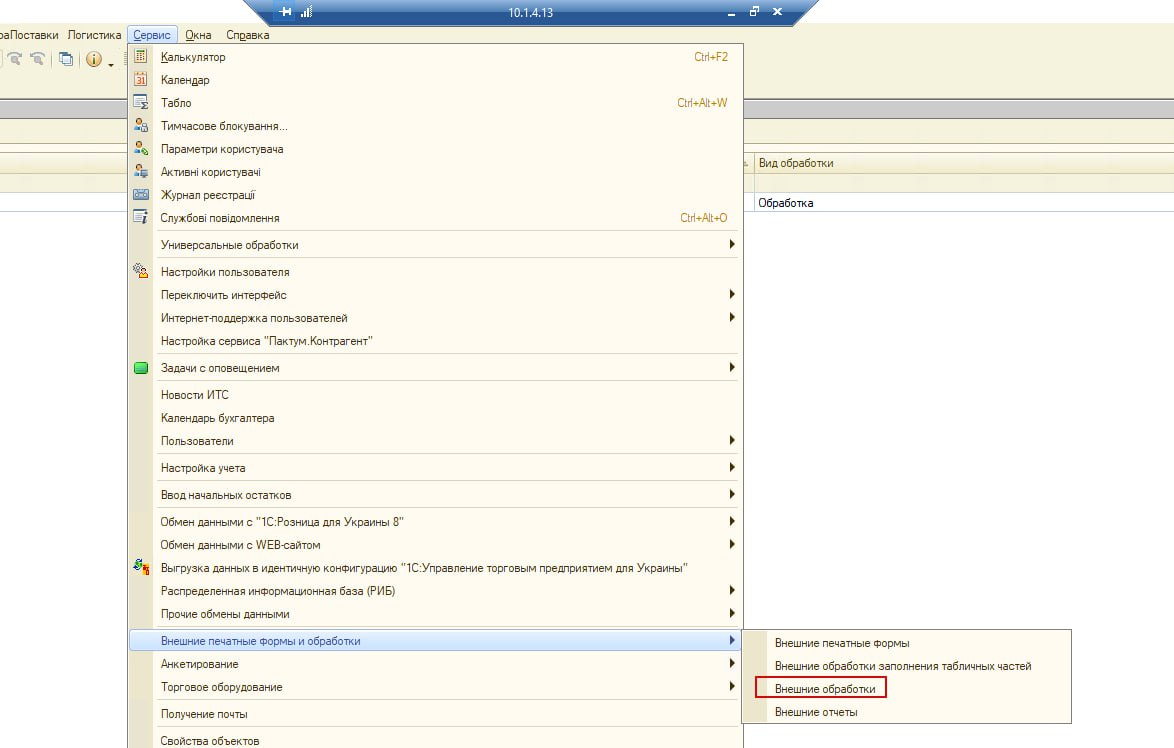
<span style="font-size: 11pt; font-family: Arial,sans-serif; color: #000000; background-color: transparent; font-weight: 400; font-style: normal; font-variant: normal; text-decoration: none; vertical-align: baseline; white-space: pre-wrap;">Підключаємось по anydesk до користувача.</span><span style="font-size: 11pt; font-family: Arial,sans-serif; color: #cc0000; background-color: transparent; font-weight: bold; font-style: normal; font-variant: normal; text-decoration: underline; -webkit-text-decoration-skip: none; text-decoration-skip-ink: none; vertical-align: baseline; white-space: pre-wrap;">В базі УТП</span><span style="font-size: 11pt; font-family: Arial,sans-serif; color: #000000; background-color: transparent; font-weight: 400; font-style: normal; font-variant: normal; text-decoration: none; vertical-align: baseline; white-space: pre-wrap;"> . Меню сервіс. </span>

<span style="font-size: 11pt; font-family: Arial,sans-serif; color: #000000; background-color: transparent; font-weight: 400; font-style: normal; font-variant: normal; text-decoration: none; vertical-align: baseline; white-space: pre-wrap;">Додаткові зовнішні обрбки. </span>

<span style="font-size: 11pt; font-family: Arial,sans-serif; color: #000000; background-color: transparent; font-weight: 400; font-style: normal; font-variant: normal; text-decoration: none; vertical-align: baseline; white-space: pre-wrap;"><span style="border: none; display: inline-block; overflow: hidden; width: 602px; height: 384px;">![](https://wiki.kashkan.org/uploads/images/gallery/2026-03/embedded-image-8zyl9bhy.png)</span></span>

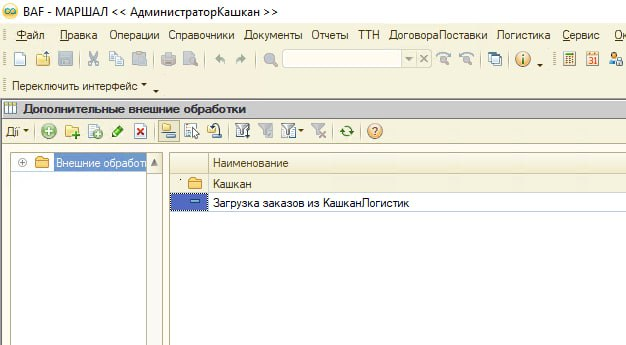
<span style="font-size: 11pt; font-family: Arial,sans-serif; color: #000000; background-color: transparent; font-weight: 400; font-style: normal; font-variant: normal; text-decoration: none; vertical-align: baseline; white-space: pre-wrap;">Знаходимо відповідну.</span>

<span style="font-size: 11pt; font-family: Arial,sans-serif; color: #000000; background-color: transparent; font-weight: 400; font-style: normal; font-variant: normal; text-decoration: none; vertical-align: baseline; white-space: pre-wrap;"><span style="border: none; display: inline-block; overflow: hidden; width: 602px; height: 332px;">![](https://wiki.kashkan.org/uploads/images/gallery/2026-03/embedded-image-4yqu0b0q.png)</span></span>

<span style="font-size: 11pt; font-family: Arial,sans-serif; color: #000000; background-color: transparent; font-weight: 400; font-style: normal; font-variant: normal; text-decoration: none; vertical-align: baseline; white-space: pre-wrap;">Тут потрібно прописати налаштування вручну і зберегти дані форми під цим користувачем</span>

[![embedded-image-jqhgoprq.png](https://wiki.kashkan.org/uploads/images/gallery/2026-03/scaled-1680-/5Q4embedded-image-jqhgoprq.png)](https://wiki.kashkan.org/uploads/images/gallery/2026-03/5Q4embedded-image-jqhgoprq.png)

<span style="font-size: 11pt; font-family: Arial,sans-serif; color: #000000; background-color: transparent; font-weight: 400; font-style: normal; font-variant: normal; text-decoration: none; vertical-align: baseline; white-space: pre-wrap;">Каталог FTP вносимо той що вписали базі УДК (цифровий) . На скріні adm для прикладу.</span>

# Налаштування ланцюгів погодження

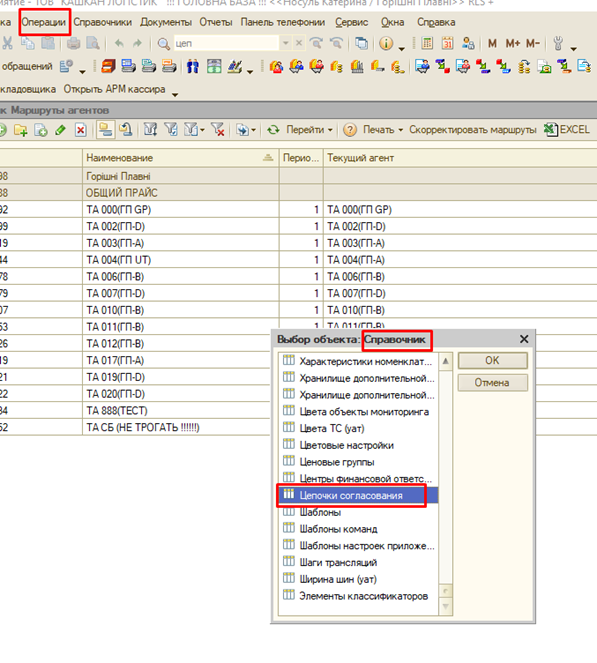
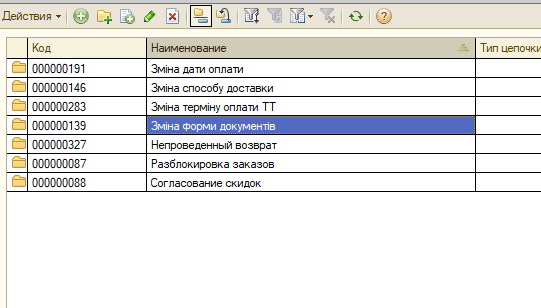
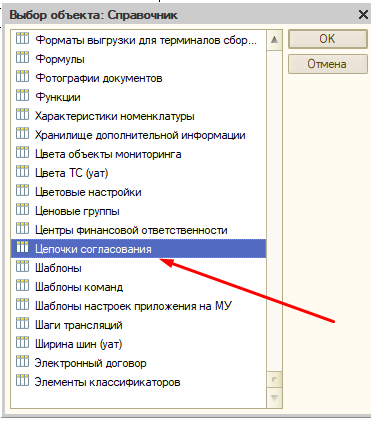
##### Щоб налаштувати існуючий ланцюжок погоджень заходимо в "Операции - Справочники - Цепочки согласований"

[![image.png](https://wiki.kashkan.org/uploads/images/gallery/2026-04/scaled-1680-/image.png)](https://wiki.kashkan.org/uploads/images/gallery/2026-04/image.png)
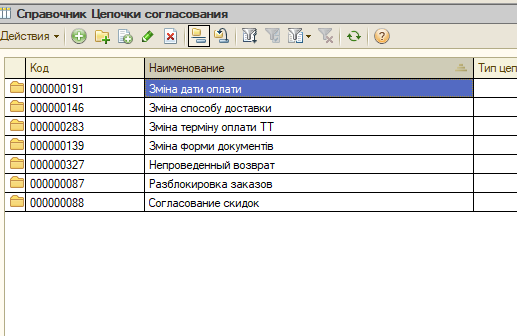
##### У кожного СВ свій ланцюг погоджень, який є в усіх папках, окрім "Непроведеный возврат", Оболоні також немає у "Согласование скидок"

[![image.png](https://wiki.kashkan.org/uploads/images/gallery/2026-04/scaled-1680-/C3yimage.png)](https://wiki.kashkan.org/uploads/images/gallery/2026-04/C3yimage.png)
##### Обираєм ланцюг та відкриваєм

[![image.png](https://wiki.kashkan.org/uploads/images/gallery/2026-04/scaled-1680-/dQzimage.png)](https://wiki.kashkan.org/uploads/images/gallery/2026-04/dQzimage.png)
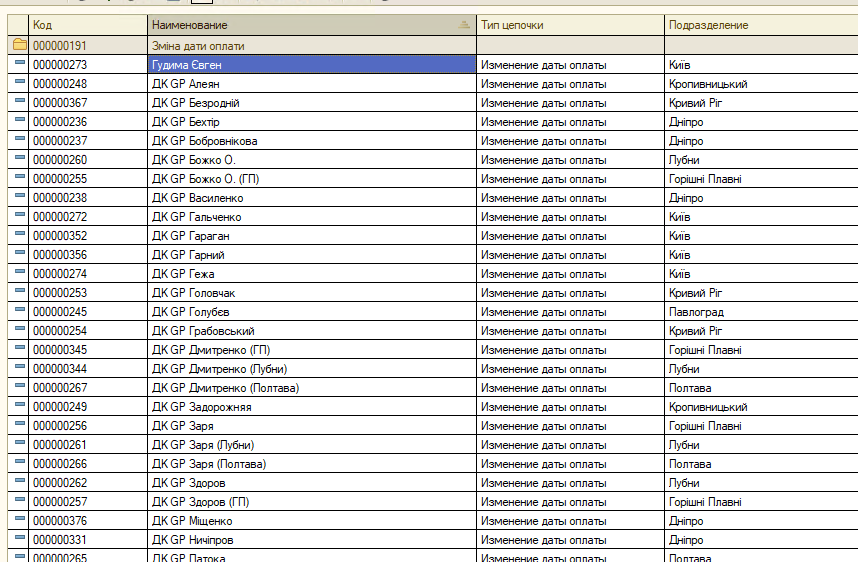
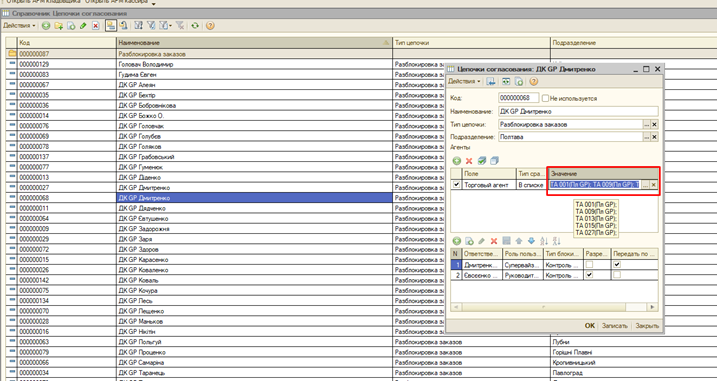
##### Щоб додати або прибрати торгового у ланцюг клікаємо два рази по списку торгових, натискаємо три крапки та вносим зміни

[![image.png](https://wiki.kashkan.org/uploads/images/gallery/2026-04/scaled-1680-/qIiimage.png)](https://wiki.kashkan.org/uploads/images/gallery/2026-04/qIiimage.png)
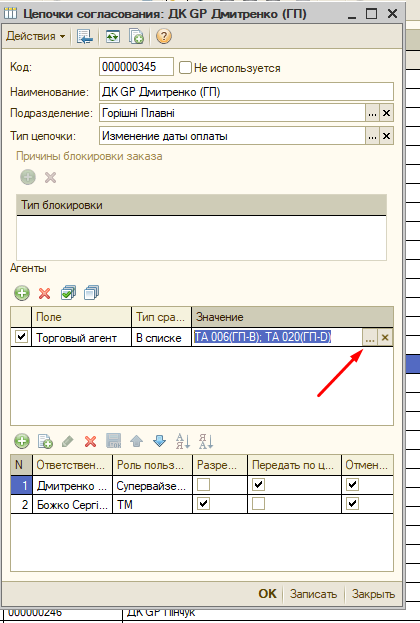
##### Якщо необхідно змінити відповідальних, то:

- Щоб додати натискаємо плюсик
- Щоб видалити хрестик
- Щоб змінити людину клікаємо по відповідальному, три крапки та обираємо хто потрібен

[![image.png](https://wiki.kashkan.org/uploads/images/gallery/2026-04/scaled-1680-/ExMimage.png)](https://wiki.kashkan.org/uploads/images/gallery/2026-04/ExMimage.png)
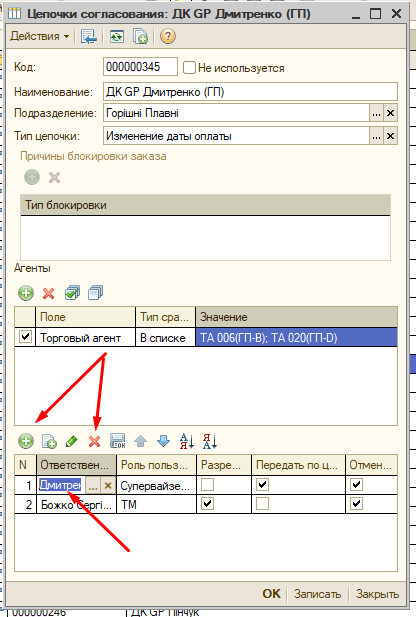
##### <span style="background-color: rgb(248, 202, 198);">Увага. </span>СВ може тільки передавати по ланцюгу, погоджують або НТО або керівник. Погоджувати СВ може тільки, якщо Керівник дав на це дозвіл.

##### <span style="background-color: rgb(248, 202, 198);">Увага. </span>Ланцюги "Зміна форми оплати" погоджує лище керівник підрозділу

# Заведение нового маршрута \ Смена ТА

### **<span lang="RU" style="font-size: 18.0pt; line-height: 107%; color: windowtext; mso-ansi-language: RU;">Смена ТА</span>**

**<span lang="RU" style="font-size: 14.0pt; line-height: 107%; mso-bidi-font-family: Calibri; mso-bidi-theme-font: minor-latin; mso-ansi-language: RU;"><span style="mso-list: Ignore;">1.<span style="font: 7.0pt 'Times New Roman';"> </span></span></span>**<span lang="RU" style="font-size: 14.0pt; line-height: 107%; mso-ansi-language: RU;">Узнаем ФИО и рабочий номер у СВ или НТО (в идеале приходит письмо на саппорт);</span>

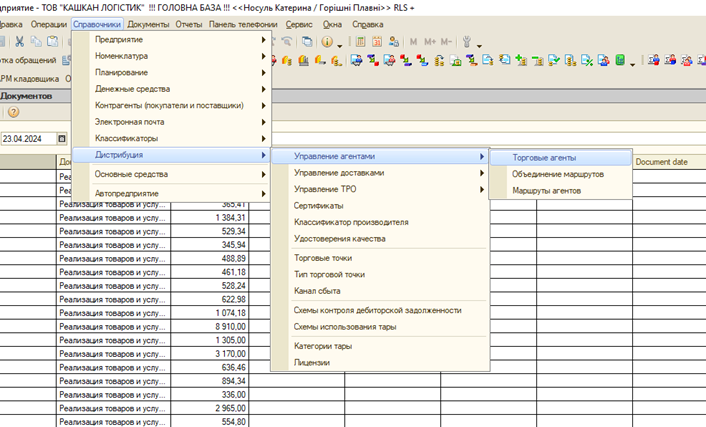
**<span lang="RU" style="font-size: 14.0pt; line-height: 107%; mso-bidi-font-family: Calibri; mso-bidi-theme-font: minor-latin; mso-ansi-language: RU;"><span style="mso-list: Ignore;">2.<span style="font: 7.0pt 'Times New Roman';"> </span></span></span>**<span lang="RU" style="font-size: 14.0pt; line-height: 107%; mso-ansi-language: RU;">Идем в справочник: Торговые агенты;</span>

[![image.png](https://wiki.kashkan.org/uploads/images/gallery/2026-04/scaled-1680-/SPKimage.png)](https://wiki.kashkan.org/uploads/images/gallery/2026-04/SPKimage.png)<span style="mso-fareast-language: UK; mso-no-proof: yes;"></span>

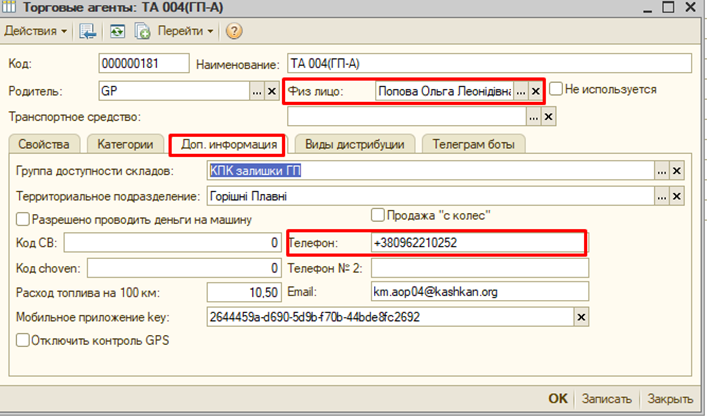
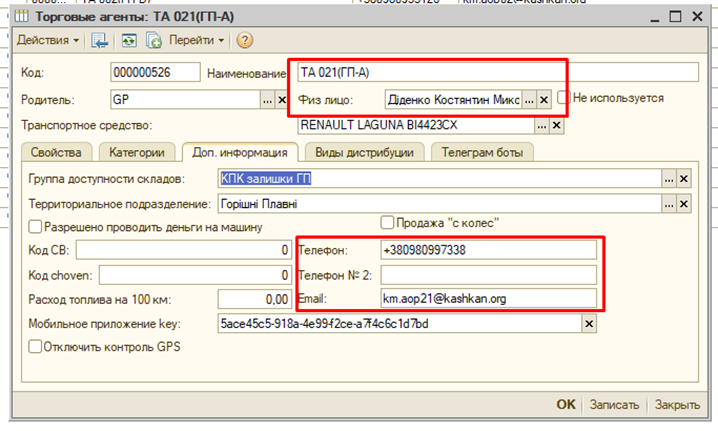
**<span lang="RU" style="font-size: 14.0pt; line-height: 107%; mso-bidi-font-family: Calibri; mso-bidi-theme-font: minor-latin; mso-ansi-language: RU;"><span style="mso-list: Ignore;">3.<span style="font: 7.0pt 'Times New Roman';"> </span></span></span>**<span lang="RU" style="font-size: 14.0pt; line-height: 107%; mso-ansi-language: RU;">Открываем нужного торгового, меняем ФИО и номер;</span>

[![image.png](https://wiki.kashkan.org/uploads/images/gallery/2026-04/scaled-1680-/G7himage.png)](https://wiki.kashkan.org/uploads/images/gallery/2026-04/G7himage.png)

### **<span lang="RU" style="font-size: 18.0pt; line-height: 107%; color: windowtext; mso-ansi-language: RU;">Создание маршрута</span>**

**<span lang="RU" style="font-size: 14.0pt; line-height: 107%; mso-bidi-font-family: Calibri; mso-bidi-theme-font: minor-latin; mso-ansi-language: RU;"><span style="mso-list: Ignore;">1.<span style="font: 7.0pt 'Times New Roman';"> </span></span></span>**<span lang="RU" style="font-size: 14.0pt; line-height: 107%; mso-ansi-language: RU;">Согласовываем с НТО номер маршрута, узнаем ФИО, номер телефона, к какому СВ будет привязан;</span>

**<span lang="RU" style="font-size: 14.0pt; line-height: 107%; mso-bidi-font-family: Calibri; mso-bidi-theme-font: minor-latin; mso-ansi-language: RU;"><span style="mso-list: Ignore;">2.<span style="font: 7.0pt 'Times New Roman';"> </span></span></span>**<span lang="RU" style="font-size: 14.0pt; line-height: 107%; mso-ansi-language: RU;">Создание ТА:</span>

**<span lang="RU" style="font-size: 14.0pt; line-height: 107%; mso-bidi-font-family: Calibri; mso-bidi-theme-font: minor-latin; mso-ansi-language: RU;"><span style="mso-list: Ignore;">2.1.<span style="font: 7.0pt 'Times New Roman';"> </span></span></span>**<span lang="RU" style="font-size: 14.0pt; line-height: 107%; mso-ansi-language: RU;">Открываем Справочник: торговые агенты;</span>

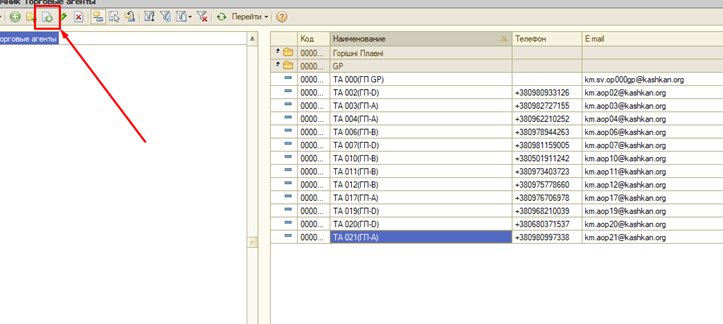
**<span lang="RU" style="font-size: 14.0pt; line-height: 107%; mso-bidi-font-family: Calibri; mso-bidi-theme-font: minor-latin; mso-ansi-language: RU;"><span style="mso-list: Ignore;">2.2.<span style="font: 7.0pt 'Times New Roman';"> </span></span></span>**<span lang="RU" style="font-size: 14.0pt; line-height: 107%; mso-ansi-language: RU;">Создаем нового ТА копированием;</span>

[![image.png](https://wiki.kashkan.org/uploads/images/gallery/2026-04/scaled-1680-/tlVimage.png)](https://wiki.kashkan.org/uploads/images/gallery/2026-04/tlVimage.png)

<span style="mso-fareast-language: UK; mso-no-proof: yes;">  
</span>

**<span lang="RU" style="font-size: 14.0pt; line-height: 107%; mso-bidi-font-family: Calibri; mso-bidi-theme-font: minor-latin; mso-ansi-language: RU;"><span style="mso-list: Ignore;">2.3.<span style="font: 7.0pt 'Times New Roman';"> </span></span></span>**<span lang="RU" style="font-size: 14.0pt; line-height: 107%; mso-ansi-language: RU;">Наименование – номер торгового, меняем физ лицо, номер телефона, в эмейле цифру меняем на номер торгового, на вкладке виды дистрибуции на первом месте должен быть общий прайс;</span>

[![image.png](https://wiki.kashkan.org/uploads/images/gallery/2026-04/scaled-1680-/z9iimage.png)](https://wiki.kashkan.org/uploads/images/gallery/2026-04/z9iimage.png)<span style="mso-fareast-language: UK; mso-no-proof: yes;"></span>

**<span lang="RU" style="font-size: 14.0pt; line-height: 107%; mso-bidi-font-family: Calibri; mso-bidi-theme-font: minor-latin; mso-ansi-language: RU;"><span style="mso-list: Ignore;">3.<span style="font: 7.0pt 'Times New Roman';"> </span></span></span>**<span lang="RU" style="font-size: 14.0pt; line-height: 107%; mso-ansi-language: RU;">Создание маршрута:</span>

**<span lang="RU" style="font-size: 14.0pt; line-height: 107%; mso-bidi-font-family: Calibri; mso-bidi-theme-font: minor-latin; mso-ansi-language: RU;"><span style="mso-list: Ignore;">3.1.<span style="font: 7.0pt 'Times New Roman';"> </span></span></span>**<span lang="RU" style="font-size: 14.0pt; line-height: 107%; mso-ansi-language: RU;">Открываем справочник: маршруты агентов;</span>

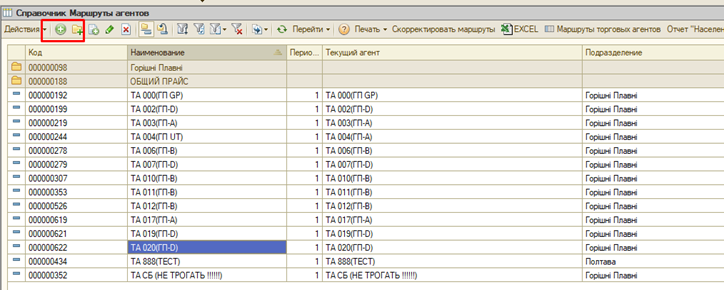
**<span lang="RU" style="font-size: 14.0pt; line-height: 107%; mso-bidi-font-family: Calibri; mso-bidi-theme-font: minor-latin; mso-ansi-language: RU;"><span style="mso-list: Ignore;">3.2.<span style="font: 7.0pt 'Times New Roman';"> </span></span></span>**<span lang="RU" style="font-size: 14.0pt; line-height: 107%; mso-ansi-language: RU;">Добавляем маршрут;</span>

[![image.png](https://wiki.kashkan.org/uploads/images/gallery/2026-04/scaled-1680-/oaVimage.png)](https://wiki.kashkan.org/uploads/images/gallery/2026-04/oaVimage.png)<span style="mso-fareast-language: UK; mso-no-proof: yes;"></span>

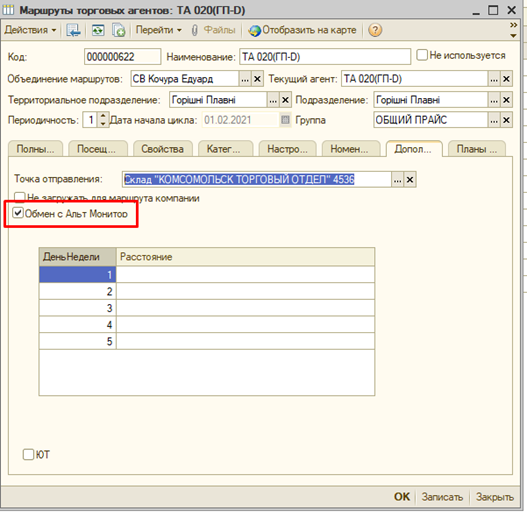
**<span lang="RU" style="font-size: 14.0pt; line-height: 107%; mso-bidi-font-family: Calibri; mso-bidi-theme-font: minor-latin; mso-ansi-language: RU;"><span style="mso-list: Ignore;">3.3.<span style="font: 7.0pt 'Times New Roman';"> </span></span></span>**<span lang="RU" style="font-size: 14.0pt; line-height: 107%; mso-ansi-language: RU;">Наименование – номер ТА, Объединение маршрута – СВ, которого назвал НТО, текущий агент – заведенный ТА, Терр. Подразделение и подразделение – совпадают, периодичность 1, начало цикла с понедельника, на вкладке дополнительно галочка обмен с альт, точка отправления по аналогии с другими;</span><span style="mso-fareast-language: UK; mso-no-proof: yes;"></span>

[![image.png](https://wiki.kashkan.org/uploads/images/gallery/2026-04/scaled-1680-/QO8image.png)](https://wiki.kashkan.org/uploads/images/gallery/2026-04/QO8image.png)

**<span lang="RU" style="font-size: 14.0pt; line-height: 107%; mso-bidi-font-family: Calibri; mso-bidi-theme-font: minor-latin; mso-ansi-language: RU;"><span style="mso-list: Ignore;">3.4.<span style="font: 7.0pt 'Times New Roman';"> </span></span></span>**<span lang="RU" style="font-size: 14.0pt; line-height: 107%; mso-ansi-language: RU;">Торгового необходимо добавить в цепочку согласований:</span><span lang="RU" style="mso-no-proof: yes;"> </span><span style="mso-fareast-language: UK; mso-no-proof: yes;"></span>

[![image.png](https://wiki.kashkan.org/uploads/images/gallery/2026-04/scaled-1680-/NQDimage.png)](https://wiki.kashkan.org/uploads/images/gallery/2026-04/NQDimage.png)

**<span lang="RU" style="font-size: 14.0pt; line-height: 107%; mso-bidi-font-family: Calibri; mso-bidi-theme-font: minor-latin; mso-ansi-language: RU;"><span style="mso-list: Ignore;">3.5.<span style="font: 7.0pt 'Times New Roman';"> </span></span></span>**<span lang="RU" style="font-size: 14.0pt; line-height: 107%; mso-ansi-language: RU; mso-no-proof: yes;">Добавить нужно во все цепочки, кроме непроведенный возврат;</span>

[![image.png](https://wiki.kashkan.org/uploads/images/gallery/2026-04/scaled-1680-/HJDimage.png)](https://wiki.kashkan.org/uploads/images/gallery/2026-04/HJDimage.png)

<span style="mso-fareast-language: UK; mso-no-proof: yes;">  
</span>

**<span lang="RU" style="font-size: 14.0pt; line-height: 107%; mso-bidi-font-family: Calibri; mso-bidi-theme-font: minor-latin; mso-ansi-language: RU;"><span style="mso-list: Ignore;">3.6.<span style="font: 7.0pt 'Times New Roman';"> </span></span></span>**<span lang="RU" style="font-size: 14.0pt; line-height: 107%; mso-ansi-language: RU; mso-no-proof: yes;">Находим необходимого СВ, открываем, в поле торговых добавляем нового торгового, в согласовании скидок делаем по аналогии;</span>

[![image.png](https://wiki.kashkan.org/uploads/images/gallery/2026-04/scaled-1680-/FcPimage.png)](https://wiki.kashkan.org/uploads/images/gallery/2026-04/FcPimage.png)

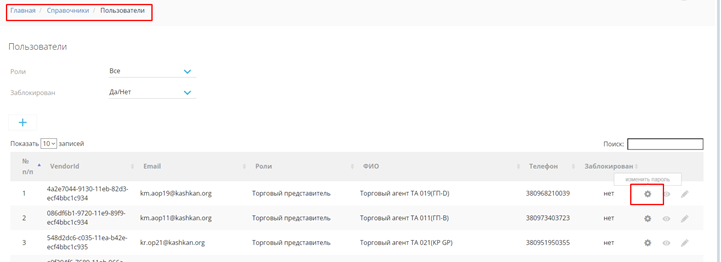
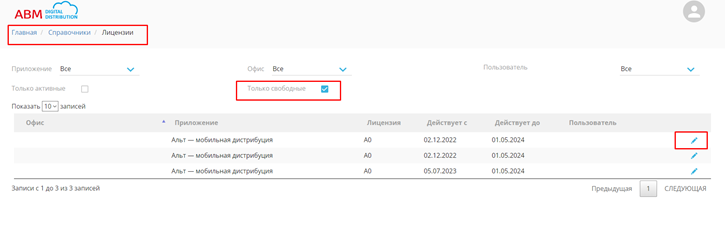
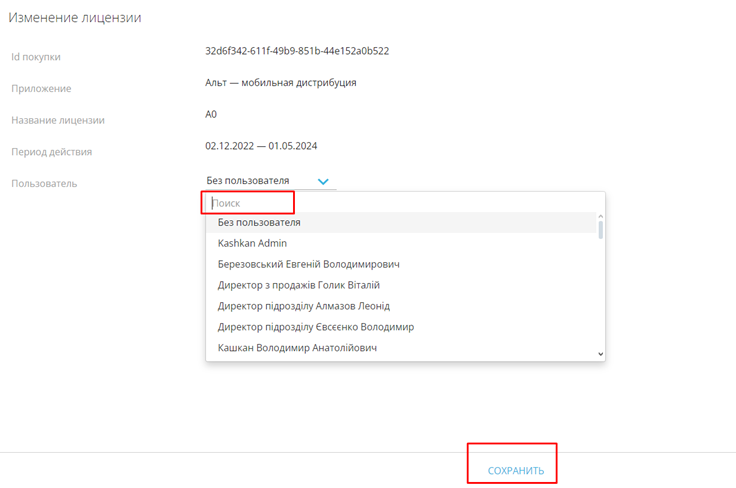
**<span lang="RU" style="font-size: 14.0pt; line-height: 107%; mso-bidi-font-family: Calibri; mso-bidi-theme-font: minor-latin; mso-ansi-language: RU;"><span style="mso-list: Ignore;">3.7.<span style="font: 7.0pt 'Times New Roman';"> </span></span></span>**<span lang="RU" style="font-size: 14.0pt; line-height: 107%; mso-ansi-language: RU;">Когда выгрузится в альт назначаем пароль и подвязываем лицензию (А0);</span>

[![image.png](https://wiki.kashkan.org/uploads/images/gallery/2026-04/scaled-1680-/hDTimage.png)](https://wiki.kashkan.org/uploads/images/gallery/2026-04/hDTimage.png)

<span style="font-size: 14.0pt; line-height: 107%; mso-ansi-language: RU;"><span style="mso-spacerun: yes;"> </span></span>

[![image.png](https://wiki.kashkan.org/uploads/images/gallery/2026-04/scaled-1680-/ATWimage.png)](https://wiki.kashkan.org/uploads/images/gallery/2026-04/ATWimage.png)<span style="mso-fareast-language: UK; mso-no-proof: yes;"></span>

[![image.png](https://wiki.kashkan.org/uploads/images/gallery/2026-04/scaled-1680-/kadimage.png)](https://wiki.kashkan.org/uploads/images/gallery/2026-04/kadimage.png)

<span style="mso-fareast-language: UK; mso-no-proof: yes;"></span>

<span lang="RU" style="font-size: 14.0pt; line-height: 107%; font-family: 'Calibri',sans-serif; mso-ascii-theme-font: minor-latin; mso-fareast-font-family: Calibri; mso-fareast-theme-font: minor-latin; mso-hansi-theme-font: minor-latin; mso-bidi-font-family: 'Times New Roman'; mso-bidi-theme-font: minor-bidi; mso-ansi-language: RU; mso-fareast-language: EN-US; mso-bidi-language: AR-SA;">  
</span>

<span lang="RU" style="font-size: 14.0pt; line-height: 107%; mso-ansi-language: RU;"></span>

# Новый СВ \ Смена СВ

# **<span lang="RU" style="font-size: 18.0pt; line-height: 107%; color: windowtext; mso-ansi-language: RU;">Создание СВ</span>**

**<span lang="RU" style="font-size: 14.0pt; line-height: 107%; mso-bidi-font-family: Calibri; mso-bidi-theme-font: minor-latin; mso-ansi-language: RU;"><span style="mso-list: Ignore;">1.<span style="font: 7.0pt 'Times New Roman';"> </span></span></span>**<span lang="RU" style="font-size: 14.0pt; line-height: 107%; mso-ansi-language: RU;">Узнаем у НТО вместо кого СВ, ФИО, номер телефона и какие маршруты подвязывать;</span>

**<span lang="RU" style="font-size: 14.0pt; line-height: 107%; mso-bidi-font-family: Calibri; mso-bidi-theme-font: minor-latin; mso-ansi-language: RU;"><span style="mso-list: Ignore;">2.<span style="font: 7.0pt 'Times New Roman';"> </span></span></span>**<span lang="RU" style="font-size: 14.0pt; line-height: 107%; mso-ansi-language: RU;">Переходим справочник: объединение маршрутов;</span>

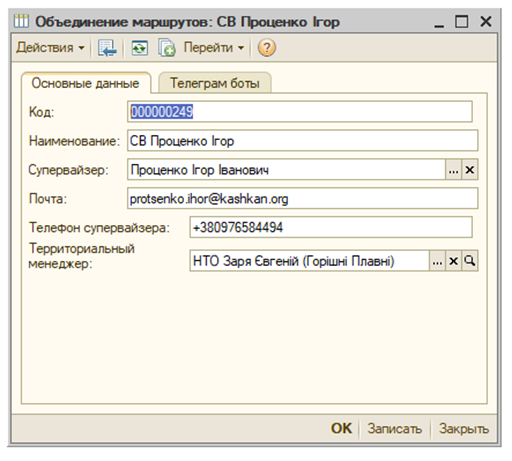
**<span lang="RU" style="font-size: 14.0pt; line-height: 107%; mso-bidi-font-family: Calibri; mso-bidi-theme-font: minor-latin; mso-ansi-language: RU;"><span style="mso-list: Ignore;">3.<span style="font: 7.0pt 'Times New Roman';"> </span></span></span>**<span lang="RU" style="font-size: 14.0pt; line-height: 107%; mso-ansi-language: RU;">Добавляем СВ и заполняем поля по аналогии (эмейл создает айти отдел и предоставляет для подвязки к СВ). Наименование – «СВ» и ФИ, супервайзер – физ лицо, почта – эмейл от айти, территориальный менеджер – НТО;</span>

[![image.png](https://wiki.kashkan.org/uploads/images/gallery/2026-04/scaled-1680-/crFimage.png)](https://wiki.kashkan.org/uploads/images/gallery/2026-04/crFimage.png)<span style="mso-fareast-language: UK; mso-no-proof: yes;"></span>

**<span lang="RU" style="font-size: 14.0pt; line-height: 107%; mso-bidi-font-family: Calibri; mso-bidi-theme-font: minor-latin; mso-ansi-language: RU;"><span style="mso-list: Ignore;">4.<span style="font: 7.0pt 'Times New Roman';"> </span></span></span>**<span lang="RU" style="font-size: 14.0pt; line-height: 107%; mso-ansi-language: RU;">Переходим в справочник: маршруты агентов;</span>

[![image.png](https://wiki.kashkan.org/uploads/images/gallery/2026-04/scaled-1680-/C99image.png)](https://wiki.kashkan.org/uploads/images/gallery/2026-04/C99image.png)<span style="mso-fareast-language: UK; mso-no-proof: yes;"></span>

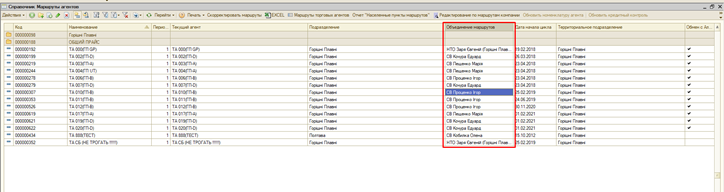
**<span lang="RU" style="font-size: 14.0pt; line-height: 107%; mso-bidi-font-family: Calibri; mso-bidi-theme-font: minor-latin; mso-ansi-language: RU;"><span style="mso-list: Ignore;">5.<span style="font: 7.0pt 'Times New Roman';"> </span></span></span>**<span lang="RU" style="font-size: 14.0pt; line-height: 107%; mso-ansi-language: RU;">Находим нужные маршруты и в объединение маршрутов ставим нового СВ (Подробнее выше в Создание маршрута);</span>

**<span lang="RU" style="font-size: 14.0pt; line-height: 107%; mso-bidi-font-family: Calibri; mso-bidi-theme-font: minor-latin; mso-ansi-language: RU;"><span style="mso-list: Ignore;">6.<span style="font: 7.0pt 'Times New Roman';"> </span></span></span>**<span lang="RU" style="font-size: 14.0pt; line-height: 107%; mso-ansi-language: RU;">В цепочке согласований два варианта: СВ новый, СВ вместо кого-то;</span>

**<span lang="RU" style="font-size: 14.0pt; line-height: 107%; mso-bidi-font-family: Calibri; mso-bidi-theme-font: minor-latin; mso-ansi-language: RU;"><span style="mso-list: Ignore;">6.1.<span style="font: 7.0pt 'Times New Roman';"> </span></span></span>**<span lang="RU" style="font-size: 14.0pt; line-height: 107%; mso-ansi-language: RU;">СВ новый:</span>

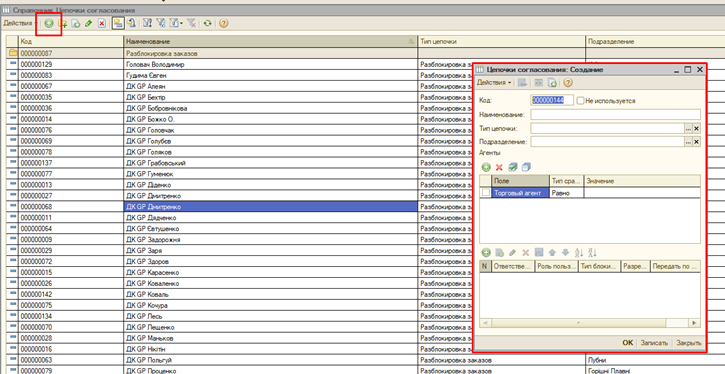
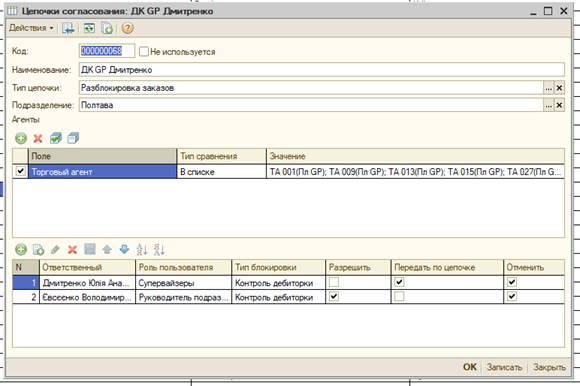
<span lang="RU" style="font-size: 14.0pt; line-height: 107%; mso-ansi-language: RU;">Наименование по аналогии с другими, тип цепочки – разблокировка заказов / согласование скидок, торговый агент – В списке – в значения ставим торговых, к маршрутам которых привязан СВ, ответственных назначаем в последовательности первый СВ, второй НТО;</span>

[![image.png](https://wiki.kashkan.org/uploads/images/gallery/2026-04/scaled-1680-/zQeimage.png)](https://wiki.kashkan.org/uploads/images/gallery/2026-04/zQeimage.png)<span style="mso-fareast-language: UK; mso-no-proof: yes;"></span>

<span lang="RU" style="font-size: 14.0pt; line-height: 107%; mso-ansi-language: RU;">Пример:</span>

[![image.png](https://wiki.kashkan.org/uploads/images/gallery/2026-04/scaled-1680-/SEzimage.png)](https://wiki.kashkan.org/uploads/images/gallery/2026-04/SEzimage.png)<span style="mso-fareast-language: UK; mso-no-proof: yes;"></span>

**<span lang="RU" style="font-size: 14.0pt; line-height: 107%; mso-bidi-font-family: Calibri; mso-bidi-theme-font: minor-latin; mso-ansi-language: RU;"><span style="mso-list: Ignore;">6.2.<span style="font: 7.0pt 'Times New Roman';"> </span></span></span>**<span lang="RU" style="font-size: 14.0pt; line-height: 107%; mso-ansi-language: RU;">СВ вместо кого-то: меняем наименование по фамилии нового СВ и меняем СВ в ответственных;</span>

**<span lang="RU" style="font-size: 14.0pt; line-height: 107%; mso-bidi-font-family: Calibri; mso-bidi-theme-font: minor-latin; mso-ansi-language: RU;"><span style="mso-list: Ignore;">7.<span style="font: 7.0pt 'Times New Roman';"> </span></span></span>**<span lang="RU" style="font-size: 14.0pt; line-height: 107%; mso-ansi-language: RU;">Когда СВ выгружается в альт есть также два варианта действий:</span>

**<span lang="RU" style="font-size: 14.0pt; line-height: 107%; mso-bidi-font-family: Calibri; mso-bidi-theme-font: minor-latin; mso-ansi-language: RU;"><span style="mso-list: Ignore;">7.1.<span style="font: 7.0pt 'Times New Roman';"> </span></span></span>***<span lang="RU" style="font-size: 14.0pt; line-height: 107%; mso-ansi-language: RU;">Новый СВ</span>*<span lang="RU" style="font-size: 14.0pt; line-height: 107%; mso-ansi-language: RU;">: назначаем пароль для альта и подвязываем лицензию (подробнее выше в Создание маршрута);</span>

**<span lang="RU" style="font-size: 14.0pt; line-height: 107%; mso-bidi-font-family: Calibri; mso-bidi-theme-font: minor-latin; mso-ansi-language: RU;"><span style="mso-list: Ignore;">7.2.<span style="font: 7.0pt 'Times New Roman';"> </span></span></span>***<span lang="RU" style="font-size: 14.0pt; line-height: 107%; mso-ansi-language: RU;">СВ вместо кого-то</span>*<span lang="RU" style="font-size: 14.0pt; line-height: 107%; mso-ansi-language: RU;">:</span>

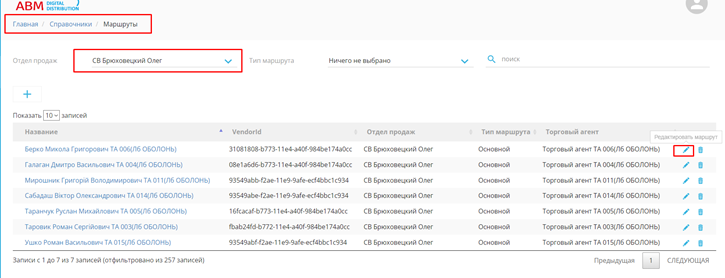
**<span lang="RU" style="font-size: 14.0pt; line-height: 107%; mso-bidi-font-family: Calibri; mso-bidi-theme-font: minor-latin; mso-ansi-language: RU;"><span style="mso-list: Ignore;">7.3.<span style="font: 7.0pt 'Times New Roman';"> </span></span></span>**<span lang="RU" style="font-size: 14.0pt; line-height: 107%; mso-ansi-language: RU;">Идем в справочники маршрутов, находим маршруты нового СВ и подвязываем все найденные маршруты к старому СВ, не забываем опуститься вниз в редактировании параметров маршрута и нажать сохранить;</span>

[![image.png](https://wiki.kashkan.org/uploads/images/gallery/2026-04/scaled-1680-/nReimage.png)](https://wiki.kashkan.org/uploads/images/gallery/2026-04/nReimage.png)

[![image.png](https://wiki.kashkan.org/uploads/images/gallery/2026-04/scaled-1680-/7vMimage.png)](https://wiki.kashkan.org/uploads/images/gallery/2026-04/7vMimage.png)
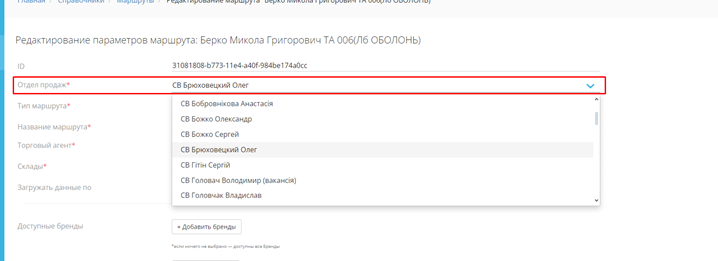
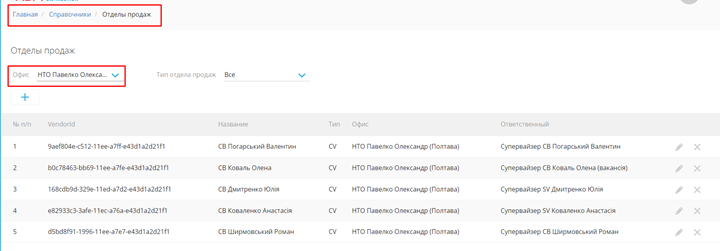
**<span lang="RU" style="font-size: 14.0pt; line-height: 107%; mso-bidi-font-family: Calibri; mso-bidi-theme-font: minor-latin; mso-ansi-language: RU;"><span style="mso-list: Ignore;">7.4.<span style="font: 7.0pt 'Times New Roman';"> </span></span></span>**<span lang="RU" style="font-size: 14.0pt; line-height: 107%; mso-ansi-language: RU;">Переходим в справочники отделов продаж и находим нужных СВ по НТО;</span>

[![image.png](https://wiki.kashkan.org/uploads/images/gallery/2026-04/scaled-1680-/eLFimage.png)](https://wiki.kashkan.org/uploads/images/gallery/2026-04/eLFimage.png)<span style="mso-fareast-language: UK; mso-no-proof: yes;"></span>

**<span lang="RU" style="font-size: 14.0pt; line-height: 107%; mso-bidi-font-family: Calibri; mso-bidi-theme-font: minor-latin; mso-ansi-language: RU;"><span style="mso-list: Ignore;">7.5.<span style="font: 7.0pt 'Times New Roman';"> </span></span></span>**<span lang="RU" style="font-size: 14.0pt; line-height: 107%; mso-ansi-language: RU;">Сначала редактируем НОВОГО СВ;</span>

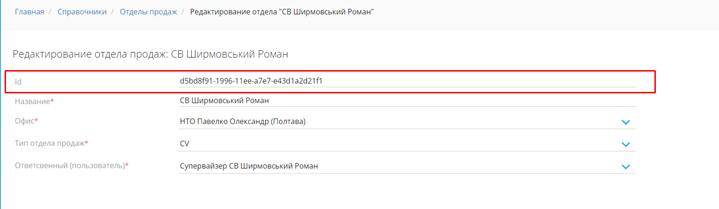
**<span lang="RU" style="font-size: 14.0pt; line-height: 107%; mso-bidi-font-family: Calibri; mso-bidi-theme-font: minor-latin; mso-ansi-language: RU;"><span style="mso-list: Ignore;">7.6.<span style="font: 7.0pt 'Times New Roman';"> </span></span></span>**<span lang="RU" style="font-size: 14.0pt; line-height: 107%; mso-ansi-language: RU;">Копируем в блокнот айди нового СВ, после вместо айди в альт мониторе пишем «на удаление» и сохраняем;</span>

[![image.png](https://wiki.kashkan.org/uploads/images/gallery/2026-04/scaled-1680-/5WCimage.png)](https://wiki.kashkan.org/uploads/images/gallery/2026-04/5WCimage.png)<span style="mso-fareast-language: UK; mso-no-proof: yes;"></span>

**<span lang="RU" style="font-size: 14.0pt; line-height: 107%; mso-bidi-font-family: Calibri; mso-bidi-theme-font: minor-latin; mso-ansi-language: RU;"><span style="mso-list: Ignore;">7.7.<span style="font: 7.0pt 'Times New Roman';"> </span></span></span>**<span lang="RU" style="font-size: 14.0pt; line-height: 107%; mso-ansi-language: RU;">Переходим в редактирование СТАРОГО СВ:</span>

**<span lang="RU" style="font-size: 14.0pt; line-height: 107%; mso-bidi-font-family: Calibri; mso-bidi-theme-font: minor-latin; mso-ansi-language: RU;"><span style="mso-list: Ignore;">7.8.<span style="font: 7.0pt 'Times New Roman';"> </span></span></span>**<span lang="RU" style="font-size: 14.0pt; line-height: 107%; mso-ansi-language: RU;">В поле айди вставляем скопированное в блокнот айди, в названии пишем фамилию и имя на нового СВ, в ответственных ставим нового СВ, сохраняем</span>

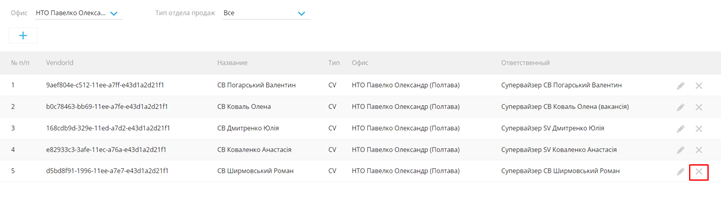
**<span lang="RU" style="font-size: 14.0pt; line-height: 107%; mso-bidi-font-family: Calibri; mso-bidi-theme-font: minor-latin; mso-ansi-language: RU;"><span style="mso-list: Ignore;">7.9.<span style="font: 7.0pt 'Times New Roman';"> </span></span></span>**<span lang="RU" style="font-size: 14.0pt; line-height: 107%; mso-ansi-language: RU;">Возвращаемся в отделы продаж, находим СВ, у которого айди «на удаление» и удаляем его;</span>

[![image.png](https://wiki.kashkan.org/uploads/images/gallery/2026-04/scaled-1680-/QkKimage.png)](https://wiki.kashkan.org/uploads/images/gallery/2026-04/QkKimage.png)

**<span lang="RU" style="font-size: 14.0pt; line-height: 107%; mso-bidi-font-family: Calibri; mso-bidi-theme-font: minor-latin; mso-ansi-language: RU;"><span style="mso-list: Ignore;">7.10.<span style="font: 7.0pt 'Times New Roman';"> </span></span></span>**<span lang="RU" style="font-size: 14.0pt; line-height: 107%; mso-ansi-language: RU;">В пользователях назначаем пароль, находим лицензию старого СВ и меняем ответственного на нового СВ;</span>

[![image.png](https://wiki.kashkan.org/uploads/images/gallery/2026-04/scaled-1680-/ix9image.png)](https://wiki.kashkan.org/uploads/images/gallery/2026-04/ix9image.png)<span style="mso-fareast-language: UK; mso-no-proof: yes;"></span>

[![image.png](https://wiki.kashkan.org/uploads/images/gallery/2026-04/scaled-1680-/CLlimage.png)](https://wiki.kashkan.org/uploads/images/gallery/2026-04/CLlimage.png)

# Как убрать удаленные накладные в альте

<span lang="RU" style="font-size: 14.0pt; line-height: 107%; mso-ansi-language: RU;">Когда накладную помечают на удаление, она больше не обновляется в альт, в следствии чего в альте каждый день скапливаются удаленные накладные. Чтобы убрать удаленные накладные, нужно делать выгрузку несоответствий через сверку. </span>

*<span lang="RU" style="font-size: 14.0pt; line-height: 107%; mso-ansi-language: RU;">Путь: Операции / Обработка / (</span><span lang="EN-US" style="font-size: 14.0pt; line-height: 107%; mso-ansi-language: EN-US;">ddapp</span><span lang="RU" style="font-size: 14.0pt; line-height: 107%; mso-ansi-language: RU;">) Интерфейс / Документы / Сверка документов</span>*

<span lang="RU" style="font-size: 14.0pt; line-height: 107%; mso-ansi-language: RU;">Лучше всего делать выгрузку каждый день. Выгрузку следует делать за текущий день и предыдущий день, например если сегодня 07.05, то выгрузку стоит сделать за сегодня и за 06.05. Если же сверка происходит в понедельник, то выгрузку стоит сделать за понедельник, прошлую пятницу и прошлую субботу.</span>

[![image.png](https://wiki.kashkan.org/uploads/images/gallery/2026-04/scaled-1680-/mWzimage.png)](https://wiki.kashkan.org/uploads/images/gallery/2026-04/mWzimage.png)<span style="mso-fareast-language: UK; mso-no-proof: yes;"></span>

[![image.png](https://wiki.kashkan.org/uploads/images/gallery/2026-04/scaled-1680-/B11image.png)](https://wiki.kashkan.org/uploads/images/gallery/2026-04/B11image.png)<span style="mso-fareast-language: UK; mso-no-proof: yes;"></span>

[![image.png](https://wiki.kashkan.org/uploads/images/gallery/2026-04/scaled-1680-/JZbimage.png)](https://wiki.kashkan.org/uploads/images/gallery/2026-04/JZbimage.png)<span style="mso-fareast-language: UK; mso-no-proof: yes;"></span>

<span lang="RU" style="font-size: 14.0pt; line-height: 107%; mso-ansi-language: RU;">Для более корректной работы сверки лучше брать даты одного дня.</span>

[![image.png](https://wiki.kashkan.org/uploads/images/gallery/2026-04/scaled-1680-/1VIimage.png)](https://wiki.kashkan.org/uploads/images/gallery/2026-04/1VIimage.png)<span style="mso-fareast-language: UK; mso-no-proof: yes;"></span>

[![image.png](https://wiki.kashkan.org/uploads/images/gallery/2026-04/scaled-1680-/Lrximage.png)](https://wiki.kashkan.org/uploads/images/gallery/2026-04/Lrximage.png)<span style="mso-fareast-language: UK; mso-no-proof: yes;"></span>

<span lang="RU" style="font-size: 14.0pt; line-height: 107%; mso-ansi-language: RU;">После нажатия кнопки заполнить ожидайте пока произойдет сверка. Когда появятся накладные выгружаем несоответствия, чем больше несоответствий, тем дольше будет выгружать.</span>

[![image.png](https://wiki.kashkan.org/uploads/images/gallery/2026-04/scaled-1680-/lhaimage.png)](https://wiki.kashkan.org/uploads/images/gallery/2026-04/lhaimage.png)<span style="mso-fareast-language: UK; mso-no-proof: yes;"></span>

# Как внести планы в альт монитор

<span lang="RU" style="font-size: 14.0pt; line-height: 107%;">Следует убедится, что в шаблоне стоит первое число нужного месяца:</span>

[![image.png](https://wiki.kashkan.org/uploads/images/gallery/2026-04/scaled-1680-/OiMimage.png)](https://wiki.kashkan.org/uploads/images/gallery/2026-04/OiMimage.png)<span style="mso-ansi-language: UK; mso-fareast-language: UK; mso-no-proof: yes;"></span>

<span lang="RU" style="font-size: 14.0pt; line-height: 107%;">Важно помнить, что альт не может за раз выгрузить план, который включает в себя больше </span><span lang="RU" style="font-size: 14.0pt; line-height: 107%; mso-bidi-font-family: Calibri; mso-bidi-theme-font: minor-latin;">± </span><span lang="RU" style="font-size: 14.0pt; line-height: 107%;">50 ячеек. **Если план сбросили небольшой**, то достаточно нажать на кнопку «выгрузить план»<span style="mso-no-proof: yes;"> </span></span>

**<span lang="RU" style="font-size: 14.0pt; line-height: 107%; mso-no-proof: yes;">Данные для выгрузки уточняйте у айти отдела:</span>**

[![image.png](https://wiki.kashkan.org/uploads/images/gallery/2026-04/scaled-1680-/SRoimage.png)](https://wiki.kashkan.org/uploads/images/gallery/2026-04/SRoimage.png)

<span style="font-size: 14.0pt; line-height: 107%; mso-ansi-language: UK; mso-fareast-language: UK; mso-no-proof: yes;">  
</span>

<span lang="RU" style="font-size: 14.0pt; line-height: 107%; font-family: Symbol; mso-fareast-font-family: Symbol; mso-bidi-font-family: Symbol;"><span style="mso-list: Ignore;">·<span style="font: 7.0pt 'Times New Roman';"> </span></span></span><span lang="RU" style="font-size: 14.0pt; line-height: 107%;">Если кнопки нет, убедитесь, что включена надстройка:</span>

*<span lang="RU" style="font-size: 14.0pt; line-height: 107%;">Файл / Параметры / Надстройки / Надстройки СОМ / </span><span lang="EN-US" style="font-size: 14.0pt; line-height: 107%; mso-ansi-language: EN-US;">excelAddInForCube</span><span lang="RU" style="font-size: 14.0pt; line-height: 107%;"> (Скриншоты ниже)</span>*

<span lang="RU" style="font-size: 14.0pt; line-height: 107%;">Если галочка стоит, то снимите галочку, сохраните, затем снова откройте надстройки и снова верните галочку.</span>

<span lang="RU" style="font-size: 14.0pt; line-height: 107%; font-family: Symbol; mso-fareast-font-family: Symbol; mso-bidi-font-family: Symbol;"><span style="mso-list: Ignore;">·<span style="font: 7.0pt 'Times New Roman';"> </span></span></span><span lang="RU" style="font-size: 14.0pt; line-height: 107%;">Если самой надстройки нет, то ее необходимо установить, скачав с официального сайта альта:</span>

<span lang="RU">[<span style="font-size: 14.0pt; line-height: 107%;">https://abmdd.helpdeskeddy.com/ru/knowledge\_base/article/35/category/39/#/</span>](https://abmdd.helpdeskeddy.com/ru/knowledge_base/article/35/category/39/#/)</span>

<span lang="RU" style="font-size: 14.0pt; line-height: 107%;">Если при установке выдает ошибку лицензии, следует обратиться в айти отдел.</span><span lang="RU" style="mso-no-proof: yes;"> </span>

[![image.png](https://wiki.kashkan.org/uploads/images/gallery/2026-04/scaled-1680-/AVwimage.png)](https://wiki.kashkan.org/uploads/images/gallery/2026-04/AVwimage.png)

[![image.png](https://wiki.kashkan.org/uploads/images/gallery/2026-04/scaled-1680-/eSOimage.png)](https://wiki.kashkan.org/uploads/images/gallery/2026-04/eSOimage.png)
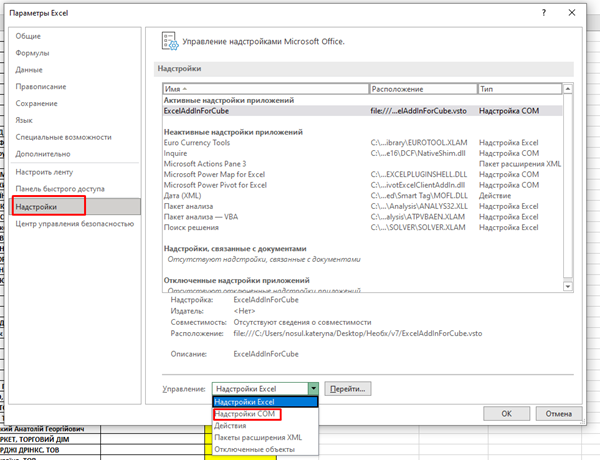
[![image.png](https://wiki.kashkan.org/uploads/images/gallery/2026-04/scaled-1680-/Zjtimage.png)](https://wiki.kashkan.org/uploads/images/gallery/2026-04/Zjtimage.png)<span style="mso-ansi-language: UK; mso-fareast-language: UK; mso-no-proof: yes;"></span>
**<span lang="RU" style="font-size: 14.0pt; line-height: 107%;">Если данных слишком много, следует вносить по частям</span>**<span lang="RU" style="font-size: 14.0pt; line-height: 107%;">. </span>

<span lang="RU" style="font-size: 14.0pt; line-height: 107%; font-family: Symbol; mso-fareast-font-family: Symbol; mso-bidi-font-family: Symbol;"><span style="mso-list: Ignore;">·<span style="font: 7.0pt 'Times New Roman';"> </span></span></span><span lang="RU" style="font-size: 14.0pt; line-height: 107%;">Проще всего скопировать нужные данные и вставить их напротив</span>

[![image.png](https://wiki.kashkan.org/uploads/images/gallery/2026-04/scaled-1680-/shlimage.png)](https://wiki.kashkan.org/uploads/images/gallery/2026-04/shlimage.png)<span style="mso-ansi-language: UK; mso-fareast-language: UK; mso-no-proof: yes;"></span>

<span lang="RU" style="font-size: 14.0pt; line-height: 107%; font-family: Symbol; mso-fareast-font-family: Symbol; mso-bidi-font-family: Symbol;"><span style="mso-list: Ignore;">·<span style="font: 7.0pt 'Times New Roman';"> </span></span></span><span lang="RU" style="font-size: 14.0pt; line-height: 107%;">Далее следует обновить таблицу, чтоб убедится, что все группы товаров актуальны и не ошибиться при вставке данных обратно (если этого не сделать, то при попытке затереть данные с основной таблицы она все равно обновится автоматически, и есть вероятность вставить данные не туда)</span>

[![image.png](https://wiki.kashkan.org/uploads/images/gallery/2026-04/scaled-1680-/mqDimage.png)](https://wiki.kashkan.org/uploads/images/gallery/2026-04/mqDimage.png)<span style="mso-ansi-language: UK; mso-fareast-language: UK; mso-no-proof: yes;"></span>

**<span lang="RU" style="font-size: 14.0pt; line-height: 107%;">ВСЕ ДАННЫЕ ДЛЯ ВЫГРУЗКИ В АЛЬТ ВНОСИМ В ЖЕЛТУЮ КОЛОНКУ</span>**<span lang="RU" style="font-size: 14.0pt; line-height: 107%;">.</span>

<span lang="RU" style="font-size: 14.0pt; line-height: 107%;">Также **в начале месяца следует обновлять рабочие дни**, данные для внесения такие-же.</span>

[![image.png](https://wiki.kashkan.org/uploads/images/gallery/2026-04/scaled-1680-/nE3image.png)](https://wiki.kashkan.org/uploads/images/gallery/2026-04/nE3image.png)<span style="mso-ansi-language: UK; mso-fareast-language: UK; mso-no-proof: yes;"></span>

[![image.png](https://wiki.kashkan.org/uploads/images/gallery/2026-04/scaled-1680-/kxhimage.png)](https://wiki.kashkan.org/uploads/images/gallery/2026-04/kxhimage.png)<span style="mso-ansi-language: UK; mso-fareast-language: UK; mso-no-proof: yes;"></span>

**<span lang="RU" style="font-size: 16.0pt; line-height: 107%;">Если попросили довнести планы вручную.</span>**

<span lang="RU" style="font-size: 14.0pt; line-height: 107%;">Бывают случаи, когда при отправке шаблона каких-то производителей не хватает или уже после отправки шаблона были внесены изменения и некоторым торговым добавили новых производителей. В таких случаях НТО просят довнести планы вручную. НТО в письме дописывает каких производителей не хватает и по каким торговым. Рядом с каждым торговым пишет цифру плана на этого производителя. </span>

[![image.png](https://wiki.kashkan.org/uploads/images/gallery/2026-04/scaled-1680-/K49image.png)](https://wiki.kashkan.org/uploads/images/gallery/2026-04/K49image.png)<span style="font-size: 14.0pt; line-height: 107%; mso-ansi-language: UK; mso-fareast-language: UK; mso-no-proof: yes;"></span>

<span lang="RU" style="font-size: 14.0pt; line-height: 107%;">В таких случаях открываете шаблон и с помощью фильтра находите необходимого производителя. </span>

[![image.png](https://wiki.kashkan.org/uploads/images/gallery/2026-04/scaled-1680-/FBJimage.png)](https://wiki.kashkan.org/uploads/images/gallery/2026-04/FBJimage.png)<span style="mso-ansi-language: UK; mso-fareast-language: UK; mso-no-proof: yes;"></span>

<span lang="RU" style="font-size: 14.0pt; line-height: 107%;">Если при фильтрации не нашло нужного ТА, то в полях сводной таблицы поставьте галочки на плане посещений.</span>

[![image.png](https://wiki.kashkan.org/uploads/images/gallery/2026-04/scaled-1680-/g4fimage.png)](https://wiki.kashkan.org/uploads/images/gallery/2026-04/g4fimage.png)<span style="mso-ansi-language: UK; mso-fareast-language: UK; mso-no-proof: yes;"></span>

<span lang="RU" style="font-size: 14.0pt; line-height: 107%;">Если окно «Поля сводной таблицы» не открылось автоматически, то его можно открыть через анализ сводной таблицы / показать / поля сводной таблицы.</span>

[![image.png](https://wiki.kashkan.org/uploads/images/gallery/2026-04/scaled-1680-/In9image.png)](https://wiki.kashkan.org/uploads/images/gallery/2026-04/In9image.png)<span style="mso-ansi-language: UK; mso-fareast-language: UK; mso-no-proof: yes;"></span>

**<span lang="RU" style="font-size: 14.0pt; line-height: 107%;">Файл, который можно брать за основу для создания шаблона или для внесения планов:</span>**<span lang="RU" style="font-size: 14.0pt; line-height: 107%;"></span>

[**<span lang="RU" style="font-size: 14.0pt; line-height: 107%;">https://docs.google.com/spreadsheets/d/1cgmWBuMwEA0mYGxy4h6hsz1SVOciW9ru/edit?usp=sharing&amp;ouid=111695899557537157052&amp;rtpof=true&amp;sd=true</span>**](https://drive.google.com/drive/folders/1HYky84cnyhYoRHn1-YbLKBY4yDlAf-Ea?usp=sharing)

# Помилка в мобільній 1С при зміні пристрою

##### Якщо пише торговий, що у нього помилка при синхронізації при зміні пристрою необхідно зайти в "Справочник - Дистрибуция - Управление агентами - торговые агенты"

[![image.png](https://wiki.kashkan.org/uploads/images/gallery/2026-04/scaled-1680-/d4rimage.png)](https://wiki.kashkan.org/uploads/images/gallery/2026-04/d4rimage.png)
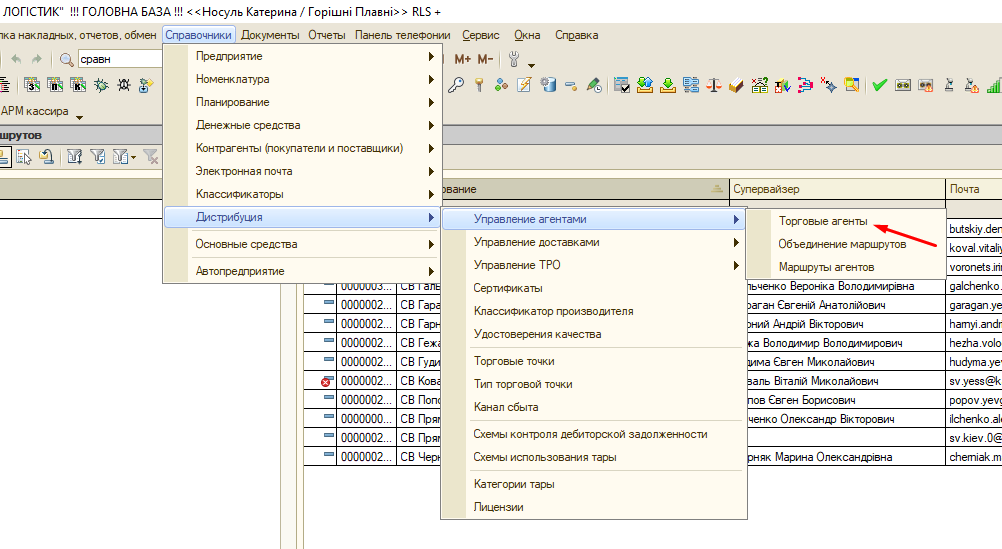
##### Знаходимо необхідного агента та відкриваємо. Переходимо у дод. інформацію і видаляємо ключ.

[![image.png](https://wiki.kashkan.org/uploads/images/gallery/2026-04/scaled-1680-/lkMimage.png)](https://wiki.kashkan.org/uploads/images/gallery/2026-04/lkMimage.png)
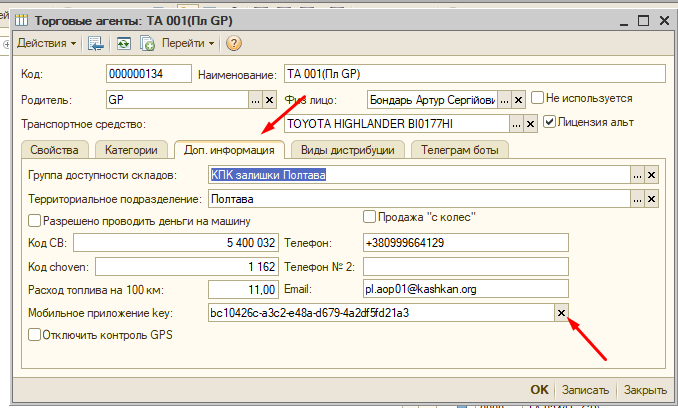
##### Натискаємо ок і торговий може синхронізуватись

# Інструкція по обміну даних з BAS CORP в INTALEV

##### 1. В програмі BAS CORP формуємо файл з даними за допомогою обробки:

[![image.png](https://wiki.kashkan.org/uploads/images/gallery/2026-05/scaled-1680-/image.png)](https://wiki.kashkan.org/uploads/images/gallery/2026-05/image.png)
##### Обробка знаходиться в головному меню :

[![image.png](https://wiki.kashkan.org/uploads/images/gallery/2026-05/scaled-1680-/AEAimage.png)](https://wiki.kashkan.org/uploads/images/gallery/2026-05/AEAimage.png)
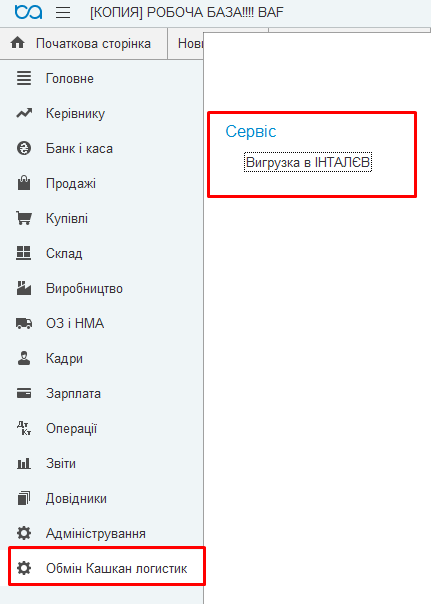
##### 2. Загрузка в УДК: стара обробка, але із зміненою формою

[![image.png](https://wiki.kashkan.org/uploads/images/gallery/2026-05/scaled-1680-/5cSimage.png)](https://wiki.kashkan.org/uploads/images/gallery/2026-05/5cSimage.png)
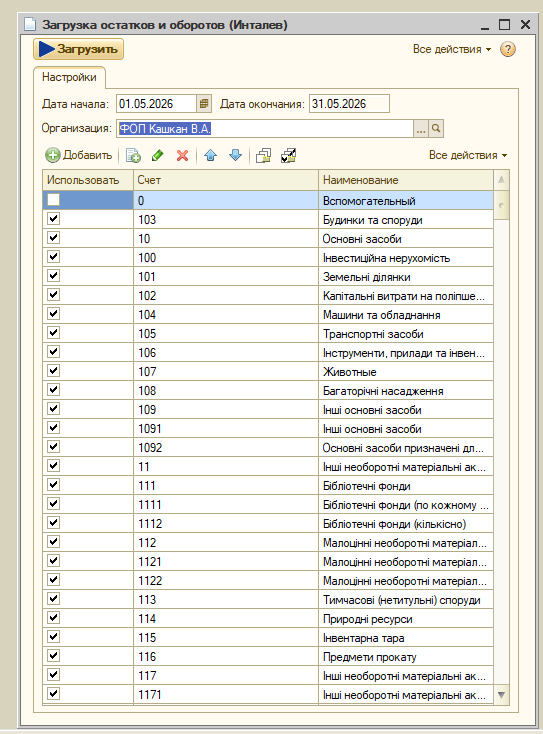
##### <span style="mso-ansi-language: UK;">Вигрузку в </span><span lang="EN-US" style="mso-ansi-language: EN-US;">BAS</span><span style="mso-ansi-language: UK;"> та загрузку в УДК<span style="mso-spacerun: yes;"> </span>потрібно робити по кожній організації.  
</span>

##### <span style="mso-ansi-language: UK;">Вночі включена<span style="mso-spacerun: yes;"> </span>автоматичне оновлення документів за поточний місяць.</span>